

Getting around
The admin panel at /admin is where staff run every site. There is one panel for all the sites,
and one sign-in. Customers have their own separate account area.
Signing in
Section titled “Signing in”Sign in with your Email address and Password. Tick Remember me to stay signed in on that browser.
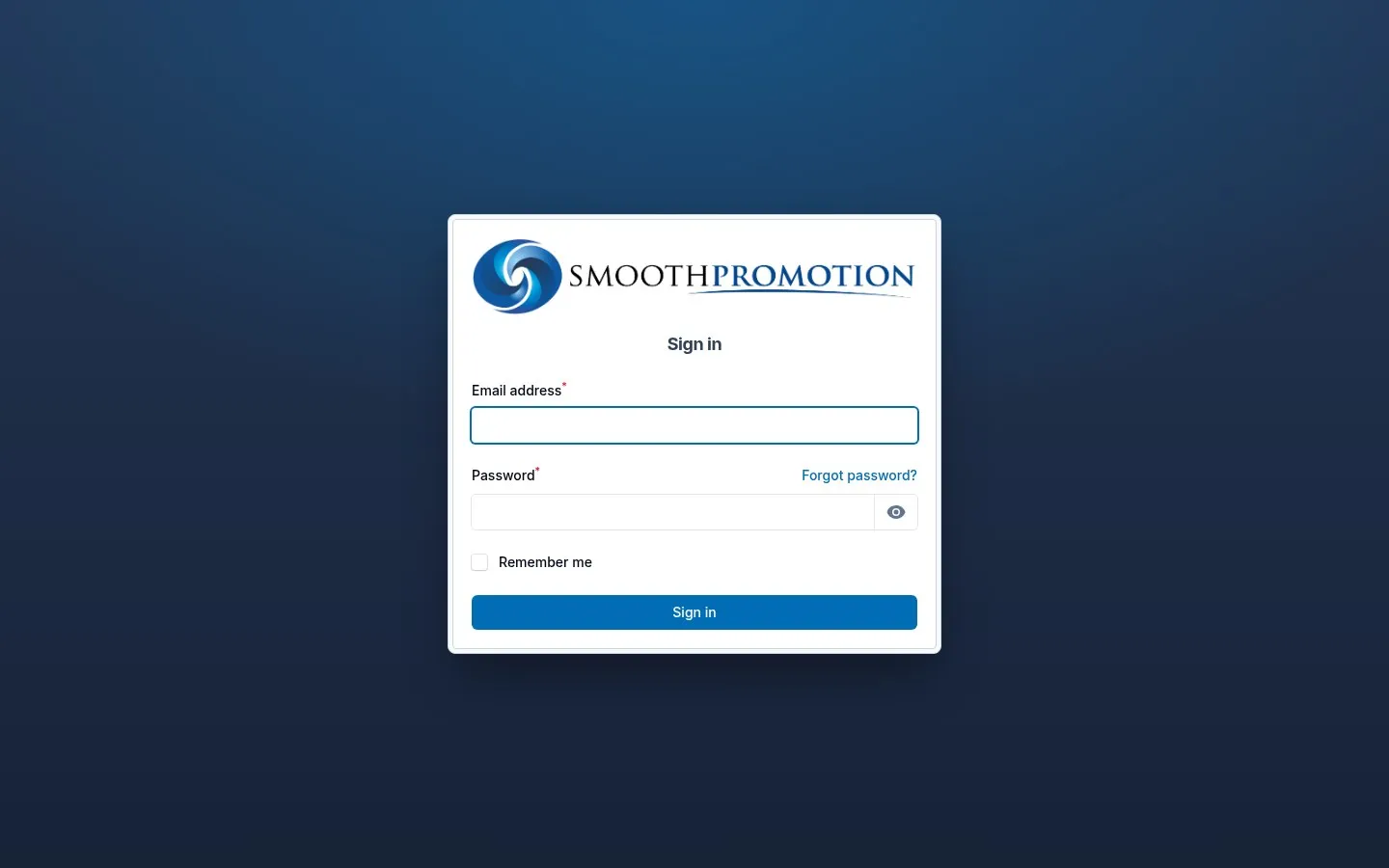
Forgot your password? Use Forgot password? on the sign-in page and enter your email. You get a link to set a new one, which works for 60 minutes.
Too many attempts lock you out briefly: five sign-ins a minute, two reset requests a minute.
The menu
Section titled “The menu”The side menu only shows what your role can use, so you may see less than this. The groups can be folded, and the whole menu collapses to give tables more room.
| Group | Items |
|---|---|
| (top) | Dashboard |
| Content Management | Pages, Post Categories, Posts, Reusable Blocks, Sites, Media Library, Forms |
| Catalog | Brands, Certifications, Product Categories, Product Options, Products |
| Sales | Customers, Quote Requests, Quotes, Sales orders, Invoices, Credit Notes, Payments, Purchase Orders, Tasks, Task calendar |
| Suppliers | Suppliers, Supplier Products, Feeds, Decoration Sheets, Sync history |
| System | Activities, Users, Automations, Background Tasks, Configuration, Custom Fields |
A site’s own screens (content rules, redirects, SEO, menus, widgets and so on) are not in this menu. Open Content Management > Sites, then a site, and they are in its side menu. Navigation menus are one of them. See Sites.
Configuration
Section titled “Configuration”System > Configuration holds the lists and rules you set once and rarely change. It has its own side menu, grouped under headings:
| Heading | Screens | Guide |
|---|---|---|
| General | Settings | Settings |
| Content Management | Merge Tags | Reusable blocks and merge tags |
| Catalog | Text rules, Photo Rules, Photo Download Rules, Split Rules, Protected Words, Search Synonyms | Naming and text rules, Photo rules, Split products, Search |
| Decoration | Decoration Methods, Branding Rules | Branding setup |
| Sales | Payment Terms, Charge Presets, Task Types, Customer Sectors, Tags, Email Templates, Lost Reasons | Sales setup |
| Assistant | Usage, Tool calls | Assistant |
Everything here applies to every site. Settings for one site live on that site.
System > Custom Fields works the same way, with Field Sets, Field Groups and Custom Fields. See Custom fields.
The dashboard
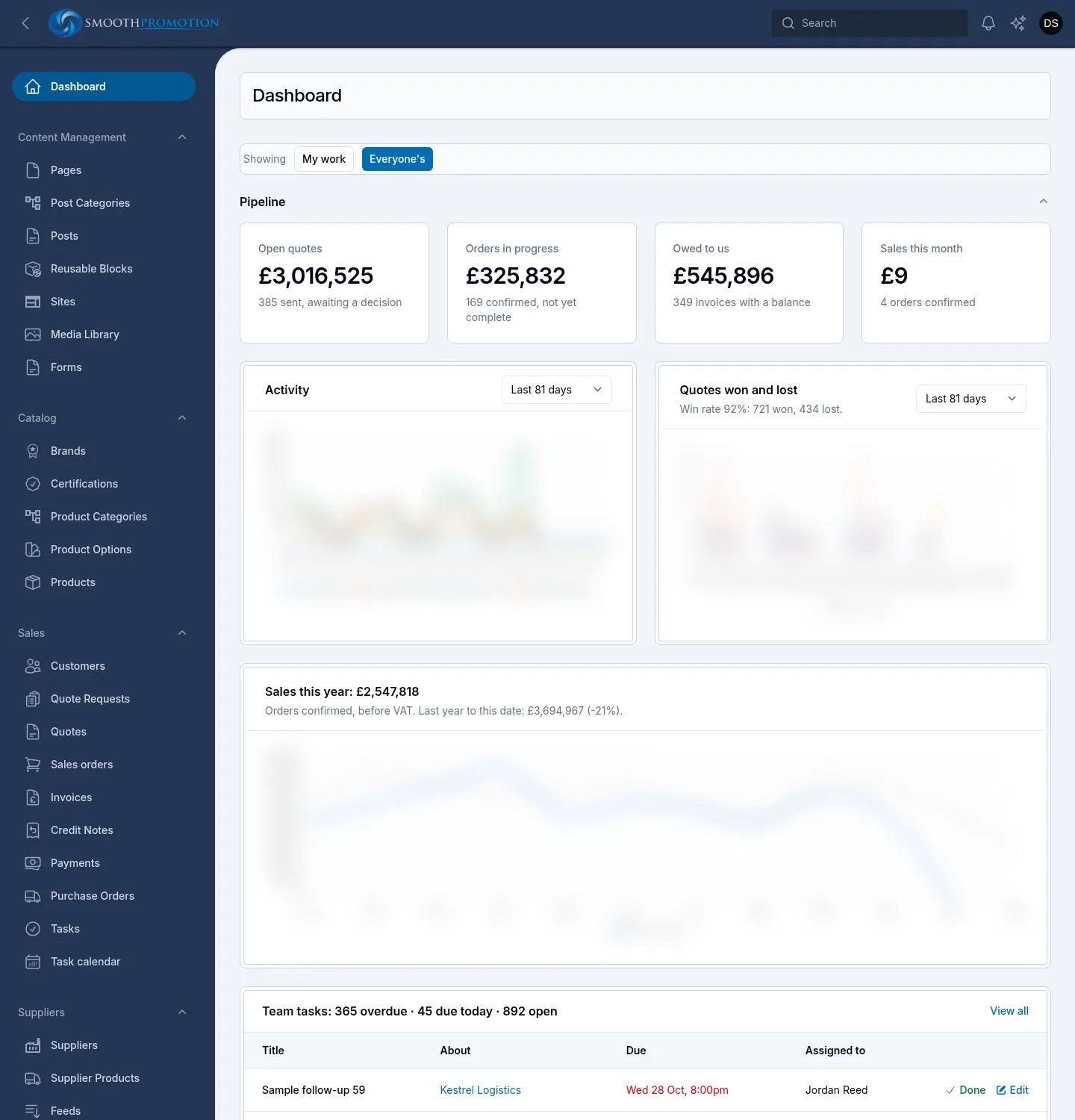
Section titled “The dashboard”The dashboard is your starting point, and it shows work rather than settings. What’s on it depends on your role:
| You see | Who |
|---|---|
| Pipeline figures and the sales chart | Anyone who works with customers |
| Orders to place with suppliers, Shipping this week, Unpaid invoices, your tasks | Anyone who works with customers |
| New requests, Quotes to send, Sent, awaiting contact, Proofs waiting, On order with suppliers, the Activity and Quotes won and lost charts | Sales reps, managers and super admins |
| A Supplier prices need a sync warning, only when a feed’s prices are going stale | Catalog editors, managers and super admins |
Each queue shows its most urgent eight rows, with a count in its heading and View all to open the full list.
If you can see every customer, a Showing switch at the top chooses between My work and Everyone’s. It starts on Everyone’s, and your choice lasts for your session. Everyone else always sees their own work.
A catalog editor has no sales queues, so their dashboard is usually empty.
Finding things: global search
Section titled “Finding things: global search”The Search box in the top bar searches across the panel and shows results grouped by type. It only finds what your role can open, and for sales records only what you may see.
It looks at one field for each kind of record, so search the way the record is known:
| Search by | Records |
|---|---|
| Name or title | Products, supplier products, product categories, brands, certifications, pages, posts, post categories, sites, forms, files, customers, tasks, automations, background tasks |
| Number | Quotes, sales orders, invoices, credit notes, purchase orders |
| Quote requests |
Configuration lists such as charge presets and email templates are searched by name too. Staff accounts are not in global search: use the search box on Users.
Working with tables
Section titled “Working with tables”Most screens are a table. They all behave the same way.
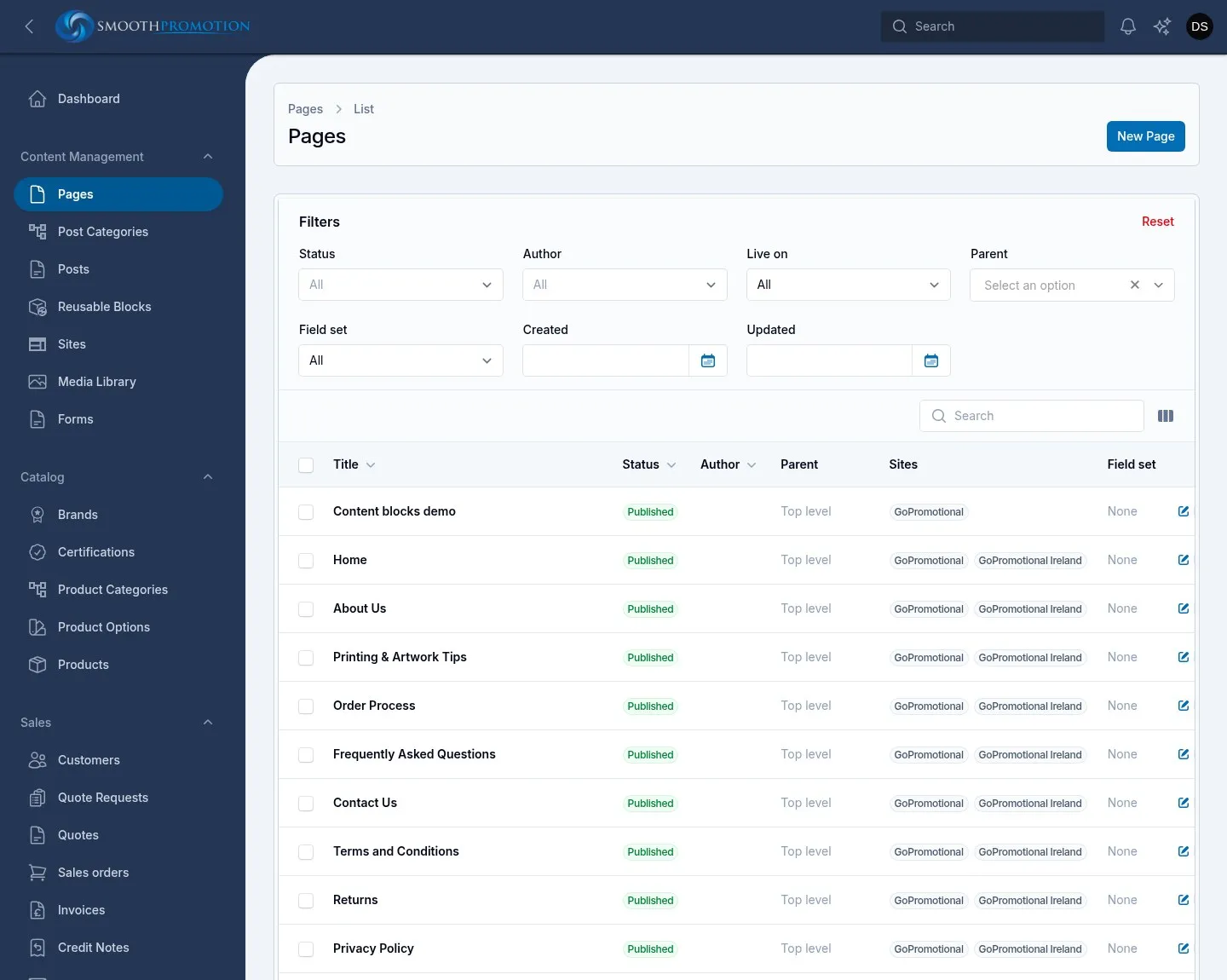
- Search: the box above a table searches the columns that screen allows.
- Filters: these sit above the rows and apply as soon as you change them. They stay set as you move around the panel during your session, so if a list looks short, check for a filter you left on.
- Sorting: click a column heading, if that column can be sorted. Click again to reverse.
- Columns: where a table has optional columns, the columns button above it shows or hides them.
- Rows per page: 25, 50, 100 or 250. Tables start on 50.
Bulk actions
Section titled “Bulk actions”Tick rows, or tick the box in the heading row to select the whole page, then open Bulk actions. What’s offered depends on the screen.
Some bulk actions, such as changing many products at once, run in the background. You’ll see that it was queued, and the result comes to your bell. Don’t run it a second time because nothing has changed yet: a price rise applied twice is applied twice.
Exporting
Section titled “Exporting”Many lists have an Export button, for customers, sales documents, tasks, products and suppliers among others. Choose the columns and the format (CSV or Excel). The export follows the table’s current search and filters, so filter first. It is made in the background, and your bell gives you the download link. Selected rows can be exported as a bulk action too.
Exporting needs the Manager, Accounts or Super admin role, as an export takes customers’ details out of the system. Sales reps and catalog editors don’t see the button.
Notifications
Section titled “Notifications”The bell in the top bar holds messages for you: a background task that finished, a bulk action’s result, an export ready to download, or a notice from an automation. It checks for new ones every 30 seconds. Use Mark all as read or Clear to tidy it.
Short messages that flash up in the corner after you save are confirmations only, and aren’t kept.
Your profile and theme
Section titled “Your profile and theme”Click your avatar at the top right for the user menu.
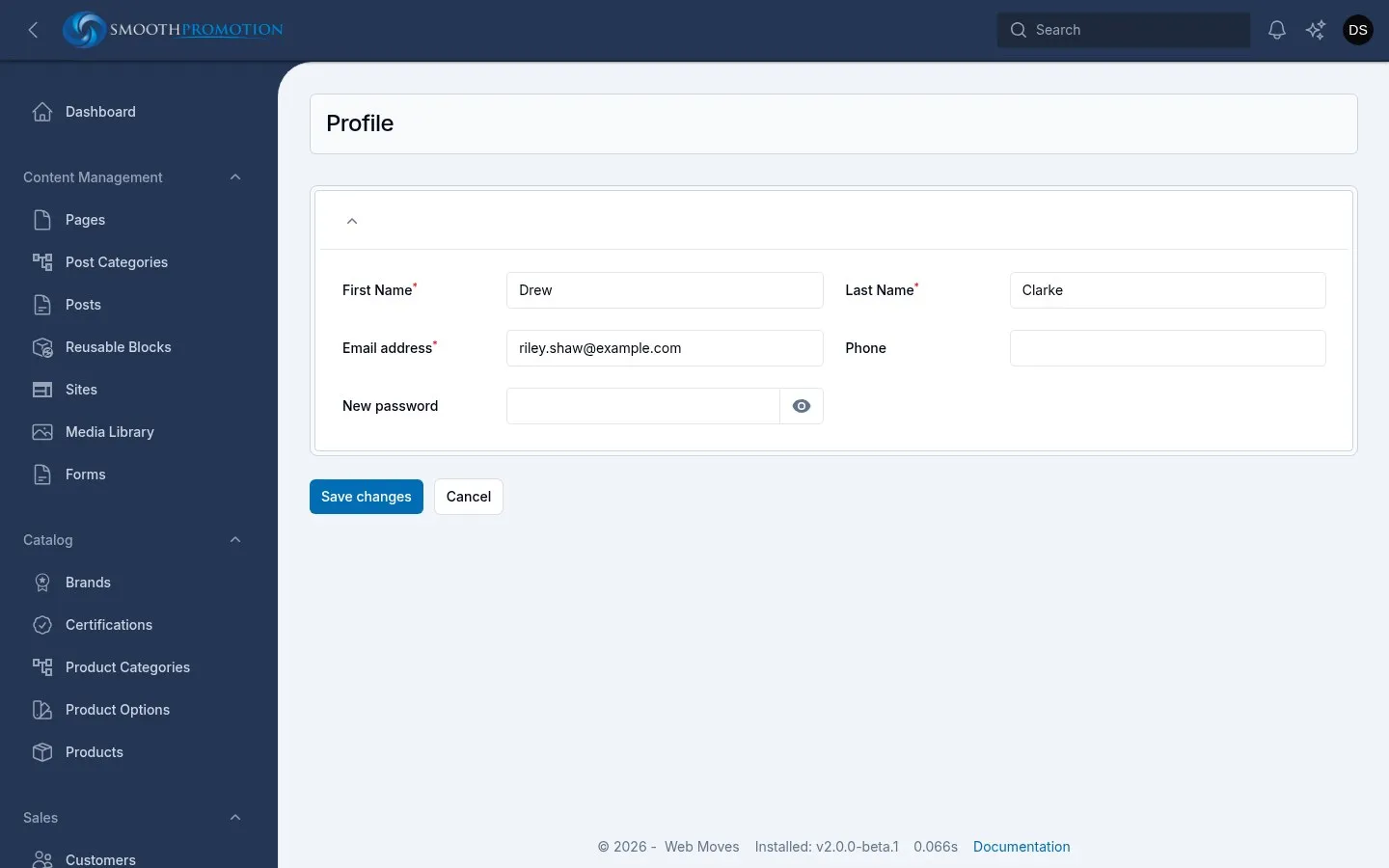
- Your name there opens your profile: first and last name, email, phone and a new password. Leave the password blank to keep the current one.
- The three theme buttons choose light, dark or your system’s setting. The choice is remembered on that browser.
- Sign out is at the bottom.
Your author details (photo, job title, bio) are not on your profile. They are on Users, which only a super admin can open, so ask one to change them.
Also in the top bar and footer
Section titled “Also in the top bar and footer”The sparkle icon opens Mister Smoothie, the assistant. The footer links to this documentation and shows the system’s version.