

Pricing
A product is priced in one of two ways, and the Pricing section of its edit page shows the matching editor.
| Price grid | From supplier costs | |
|---|---|---|
| Which products | Entered here, and imported from the old system | Added from a feed |
| You enter | Selling prices at each quantity | A margin (or leave it to the supplier’s default) |
| The feed supplies | Nothing | Costs, print prices and setup |
| Section on the page | Pricing Structure | Margin, and Decoration pricing from the supplier |
Prices are the same on every site. What differs per site is the quantities shown, and whether the price each includes setup. See per-site settings.
Price grids
Section titled “Price grids”A grid holds selling prices at up to six quantities. Under Pricing Structure:
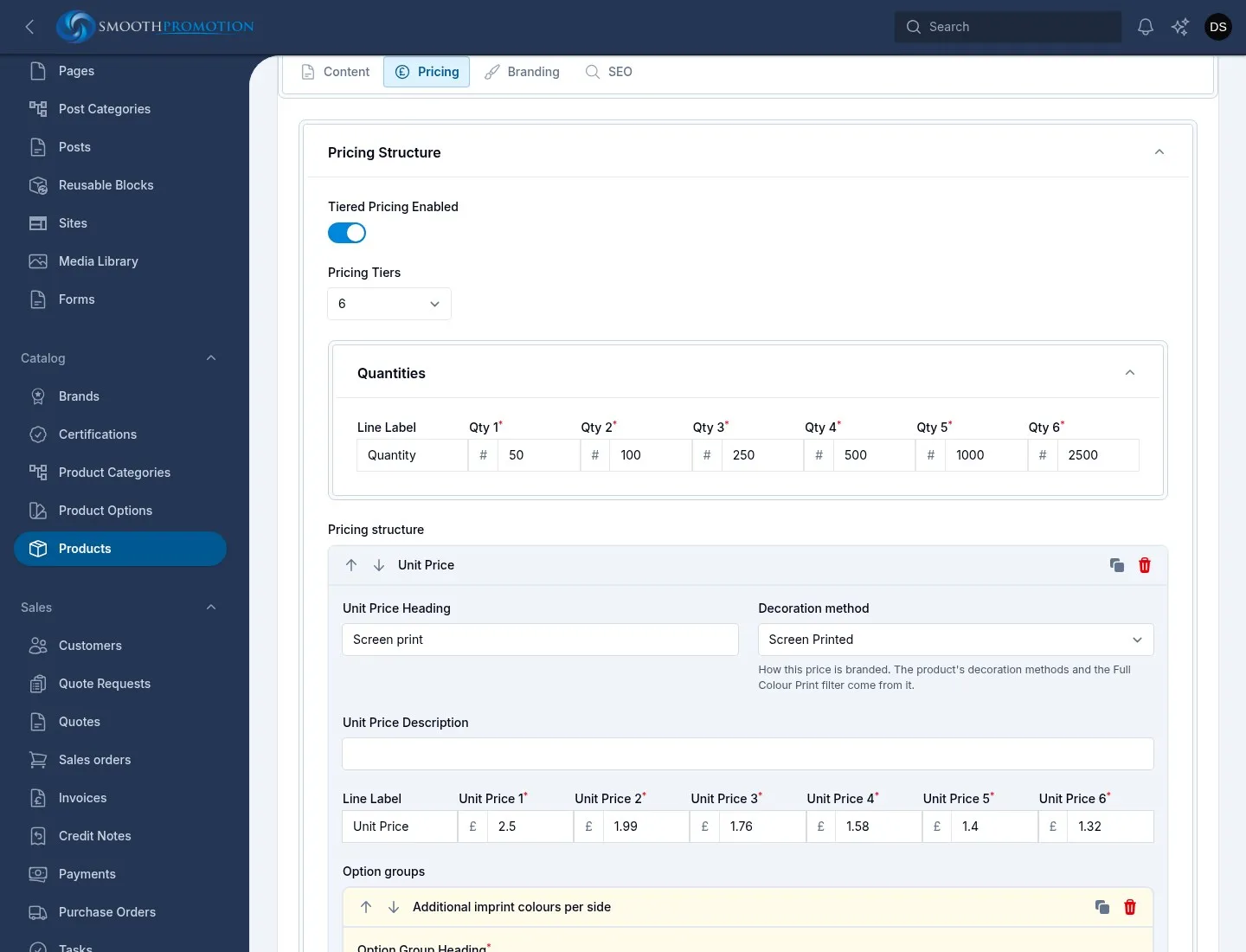
- Leave Tiered Pricing Enabled on and pick the number of Pricing Tiers.
- Fill in the Quantities line.
- Fill in one Unit Price: a Unit Price Heading and the price at each quantity.
Add Unit Price adds another row, for a product priced differently by how it is branded (screen print and full colour, say). The customer picks one. Each row has:
| Field | What it does |
|---|---|
| Unit Price Heading | Its name. |
| Decoration method | How this price is branded. The product’s decoration methods and the Full Colour Print filter come from it. |
| Unit Price Description | Further text. |
| Add Option Group | Extra choices that add to the price. See below. |
| Setup charges | One-off charges. See below. |
Option groups
Section titled “Option groups”Add Option Group asks which type:
| Type | How it prices | Example |
|---|---|---|
| Incremental | The base price includes a number of these; each further one adds a fixed amount | Additional imprint colours |
| Free Form | Each option has its own price per tier | Options that don’t go up in even steps |
An incremental group has Included in base price (how many the unit price already covers), one amount per tier for each further option, and its Selectable options in order, such as “1 colour”, “2 colour”. The first ones, up to the included count, are free. Turn on These are print colours if the options count imprint colours, so the Imprint Colours filter knows the most this price prints.
Setup charges
Section titled “Setup charges”Setup is charged once per order line and shows as a separate charge on quotes. Leave it empty for no setup. A charge has a Label, an Amount and how it is Charged: Once, or Per option (e.g. per colour), which asks which option group to count. With “3 colour” chosen, that counts 3.
Below the rows
Section titled “Below the rows”Pricing Description is free text about the pricing. MRP is the product’s From price (see below), worked out for you. Turn on Override MRP to type your own.
A quantity below the grid’s first break, or a product with no grid, has no price: it needs a quote.
Prices from supplier costs
Section titled “Prices from supplier costs”For a feed product the customer’s price at a quantity is worked out each time, from:
- the variant’s cost at that quantity, from the feed;
- each chosen branding’s print price at that quantity, plus any handling, from the feed;
- the margin.
The margin is a percentage of the selling price, not a markup on cost. A 50% margin on a cost of £1.00 sells at £2.00. Setup has its own rule per feed; see branding setup.
Margin
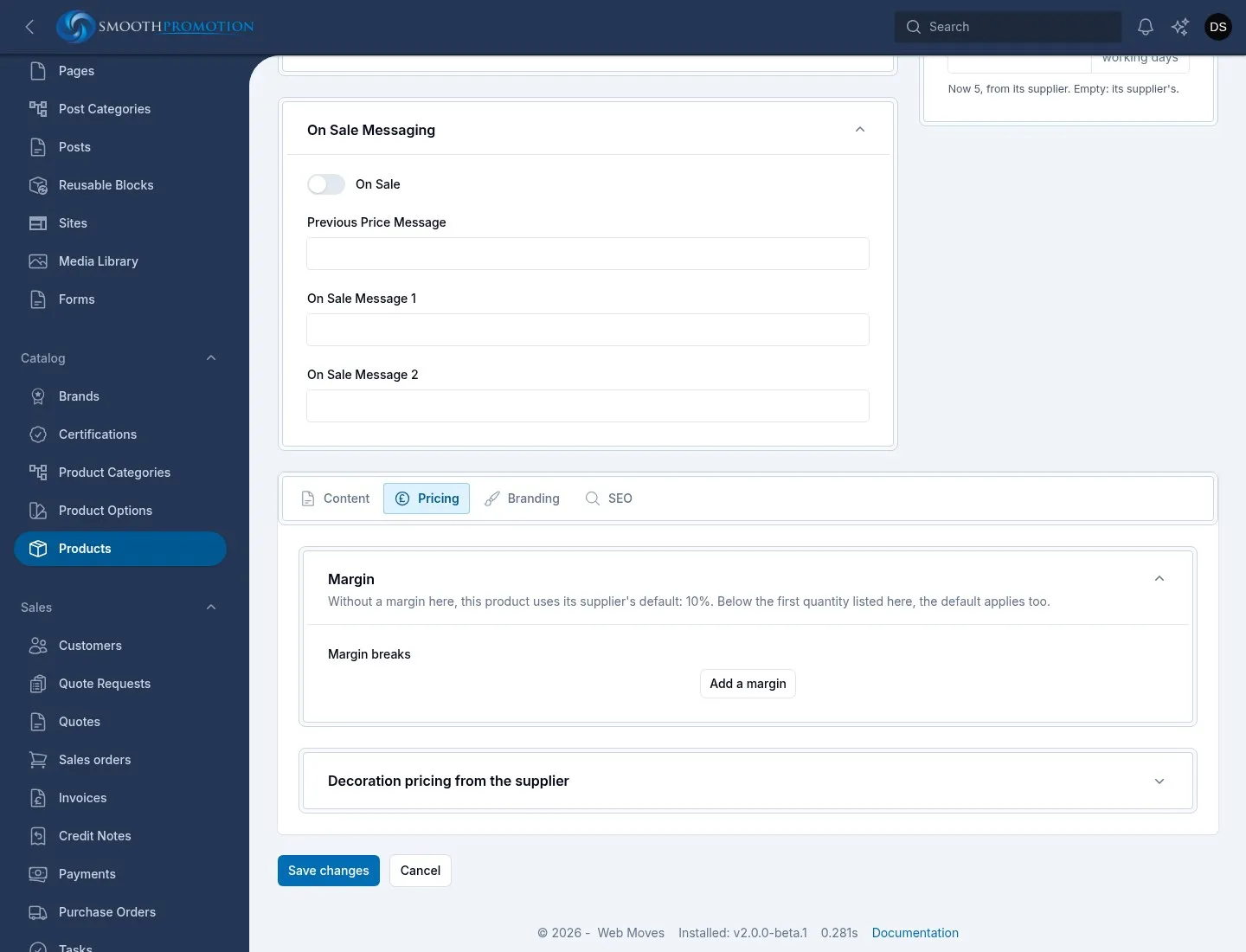
Section titled “Margin”The Margin section lists From quantity and Margin rows. One row from 1 is one margin at every quantity. Several rows change with quantity. With no rows, the product uses its supplier’s default, and the section’s description says what that is. Below the first quantity you list, the default applies too.
With no margin here and no supplier default, the product shows “price on request”.
Decoration pricing from the supplier shows the costs read from the feed: positions, techniques and their price rows, before margin. It is read only, and says whether each technique is shown to customers and, if hidden, why.
When a price is on request
Section titled “When a price is on request”A feed product is never given a price of zero. It shows as on request when, among other things:
- no margin is set for the product or its supplier;
- the supplier gives no cost for that variant at that quantity;
- the quantity is below the variant’s or technique’s minimum;
- the branding is still to be confirmed;
- the supplier’s prices are out of date: the Margin section adds their state when they are not fresh, such as Out of date: price on request or Never synced: price on request. A sync that reads the prices again brings them back. See syncing.
The From price
Section titled “The From price”The price on product cards and at the top of the product page. Category sorting and the price filter use it too.
| Product | From price |
|---|---|
| Price grid | Its lowest unit price at any tier |
| From supplier costs | The lowest price each across the site’s quantities, using the cheapest variant and each branding option at one position, with the simplest choices (one colour, the smallest area) |
| Feed product whose branding is to be confirmed | None |
Variant price adjustments count. Override MRP on a grid product replaces the calculation. A product with no From price shows Contact Us for Pricing on its card.
The From price is stored, and is worked out again when something changes it: a save, new costs from a sync, a change to the branding it offers.
Per-site settings
Section titled “Per-site settings”On a site’s Catalog page (see catalog settings):
| Setting | What it does |
|---|---|
| Quantities, Shown per product | The quantities a product page shows prices at. Each product starts at its minimum order and shows the next ones above it. Products with their own grid show the grid’s quantities. |
| Prices each | Whether “price each” and the From price are the goods alone with setup shown apart, or include setup and other one-off charges spread over the quantity. Totals are the same either way. |
Minimum order
Section titled “Minimum order”Minimum order in a product’s sidebar overrides the rest. If it’s empty, the product takes the highest minimum of its categories (or their parents), then its supplier’s minimum. Its help text says what applies now and where it comes from. To set it for a whole range, use the category. See categories.
Changing many prices
Section titled “Changing many prices”On the product list, tick products and open the bulk actions.
Adjust grid prices takes a signed percentage per tier, such as 5 or -2.5, for Unit prices, Incremental option prices (e.g. additional colours) and Free-form option prices. Blank tiers are unchanged. A unit price percentage moves every unit price on a product. Feed products are skipped, and products whose new prices aren’t valid are skipped and counted.
Set margin replaces the margins of feed products, or with Use the supplier’s default instead (clears their own margins) clears them. Grid products are skipped.
Both show first how many of your selection they apply to. If none, the window offers no way to submit. A supplier’s default margin is on its feed settings: see suppliers.