

File library
The library is where you keep images and PDFs you use more than once, such as a logo. Upload it once, and pick it from any upload field instead of finding it on your computer again. It is shared by all sites.
It is under Content Management › Media Library, and needs the Manager or Catalog editor role. Anyone who can edit a page can pick from the library into that page, without needing the role.
Product photos aren’t kept here: see photos.
Picking a file
Section titled “Picking a file”Any upload field in the panel has Choose from library beside it, in product forms, page blocks, widgets and elsewhere. It opens a window with your folders, a search box and the files, most recently picked first. Click a file and it goes into the field, as though you had uploaded it there. Then save the form as usual.
The window lists only files the field accepts. The button is missing where the library has nothing the field could take, such as a CSV import or a site’s favicon.
If the library file has Alt text and the field has an empty alt field beside it, that is filled in too.
Rich text editors that can take pictures also have Insert from library in their toolbar. It puts an image at the cursor, or for a PDF, a link to it. Most editors inside blocks don’t take pictures: see Blocks.
Picking makes a copy
Section titled “Picking makes a copy”That also means deleting from the library is always safe for your pages.
Managing the library
Section titled “Managing the library”The folder tree is on the left. Click a folder to see the files directly in it. A search looks through the whole library, whichever folder you are in.
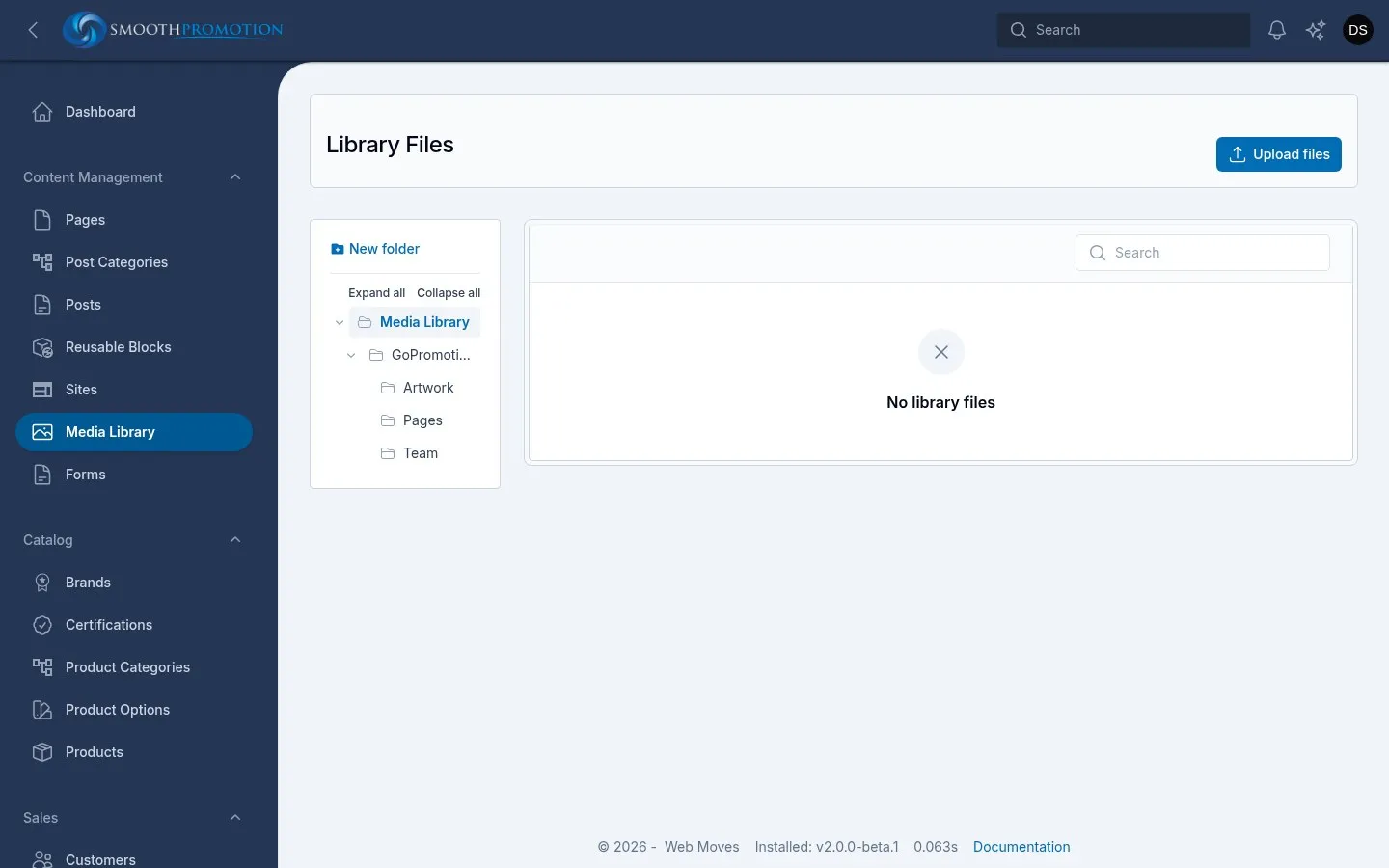
Files:
- Upload files takes many at once, into the folder you are in unless you change it. Each file is named after its file name. It takes images (JPEG, PNG, WebP, GIF, AVIF) and PDFs. SVG isn’t allowed, for security.
- Edit on a file changes its Name, Folder and Alt text, or replaces the File itself. Alt text says what an image shows.
- Tick several and use Move to folder, or delete them.
Folders:
- New folder makes one inside the folder you are in.
- Drag a folder onto another to move it, or use Rename or move on it.
- Delete folder moves its files and subfolders up into the folder above. No files are deleted.
- The top folder can be renamed, but not moved or deleted.
Downloads
Section titled “Downloads”To offer files for visitors to download, such as a price list, a spec sheet or an artwork guide, add a Downloads block to a page. It lists each file with its name, type and size, and the file’s name is the link text.
- The block takes PDF, Word, Excel, PowerPoint, ZIP and JPEG, PNG or WebP images. The library holds only images and PDFs, so upload Word, Excel, PowerPoint and ZIP files straight into the block.
- A file picked from the library keeps its library Name as its link text. A file you upload uses its own file name, so rename it first.
- The block holds its own copy. When a price list changes, remove the old file from the block and add the new one. Updating the library alone won’t change what visitors download.
- Like any block, it can be limited to some sites, which is how one page can offer a different price list per site.