

Variants and options
An option is a way products vary, such as Colour or Size. Its values are shared by the whole catalog: Black, Navy, S, M. A variant is one combination of values on one product, such as “Black / XL”, with its own SKU and stock. A product with no options still has one variant, shown as Default (no options).
Options
Section titled “Options”Catalog > Product Options lists the options, all sites together.
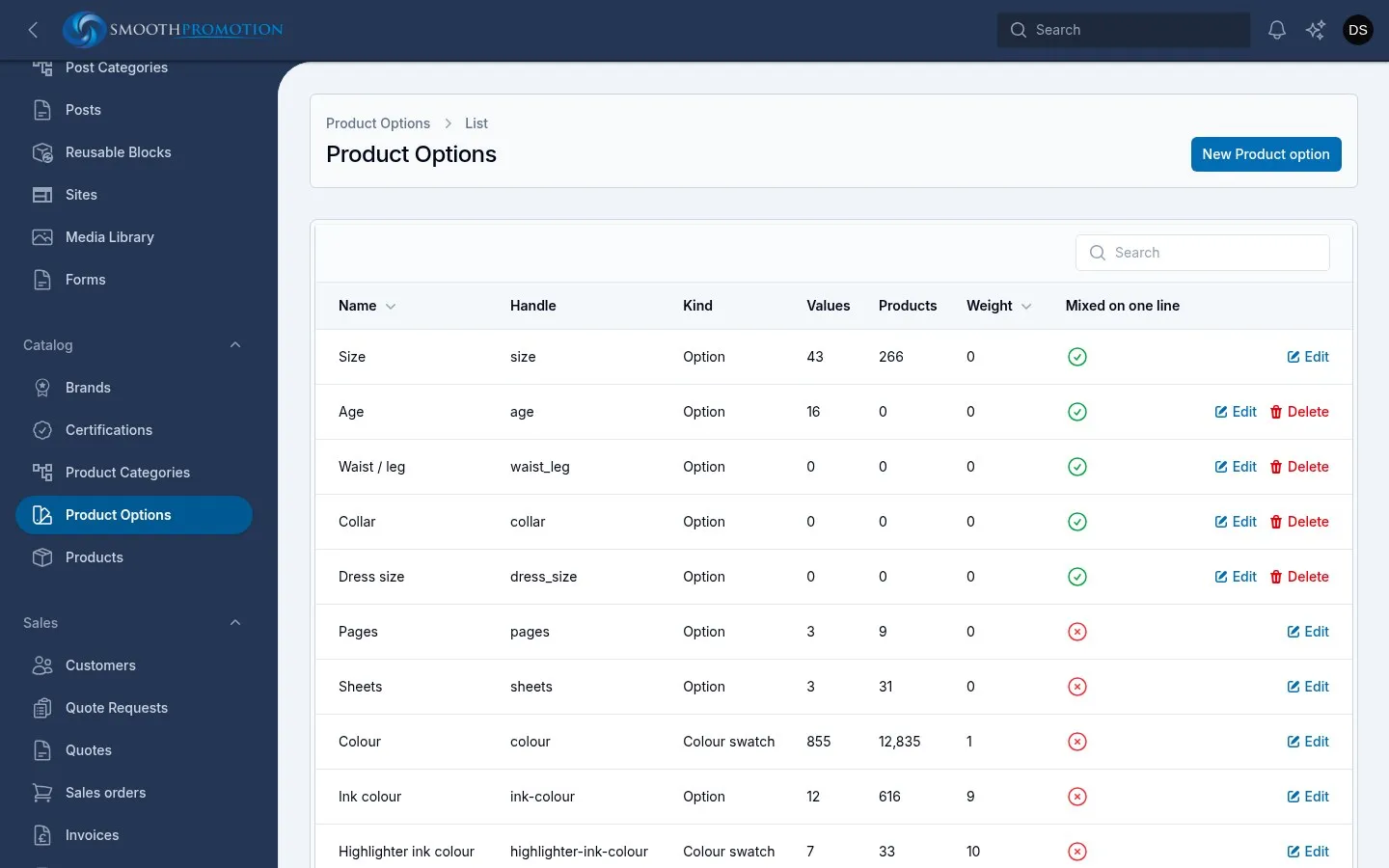
| Field | What it does |
|---|---|
| Name | What customers and staff see. |
| Handle | Used in filter addresses (?f[handle][]=...). Filled in from the name when creating. |
| Kind | What its values can do (see below). It cannot be changed once the option exists. |
| Weight | Its position among the category pages’ filters. See filters. |
| New values go | Where a new value is placed: As added (drag to order), By clothing size (XS, S, M, L, XL) or By number (ages, collars, waists). Values can still be dragged afterwards. |
| Can be mixed on one line | One quote line can hold several of its values, each with its own quantity, priced at the line’s total (10 S, 20 M, 15 L). Only for options the supplier prices that way. |
The three kinds:
| Kind | Shown as | Changes the photos | Example |
|---|---|---|---|
| Colour swatch | A colour chip | Yes | Colour |
| Text swatch | A text tag | Yes | Finish |
| Option | Its name | No | Size |
An option or value in use can’t be deleted: its Delete button doesn’t appear.
Values
Section titled “Values”The Values tab of an option lists them in the order customers see. Drag to reorder.
| Field | Shown for | What it does |
|---|---|---|
| Label | All | The name. |
| Also known as | All | Other names for this value, such as a supplier’s. A renamed value’s old names are added here, so feeds still find it. |
| Group | Colour swatches | The broad colour it belongs to. See below. |
| Colour | Colour swatches | The colour of its chip. |
| Split into colours | Colour swatches | For a two- or three-tone item such as Silver / Black: the chip is split between them, and the first is its main colour. |
| Many colours | Colour swatches | For Multi-colour or Rainbow: the chip is a spectrum. |
| Colour is an estimate | Colour swatches | Set when the colour was worked out from a Pantone reference. Saving a new colour clears it. |
| Chest (to fit), Women’s chest (to fit) | Size and Age | Approximate measurements for the product page’s size guide. Blank leaves that size out of the guide. The women’s figure is for Size only. |
Each supplier keeps its own colours. Colour swatch values belong to one source, shown in the From column: entered here, or the feed that created them. So “Black” can appear several times. On the category pages, values with the same name become one filter option. Other kinds of option share their values, so every supplier’s “M” is the same M.
Filters on this tab find the work left to do: No group and Estimated colour.
Colour groups
Section titled “Colour groups”The Groups tab, on colour swatches, holds broad colours such as Blue, each with a Representative colour. Grouping a shade does two things today:
- the site search finds it by its group, so a search for “green shirt” finds Bottle Green;
- a value with no colour of its own is drawn in its group’s colour.
To group many at once, tick values on the Values tab and use Suggest groups. Each value without a group gets the one its colour suggests, based on the values already grouped. Change any that are wrong, then Set groups. Values already grouped, or with no colour, are left as they are.
Deleting a group keeps its values, without a group.
A product’s variants
Section titled “A product’s variants”The Variants tab of a product shows each variant’s SKU, Options, Price adjustment, Status, Hidden, In stock and Quantity. Drag rows to set the order customers see them.
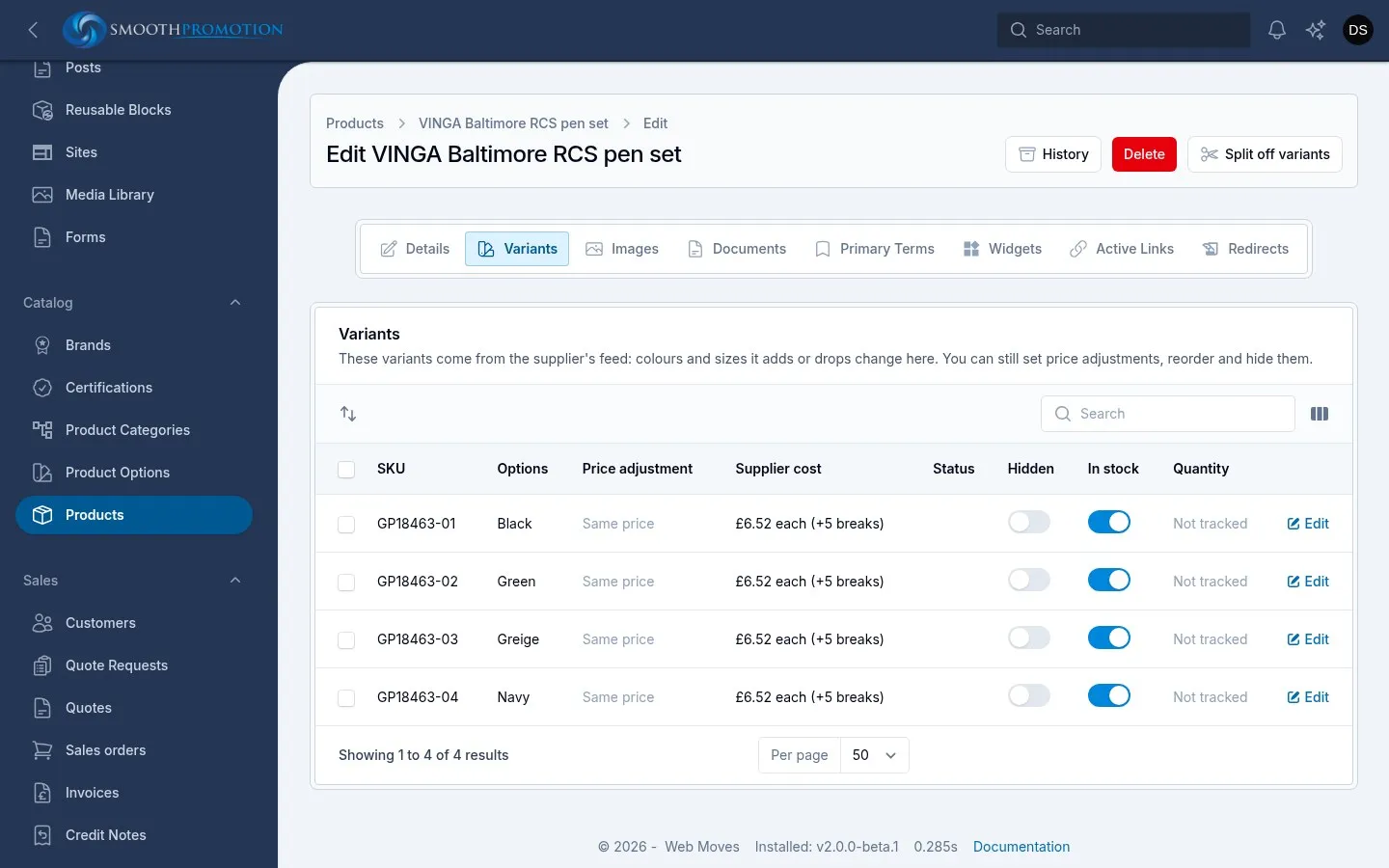
The SKU is made automatically and never changes. A deleted variant’s number is not used again.
Setting up options
Section titled “Setting up options”On a product entered here, with no options yet:
- Use Set up options.
- For each option add a row: pick the Option, then its Values.
- Submit. A variant is created for every combination. The existing default variant becomes the first and keeps its SKU.
Set up options is one-time: once a product has options, the button is gone and you can’t add another option from the admin. Add variant adds one more combination of the options it already has. The last variant can’t be deleted.
Stock and availability
Section titled “Stock and availability”Hidden and In stock save straight from the table. The rest are under Edit.
| Field | What it does |
|---|---|
| Hidden | Not offered to customers. Stays hidden even if the supplier drops it and brings it back. |
| In stock | Available to sell. |
| Track quantity, Available quantity | An optional count. The table shows Not tracked otherwise. |
| Supplier SKU | The supplier’s code for it. |
Stock is per variant, and the rest of the catalog follows it:
- The product is in stock when any variant is available, not hidden and not dropped by its supplier. When the last one goes, the product leaves every category listing. See out of stock.
- A colour or size counts in the category filters only through a variant like that, so a colour sold out on a product neither lists nor counts it under that colour.
- A hidden or dropped variant is left off the product page. A variant that is merely out of stock stays on it, and can still be asked for in a quote.
Price adjustments
Section titled “Price adjustments”A variant can cost more or less than the others. Use Edit, or tick several and use Adjust price.
| Choice | Meaning |
|---|---|
| Amount each | Added to the price each at every quantity, such as 0.15 for a colour that costs more. Negative for less. |
| Percent of the item | A percentage of the item’s price each, before branding and setup, such as -10 for 10% off. |
0 means the same price as the others. An adjustment can change the From price, which is worked out again.
On a feed product
Section titled “On a feed product”A note at the top of the tab says when variants come from the supplier’s feed. The sync adds new colours and sizes, and marks the ones the supplier drops with a greyed row and a Dropped by (supplier) badge. You can’t set that badge yourself, but you can hide the variant.
There you can still set price adjustments, reorder and hide. Set up options, Add variant and Delete are gone, and a Supplier cost column shows the first cost break, with all the breaks and their expiry in a tooltip.
Some feeds also supply stock, and their sync updates the variants. See syncing. To take a group of variants to a page of their own, see split products.