

Photo rules
Suppliers’ photos vary: some have wide white borders, some face the wrong way, some ranges include a dozen angles you don’t want. Two sets of rules handle this, at different moments:
| Photo download rules | Photo rules | |
|---|---|---|
| Decide | Which supplier photos are fetched, and which becomes primary | How a photo is prepared before its sizes are made |
| Work on | Supplier products only | Every product photo |
| Applied | When photos are downloaded | When sizes are made, or photos are regenerated |
| To undo | Photos already downloaded are not removed | Change the rule and regenerate. The original is never changed |
Both apply to the whole catalog, on every site. For a single photo, see product photos.
Photo rules
Section titled “Photo rules”Go to Configuration > Catalog > Photo rules. Each rule has:
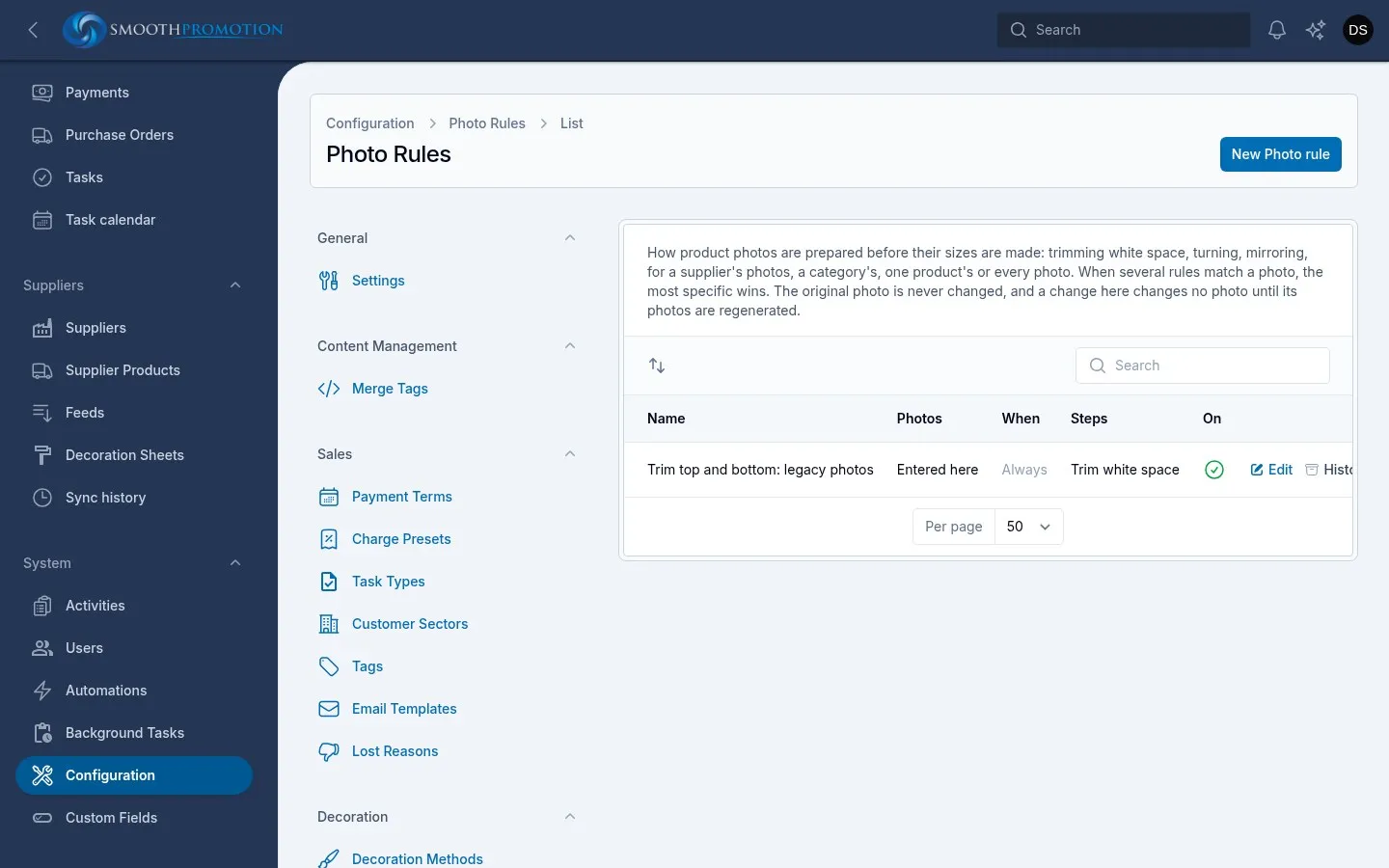
Which photos. Any of Supplier, Category (with its subcategories) and Product. Leave all three empty for every photo.
Conditions. All must hold, based on the photo’s measurements: the white space on its edges, its width, its height, or width ÷ height. Each is at least or at most a value. A rotate step with “width ÷ height at most” turns only tall photos, for example.
Steps. These run in order, on a copy of the original:
| Step | What it does |
|---|---|
| Trim white space | Crops the background off the edges (Edges: Top and bottom (keep the full width) or All four sides), with an optional Margin. Skipped on small photos, and when it would keep less than half the photo, as with a pale product on white |
| Fit to canvas | Puts the product, centred, on a canvas of one Shape in the photo’s own background, so tall and long products show at a consistent size. Fill is how much of the canvas it takes up: 85 to 90% is usual |
| Rotate | Turns the photo by an Angle, clockwise; negative is anticlockwise |
| Flip | Mirrors the photo. Any logo or writing on the product is mirrored too and reads backwards |
Which rule wins
Section titled “Which rule wins”A photo follows one rule, the most specific that matches: a product’s, then a category’s, then a supplier’s, then the rule for every photo. With the same scope, a rule with conditions beats one without, then the order in the list decides (drag to reorder). A photo no rule matches is used as it is.
A single photo can opt out on the product’s edit page: Follow the photo rules (the default), Use it as it is, or Its own steps.
Preview, then regenerate
Section titled “Preview, then regenerate”The Preview beside the form shows the rule as it is in the form, saved or not, on a few photos it matches. New sample picks others. Nothing is changed. Preview on a row of the list does the same for a saved rule.
To apply it:
- Regenerate photos on a rule queues the photos it could cover. Photos whose rules haven’t changed are skipped, so it is cheap to repeat.
- Regenerate photos in the bulk actions on Catalog > Products does it for the selected products. Also remake photos whose rules have not changed forces it.
The site keeps showing the old sizes until the new ones are written.
A photo not measured yet meets no condition. If a rule with conditions says no photo matches when some should, the photos may need measuring, which is a job for a technical person.
Photo download rules
Section titled “Photo download rules”Go to Configuration > Catalog > Photo download rules. A photo left out is never fetched, which saves space on ranges with many unwanted angles.
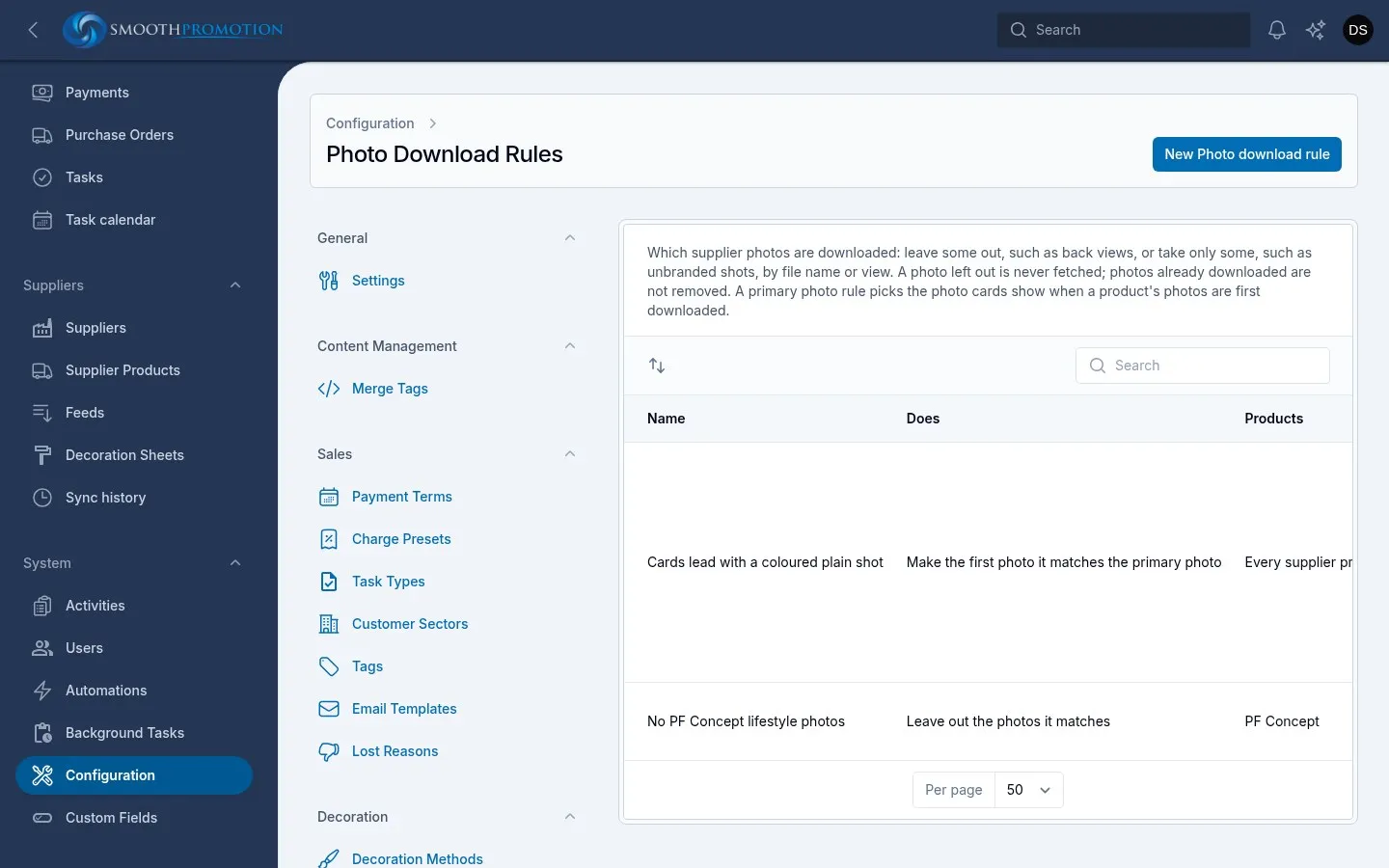
Does says what the rule does:
| Option | Effect |
|---|---|
| Leave out the photos it matches | Those photos are not taken |
| Take only the photos it matches | Only those are taken. With several such rules covering a product, a photo any of them matches is taken |
| Make the first photo it matches the primary photo | Takes nothing out. Picks the photo cards show |
Which products: any of Supplier, Category (with subcategories) and Product. Leave all three empty for every supplier product.
Which photos:
- File names: any of these, ignoring case.
*stands for anything, such as*-UNBRANDED*. Tick File names are regular expressions to write them that way instead. - Views: any of these, as the supplier’s import names them (front, back, on model and so on).
When both are given a photo must match both. A rule that leaves out or takes only needs at least one.
Check on a row shows what the rule would do on a sample of up to 40 products it covers: photos offered and which it alone would leave out, or, for a primary rule, the photo it would pick. Nothing is changed.
Primary photos
Section titled “Primary photos”A primary rule picks the photo cards and lists show when a product’s photos are first downloaded. The first such rule in the list covering a product is used.
Pass over colours in these groups makes it choose the first matching photo of a colour outside them, so cards do not all show white or black. When every colour is in those groups it takes the first matching photo.
Staff can change the primary photo afterwards, and a product that has one keeps it.
What these rules don’t do
Section titled “What these rules don’t do”- They don’t remove anything. Photos already downloaded stay when you tighten a rule.
- Loosening is limited. Photos come in sets, one per colour, and a colour that already has photos is left alone. So loosening a rule won’t add photos to a colour that has some.
For a product lacking photos, a sync queues the download, or use Download photos and documents again in the bulk actions on the product list. Only what a product lacks is fetched, and nothing is replaced.