

Custom fields
Custom fields add facts the system has no field of its own for, such as a pen’s style or a bag’s handle length, without any programming. Defining them is under System > Custom Fields and needs the Manager or Super admin role. Anyone who can edit a record can fill in its fields.
Three things work together:
| Menu | What it is | Example |
|---|---|---|
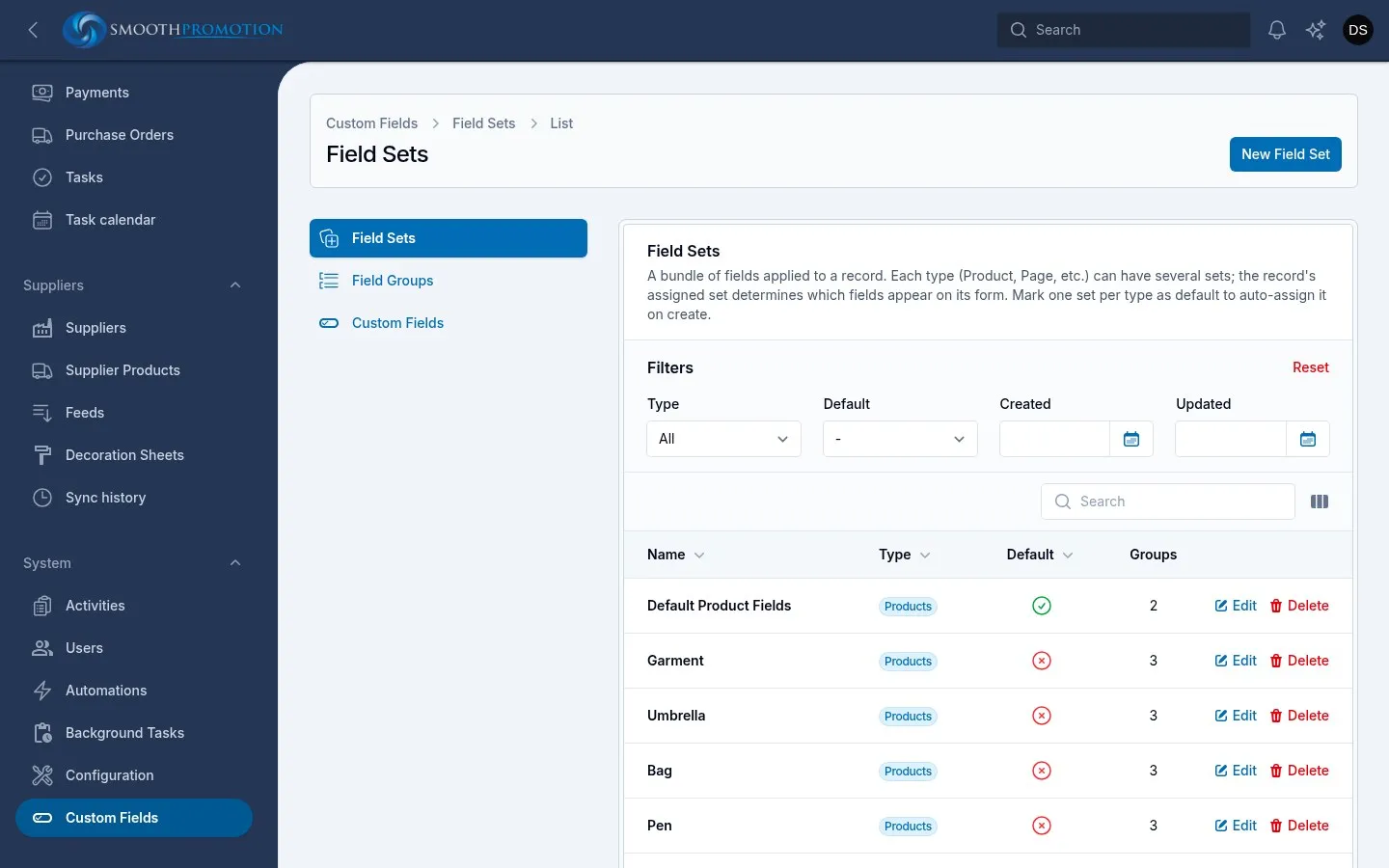
| Field Sets | A kind of record, and the bundle of fields it has | Pen |
| Field Groups | A section of the form, within one set | Pen details, placed in Main |
| Custom Fields | One field, which can be used in several sets | Pen style |
A record uses one set, chosen in its Field Set picker, and shows that set’s fields. The fields apply to the record everywhere, not per site.
What can have custom fields
Section titled “What can have custom fields”Products, product categories, suppliers, customers and users, and every other content type: pages, posts and their categories.
Colour, size and other options that make variants are never custom fields. Use product options for those.
Adding a field, start to finish
Section titled “Adding a field, start to finish”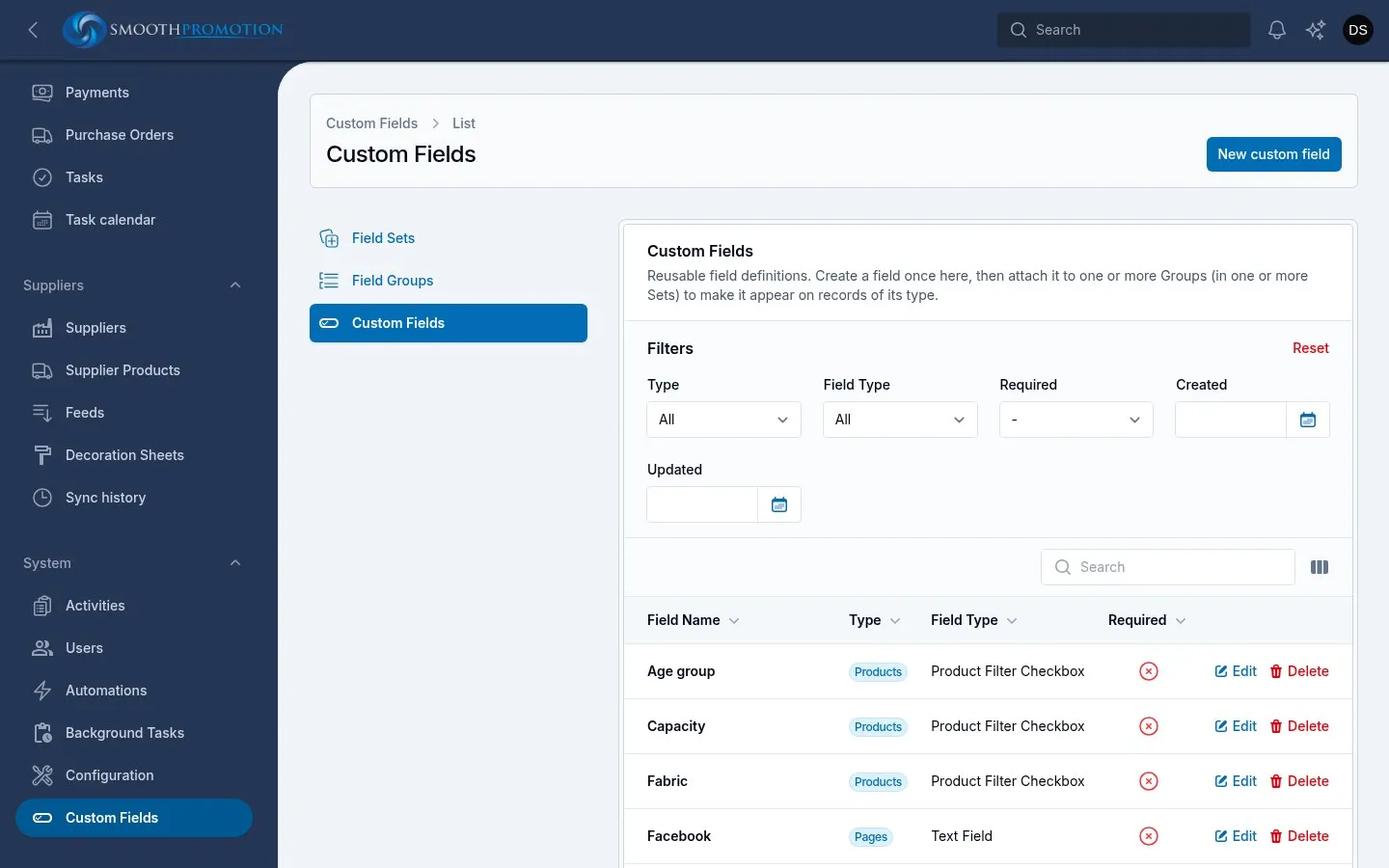
- Under Field Sets, open the set or use New Field Set, and choose its Type.
- On its Groups tab, add a group with a Name and Placement.
- Under Custom Fields, use New custom field. Choose the Field Type and the Type of record, and give it a Label and Key.
- In its In Groups field, pick the group. Or open the group and use Attach on its Fields tab, where you can also drag fields into order.
- Open a record in that set. The field is there.
Field sets
Section titled “Field sets”| Field | What it does |
|---|---|
| Name, Description | For staff. |
| Handle | A fixed name the program finds this set by, such as “garment”. Leave it as it is, and blank for sets the program doesn’t use. |
| Type | Which type of record it applies to. Locked after creation. |
| Weight | Its order in the set pickers. |
| Default for this type | A new record gets this set. There can be one per type, so turning it on takes it off the other. |
Where a type has named templates in a theme, a set also has a Template section: which template its records use on all sites, with Per-site exceptions. See templates.
Field groups
Section titled “Field groups”A group has a Name, a Description, a Weight for its order within the set (or drag on the set’s Groups tab) and a Placement on the form: Top, Left, Main, Right or Bottom. Its set is locked after creation. Groups belong to one set.
Custom fields
Section titled “Custom fields”| Field | What it does |
|---|---|
| Field Type | What sort of input it is. Locked after creation. |
| Type | Which type of record can use it. Locked after creation. For another type, make a new field. |
| Label, Key | Its name, and a unique name for the program made from the label. |
| Helper Text | Shown under the field. |
| Default Value | Filled in on new records. Image fields have none. |
| In Groups | Which groups it is in. At most one per set. |
| Required | Required fields must have a default value, so new records stay valid. |
Field types include Text Field, Text Area, Integer, Decimal, Toggle (on/off), Date Picker, Select, Radio Group, Checkbox List, Color, Color Choices and Image. Types with choices ask for their options.
Changing a record’s set
Section titled “Changing a record’s set”Changing Field Set swaps the fields on the form at once. Values of fields not in the new set aren’t deleted: they come back if you switch back. While it is in another set, a field’s value can’t be edited.
No field set is allowed, for a plain record.
On products
Section titled “On products”The Field Set is the kind of product it is, such as Garment, Umbrella, Bag, Pen, USB Stick, Drinkware or Towel. A kind’s own fields sit beside the fields it shares with the default.
A feed product gets its set from its supplier category, and follows that until you choose another. Some feeds fill in custom fields too. A value you change is left alone. A value for a field the product’s set lacks isn’t kept, and the sync’s report lists it.
The default theme doesn’t print a product’s custom fields on its page, apart from filter fields, whose options can show as icons. To show a fact on the page, put it in Product details.
Filter fields
Section titled “Filter fields”Three field types make a field into a category page filter, and only work on products:
| Field type | Filter |
|---|---|
| Product Filter Checkbox | Tick any number |
| Product Filter Radio Button | Pick one |
| Product Filter Colors | Colour swatches |
Each option you give it becomes a filter option, and products get them by filling in the field. Its position in its group sets its order.
Elsewhere
Section titled “Elsewhere”- Pages and posts: the set is the type of page or post, adding its fields and possibly its template. See pages.
- Product categories: a Field Set picker in the sidebar, like products.
- Customers: set fields appear as sections on the customer’s page, each with its own Edit. See customers.
- Suppliers and Users: fields appear on their forms.