

Categories
Catalog > Product Categories holds the tree of categories that all sites share. Which categories a site carries is decided by its content rules, and a category’s address on each site depends on its URL settings.
The tree
Section titled “The tree”The top of the page shows the tree, collapsed. Below it is a table with each category’s image, parent and number of products. Search or filter by Parent or Containing Products.
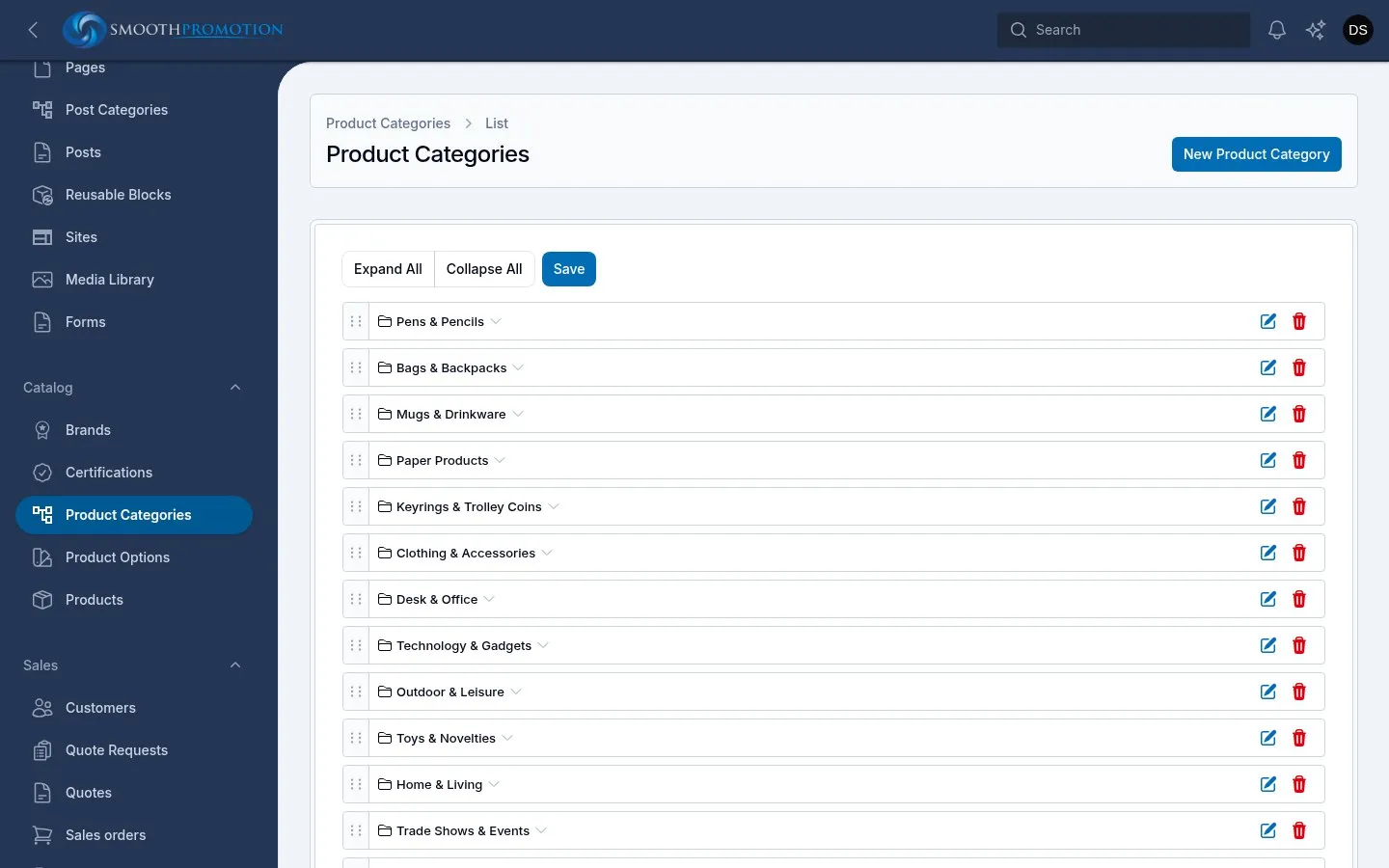
- Drag a category to change its order among its siblings or to move it under another parent.
- Edit opens its page. Delete removes it.
- New Product Category adds one, and its Parent decides where it goes. None (top level) makes it a top-level category.
Sibling order is what the header menu, the sidebar tree and the subcategory row use.
Clone Product Category on its edit page copies the category’s own fields into a new one. Its photos and products don’t come with it.
The edit page
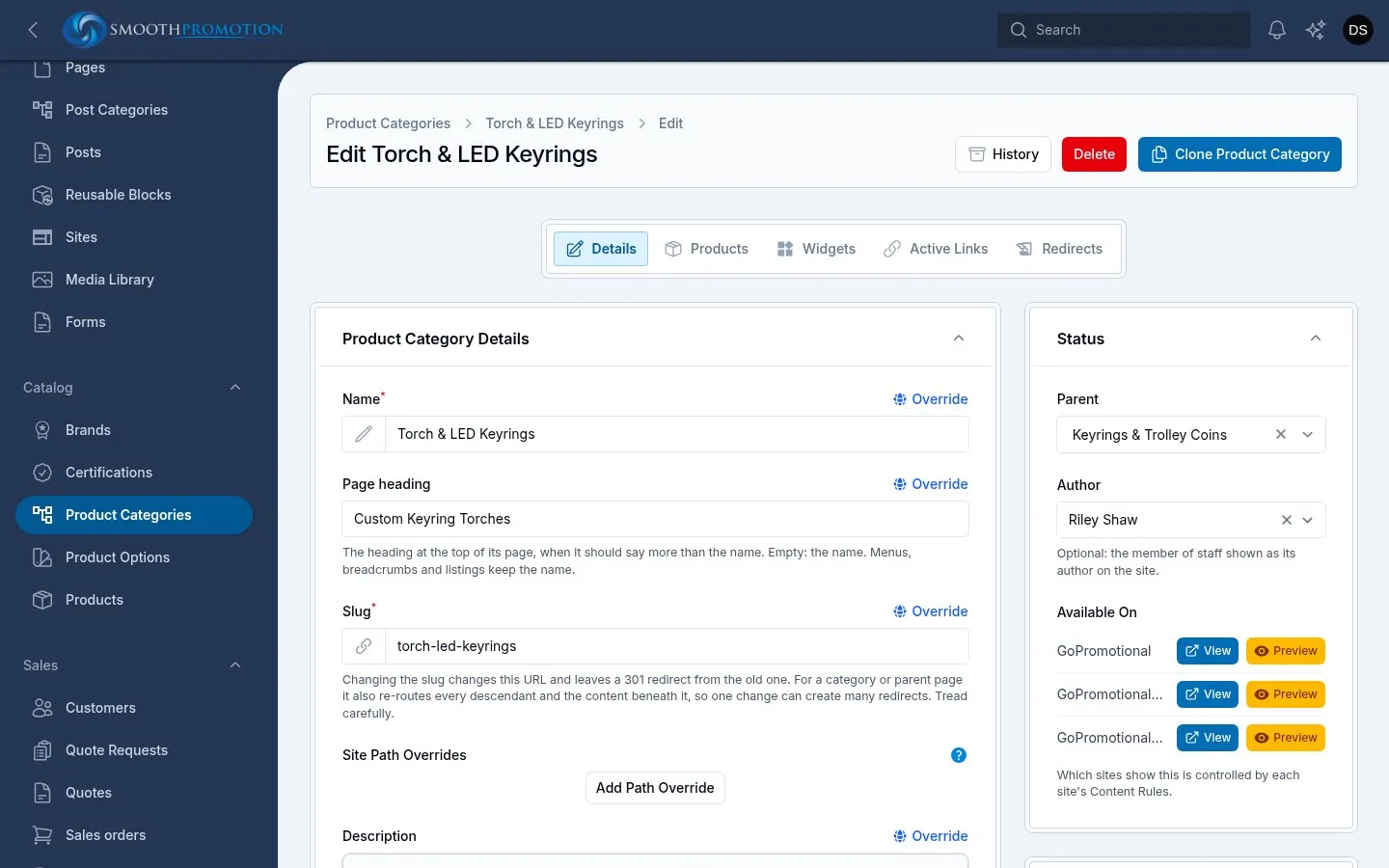
Section titled “The edit page”Tabs across the top: Details, Products, Widgets, Active Links and Redirects.
Details
Section titled “Details”| Field | What it does |
|---|---|
| Name | Used in menus, breadcrumbs and listings. |
| Page heading | The heading at the top of its page, when it should say more than the name. Empty uses the name. |
| Slug | Its part of the address. |
| Description | The text under the heading. |
| Parent | Its place in the tree. |
| Overview Image | See images and tiles. |
| Minimum order | See minimum order. |
| SEO | See SEO. |
Override beside Name, Page heading, Slug and Description gives a site its own wording. See per-site wording. A long description is cut to a few lines with Read more on the page.
Which products, and in what order
Section titled “Which products, and in what order”The Products tab lists the category’s products. Add Product to Product Category adds one, and Remove takes it out. A product’s own edit page can do the same under Product Categories.
- Drag to set the order. It is what customers see under the Relevance sort, the default.
- Featured marks a product as featured in this category, for best sellers or offers. Help cards can show these (see below).
The page only ever lists products that are available on the site and in stock. The count in the sidebar tree counts the same way.
Images and tiles
Section titled “Images and tiles”The Overview Image is the category’s tile: a child category with an image appears as a tile in its parent’s subcategory row, under the header. The image here applies to every site.
Categories imported from the old system have tiles made from one of their products’ photos, squared up. An image you upload yourself is never replaced by that process. Redoing those tiles is a technical job.
A subcategory with no image is left out of the row, as are “View All” pages and towns and cities with the placeholder tile. The sidebar tree and the menus still link them.
The category page
Section titled “The category page”From the top, in the default theme:
- The header band: breadcrumbs, heading and description, with banners and a help card beside them.
- Subcategories, a row of tiles.
- Sidebar: the category tree and the filters.
- Products, sorted by Relevance, Product Name, Price: Low to High or Price: High to Low, showing from 60 to 200 a page.
- Articles and FAQs, under the products.
- Below Content widgets, across the page.
Every page of a list keeps the whole header, filtered or not.
Banners and widgets
Section titled “Banners and widgets”The Widgets tab places widgets on this category, per site. See widgets.
| Area | Where it is |
|---|---|
| Category Banner | In the header, beside the description |
| Beside Description | Under any banner, such as a help card |
| Below Content | Across the page under the products and article, such as customer reviews |
Each can Inherit from the nearest parent category that has widgets there, or from the default for all categories on that site. Own widgets or Hide here overrides that for this category on this site. So a help card set as the default shows on every category of that site unless one hides it.
The help card
Section titled “The help card”The Help Card is a widget with a person to talk to: a photo, name and role, a note and heading, reasons to get in touch, the site’s phone and email, and a button.
Turn on Show the page’s featured items and, on a category with products marked Featured that are live on the site, the card moves through up to three of them and back. Label on featured items heads each one, such as “Best seller” or “On offer”.
Articles and FAQs
Section titled “Articles and FAQs”A category’s Content section holds content blocks, shown under its products on every page of the list. Text blocks make the article, and the FAQ block its questions. See blocks.
Each block has a Sites button that limits it to some sites. This is how each site has its own article. Categories imported from the old system came with their articles and FAQs as blocks like these.
The category’s Author is shown under an article, when it has one.
On its products’ pages
Section titled “On its products’ pages”Further down Details is On its products’ pages:
| Field | What it does today |
|---|---|
| Pairs well with | Categories whose products go with these (pens: notepads, pencil cases). Empty uses the parent category’s. Used by the Related products widget when set to “Goes with it” or “Both”. |
| Note | Saved, but the themes don’t show it, whatever its help text says. |
| Additional resources | Saved, but the themes don’t show it, whatever its help text says. |
Minimum order
Section titled “Minimum order”Minimum order in the sidebar applies to products in this category and its subcategories, unless a product sets its own. A subcategory with none uses its parent’s. A product in several categories takes the highest. See pricing.