

Forms
Forms such as Contact or an enquiry form are built in the admin panel and placed on any page with a block. Each submission records which site it came in on, so one form can serve every site and each enquiry still reaches the right people.
Forms are under Content Management › Forms, and need the Manager role. The number beside the menu item is how many submissions are unread. A form applies everywhere: it isn’t tied to a site.
Building a form
Section titled “Building a form”New Form, then work through the tabs. Only Fields and a Name are essential; the defaults for the rest are sensible.
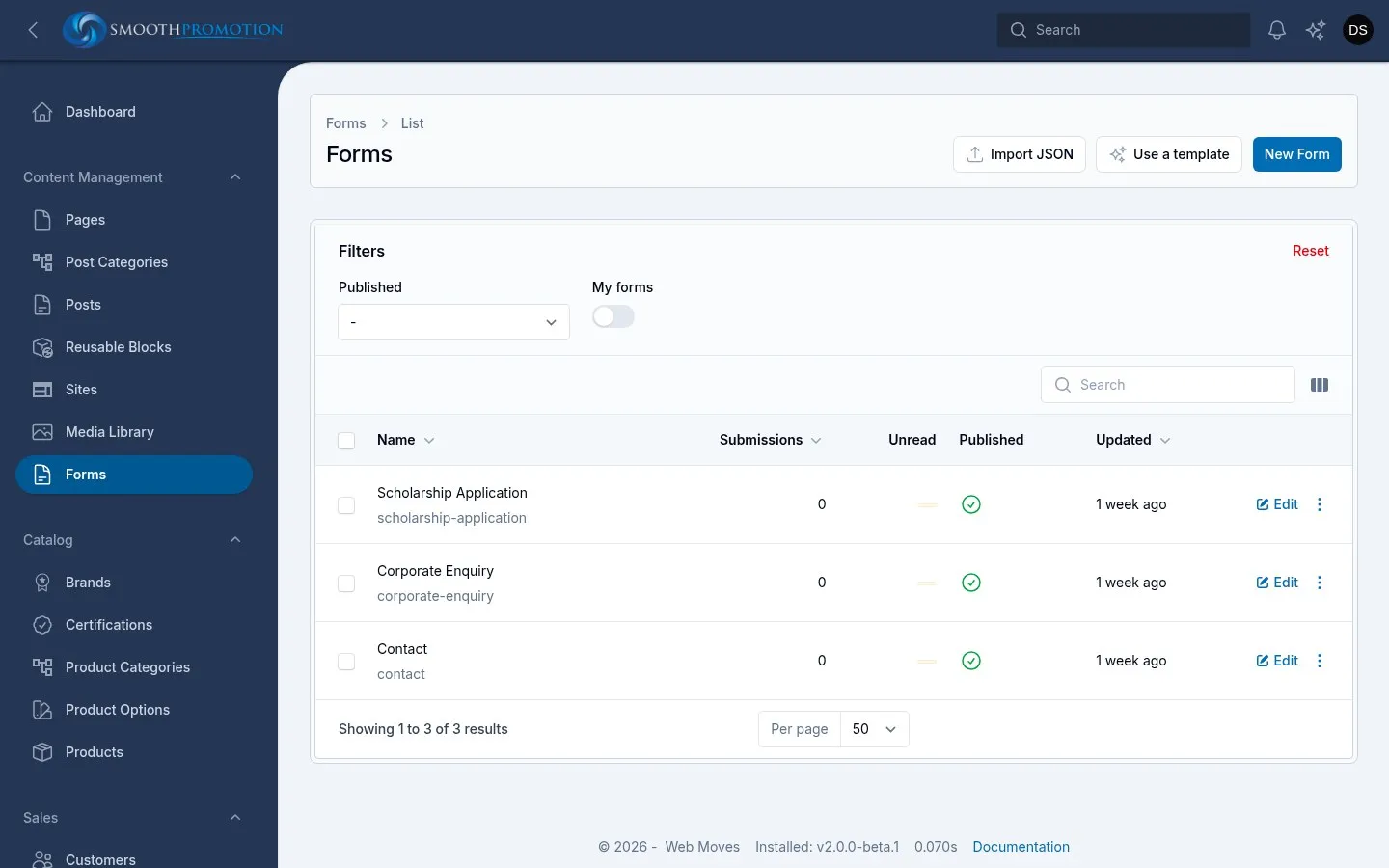
Fields
Section titled “Fields”Add field picks a type:
| Group | Types |
|---|---|
| Short answers | Text, Email, Phone, URL, Number, Amount, Country, Address |
| Long answers | Long text, Rich text |
| Choices | Dropdown, Multi-select, Radio buttons, Toggle buttons, Checkbox, Toggle, Checkbox list, Tags, Rating, Colour |
| Dates | Date, Date and time, Time |
| Other | File upload, Consent, Hidden |
| Layout (no answer) | Section, Heading, Paragraph, Divider |
Each field has a Label, a Key (the name of its value in submissions and exports), Placeholder, Help text, Default value and Width. Required can be always, or only when another answer matches. Visibility can show or hide it depending on other answers, so a follow-up question appears only when needed. Hidden keeps a field in the design without showing or checking it.
Uploaded files aren’t public, and staff download them from the submission. In the default theme a Paragraph keeps its shape: a blank line starts a new paragraph, and lines starting with “- “ become a list. That is useful for terms above a Consent box.
Settings
Section titled “Settings”| Section | What it does |
|---|---|
| General | Name, Slug, Description, Published and Store submissions. With Store submissions off, submissions are only sent on, not kept |
| After submit | Submit button text, Success message, or Redirect after submit to send people to a page instead |
| Availability | Opens at, Closes at and a Closed message |
| Access | A Password, Require a logged-in user, Prefill from the page URL. Leave Visibility on Public: private forms rely on share links, which are switched off here |
| Limits | One submission per person, Maximum submissions and their messages |
| Spam protection | See below |
Design
Section titled “Design”Display chooses Single page, or Multi-step with one section of the Fields tab per step (with its own progress and button options). Labels go above or beside the fields.
Ignore this tab. Its embed script and the form’s stand-alone page are switched off: forms reach a site only through the Form block.
Preview shows the form as you build it. On the edit page’s menu, Duplicate copies a form and Export JSON saves its design.
Putting a form on a page
Section titled “Putting a form on a page”Add a Form block to a page or post:
| Option | What it does |
|---|---|
| Form | Which form. Only published forms are offered |
| Title, Intro | Optional text above it |
| Background colour | The band behind it |
| Block style | Default, or Panel to put the form in a box |
The same form can sit on any number of pages and sites. Use the block’s globe button if a form should show on only some sites.
Who gets told
Section titled “Who gets told”All of this is on the form’s Notifications tab, and each can be used together.
| Section | Who it reaches |
|---|---|
| Site contact: Email the site’s contact | The primary contact of the site the submission came in on, so an enquiry on one site goes to that site’s address. On for new forms. The hint lists each site’s contact. Set them under each site’s Contacts |
| Email to the team: Notify by email | A fixed list of addresses, for submissions from any site. There are also Subject, From address, From name, Reply-to, CC, BCC and Attach uploaded files. Enter respondent as the Reply-to to reply to the visitor |
| Confirmation to the visitor | Turn on Send a confirmation to the visitor, choose which email field to use, and write the Subject and Message |
| In the panel: Notify in the panel | Chosen users get a notification in the admin panel |
| Chat channels | Slack, Discord or Microsoft Teams, through an incoming webhook URL |
| Webhook | Posts each submission to another system. A job for a technical person |
An address on both the fixed list and the site contact gets one email, not two. If a site has no valid contact email, only the fixed list is told, so check the hint when you set up a form.
Spam protection
Section titled “Spam protection”Three layers, in Settings › Spam protection:
| Option | What it does |
|---|---|
| Honeypot | A hidden field that bots fill in and people never see |
| Minimum seconds before submit | Drops submissions sent faster than a person could. 0 disables it |
| Captcha | Config default, None, or a provider. Checked on the server |
Config default means the provider set on the server, and these sites are set up for Cloudflare Turnstile. Leave it on that, and only choose None with a good reason. Submissions are also limited to ten a minute from one IP address.
Setting Turnstile up is a job for a technical person. It takes FORM_BUILDER_CAPTCHA=turnstile,
TURNSTILE_SITE_KEY and TURNSTILE_SECRET_KEY on the server, and the Turnstile widget in Cloudflare must
list every site’s hostname. So when you add a site, its hostname has to be added there too.
Reading submissions
Section titled “Reading submissions”There are two views of the same submissions.
By form: the form’s Submissions tab. Each row has its number, date, summary and Site. Filter by Site or Unread only. Here you can View, Edit, mark as read or unread, delete, and Export CSV or Export Excel. Exports follow your filters, so filter by site to export one site’s.
By site: on a site’s screen, Form Submissions in its side menu (under Content). This shows everything that came in on that site across all forms, newest first, with a Form filter. View opens a submission and marks it read; it is otherwise read only, so go to the form to edit or export. You need the Manager role, as this also takes edit access to the site.
The site comes from the address the form was submitted on, so visitors can’t choose it. A submission with no site shows No site, and appears only in the form’s own tab.