

Customers
A customer is one person or business you sell to, across every site. There is one record per email address, whichever site they came through. Documents such as quotes and invoices each belong to a site, so one customer can have quotes from two sites on the same page.
The list is under Sales > Customers.
Who sees which customers
Section titled “Who sees which customers”Every customer has one rep, or none. What you can see depends on your role:
| Role | Sees | Can change the rep |
|---|---|---|
| Sales rep | Their own customers and the pool | No, but can Take from the pool |
| Accounts | Every customer | No |
| Manager | Every customer | Yes |
You can also see a quote, order, invoice or purchase order where you are its rep, even if its customer has since moved to someone else.
The pool
Section titled “The pool”A customer with no rep is in the pool. A customer created by a quote request on a site starts here.
- Take moves the customer to you. It is on the list row, on the customer’s Owner section and on their quote requests. It needs the pool, so accounts staff don’t see it.
- Assign on a row, Assign to rep as a bulk action, or Change rep on the customer’s page lets managers pick a rep, or put the customer back in the pool by leaving the rep empty.
When the rep changes, the customer’s open tasks move too, if they were with the old rep or unassigned. Tasks someone else was given stay put, and completed tasks don’t change. Quotes and orders already made keep the rep they had.
The Rep filter on the list shows Mine or Unassigned (pool).
Adding a customer
Section titled “Adding a customer”New customer takes the details below. Most customers arrive on their own, from a quote request that has an email address.
| Field | What it does |
|---|---|
| Their identity and how they sign in to their account. It is optional, but only one customer can have each address | |
| Tier | Bronze, Silver or Gold, your own measure of how valuable they are. New customers start at Bronze |
| Sector | From your sectors list |
| Tags | From your tags list |
| Active customer | Must be on for them to sign in to their account. It is off on this form, and on for customers created by a quote request |
| Do not contact | No cold calls or marketing. Automation rules won’t email them. It doesn’t stop you sending a document by hand |
| Rep | Managers pick one or leave it in the pool. If you can’t assign reps, the customer is yours |
| Tax exempt | New documents carry no VAT |
| VAT / tax number, EORI number | Recorded on the customer. A VAT number doesn’t change the tax by itself |
| Default payment terms | Used for their orders instead of the default term |
Where custom fields are set up for customers, you can also pick a field set. See custom fields.
A customer’s page
Section titled “A customer’s page”This is where you work a customer from, and where you change them: there is no separate edit page. Each section has its own Edit.
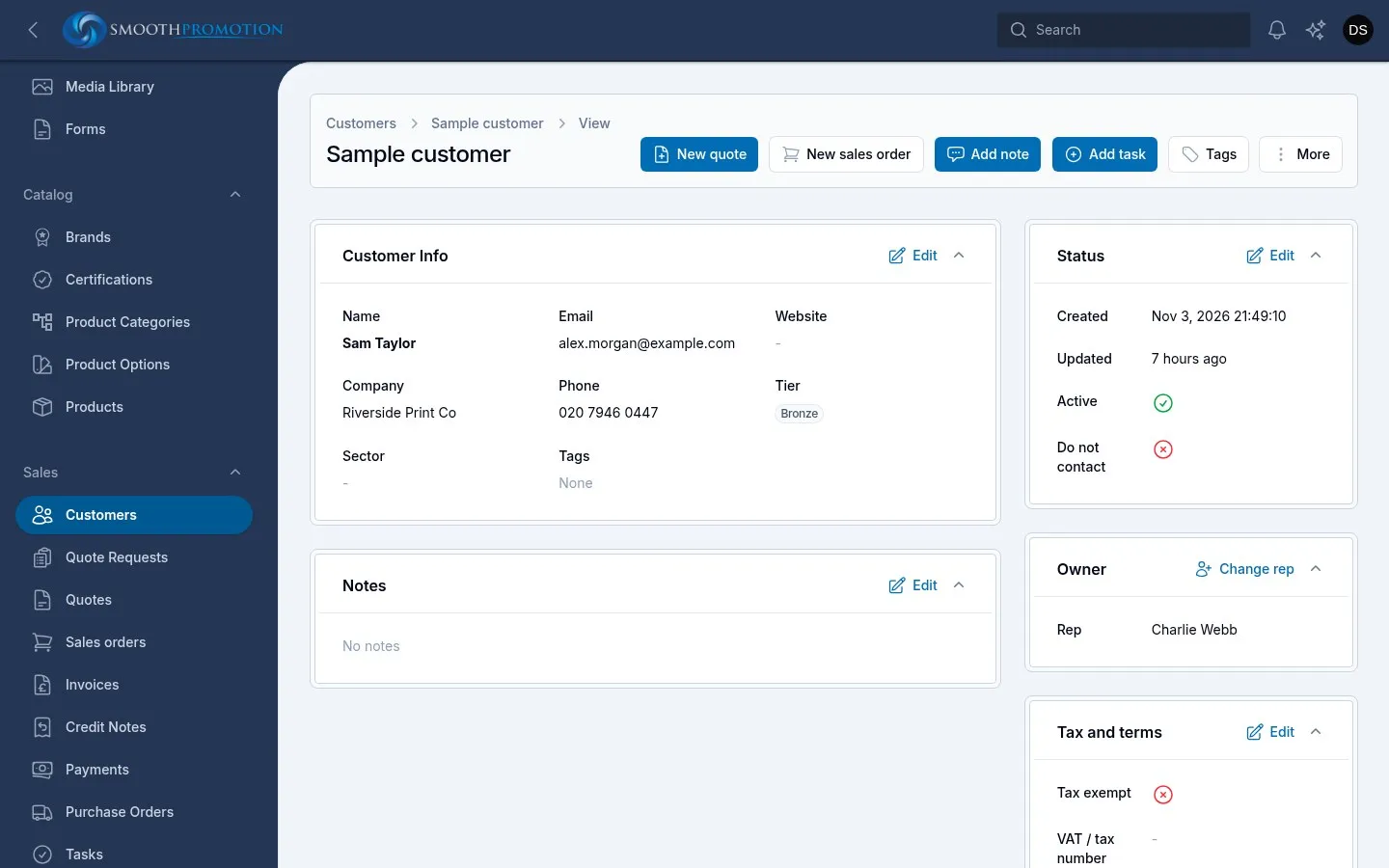
Along the top are New quote, New sales order, Add note, Add task and Tags. The sections are Customer Info, Notes, Status, Owner and Tax and terms.
The tabs below show everything to do with the customer:
| Tab | What it shows |
|---|---|
| Timeline | Everything that happened, including on their documents, newest first. Entries caused by an automation rule name the rule |
| Tasks | Their open tasks by due date. See Tasks |
| Quotes, Sales orders, Invoices | Their documents |
| Quote requests | What they asked for on the sites |
| Customer Contacts | Their people and addresses |
Contacts and addresses
Section titled “Contacts and addresses”Customer Contacts holds a customer’s people and addresses: name, job title, email, phone, company and address. Two ticks matter:
- Billing marks the main contact. The company and phone shown in Customer Info come from it. The first contact you add becomes it.
- Shipping marks the delivery address. With no shipping contact, quotes and orders deliver to the billing address.
Each document keeps its own copy of the addresses, so changing a contact never changes a quote or invoice already made. To change a document’s address, edit it on the document while it is a draft.
Customers can change their own addresses too, from their account.
Tags and sectors
Section titled “Tags and sectors”A sector is the one kind of business a customer is in. Tags are your own labels, as many as you like, such as VIP. Both can be filtered on in the list.
Change a customer’s tags with the Tags button on their page. Each change goes on the timeline, and can start an automation rule.
Quotes can carry tags too, but only automation rules put them on. The Quotes list can filter by a quote’s tags and by its customer’s tags.
The list
Section titled “The list”Besides name, email, rep, tier and sector, these columns can help:
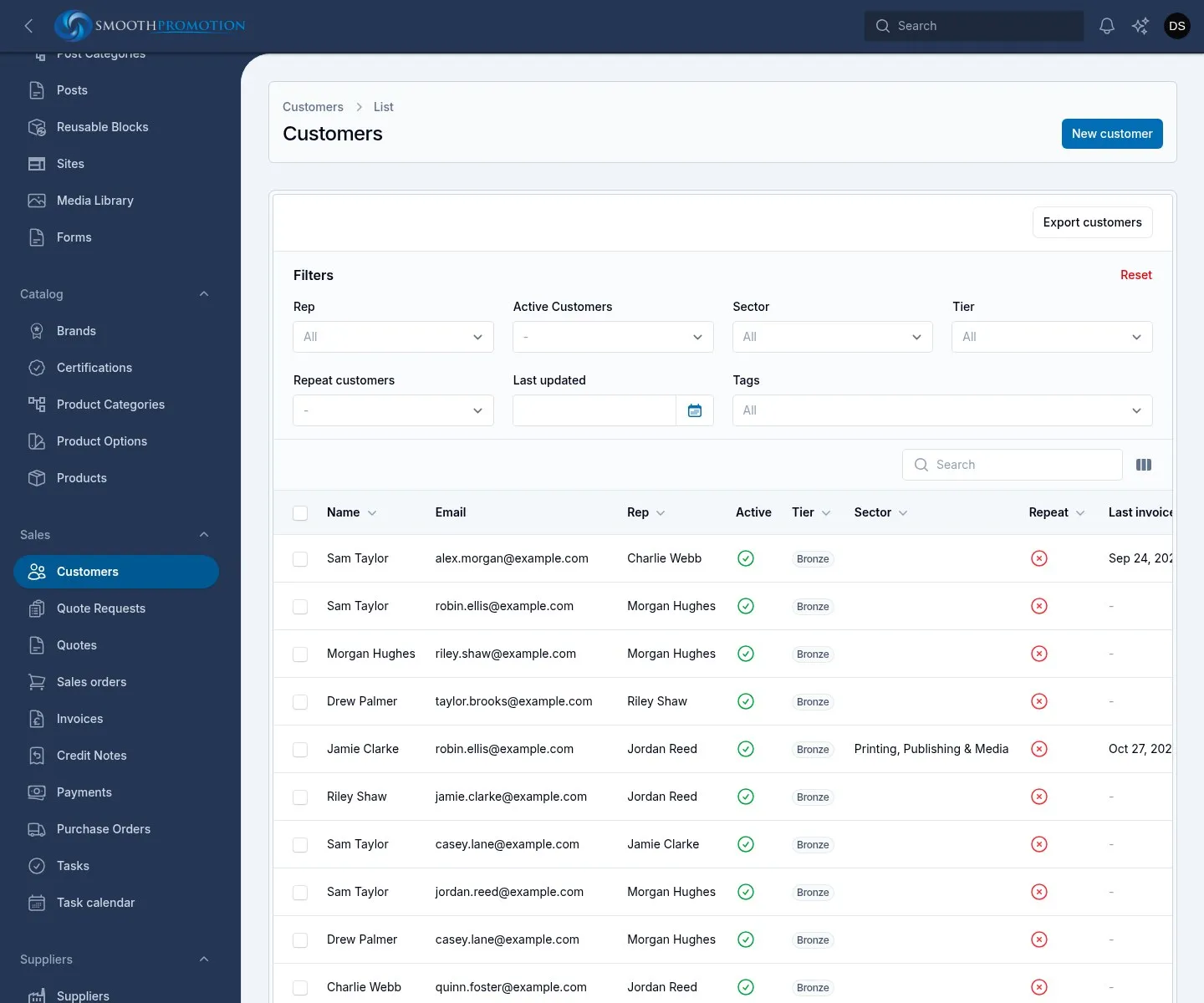
| Column | What it means |
|---|---|
| Repeat | Bought twice or more: two or more invoices that aren’t void |
| Last invoice | The date of their latest invoice |
| Sales | Invoices less credit notes, before VAT, in pounds |
| Live | Open quotes before VAT: draft, sent or accepted. Hidden until you turn it on |
| New | Quote requests waiting for a quote. Hidden until you turn it on |
Filters include Rep, Active Customers, Sector, Tier, Repeat customers, Last updated and Tags. Managers and accounts staff can also export the list.
Deleting a customer
Section titled “Deleting a customer”Only managers can delete a customer, from the row, a bulk action or More on their page. There is no way to bring one back from the admin panel, so check first.