

Sales setup
Two places hold sales setup:
- System > Configuration, under Sales, holds lists that apply to every site. They need the settings permission, which managers have. See Roles.
- A site’s Sales page holds what differs per site: tax, legal details, bank details and the quote email.
In most of these lists you switch an entry off rather than delete it, so records that used it keep it. A switched-off entry isn’t offered for new work. Where a list can be reordered, drag the rows.
Payment terms
Section titled “Payment terms”When an invoice falls due. See how terms work.
| Field | What it does |
|---|---|
| Name | Printed on the invoice |
| Due date | On the invoice date, Days after the invoice date, Days after delivery or Entered by hand |
| Days | For the two day counts |
| Default | For customers without a term of their own. Only one term can be the default, so ticking this one unticks the other |
Charge presets
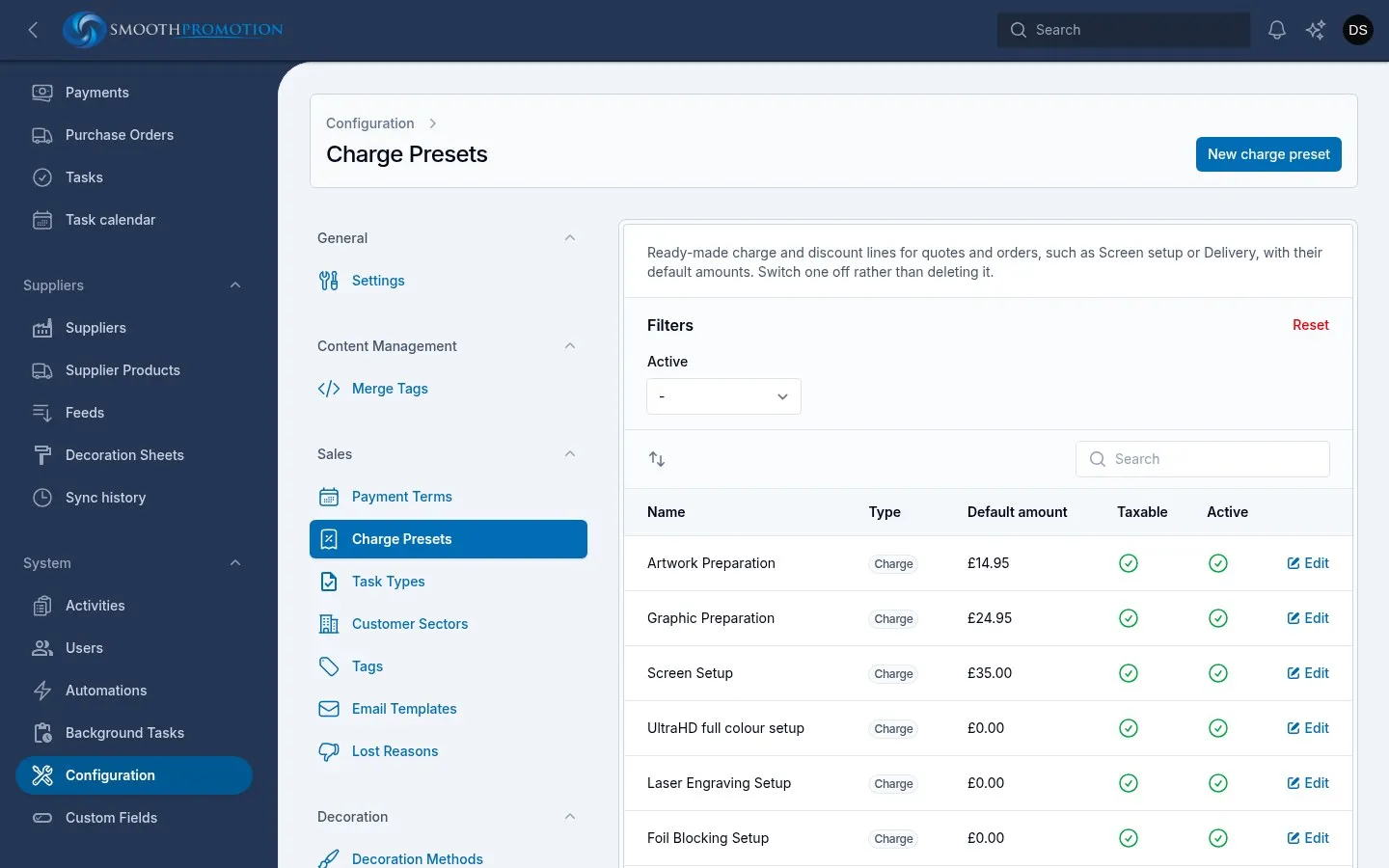
Section titled “Charge presets”Ready-made lines for Add charge on a quote or order, such as Screen setup or Delivery.
| Field | What it does |
|---|---|
| Type | Charge or Discount |
| Default amount | Always positive. A discount is applied as a negative amount |
| Default quantity | Starts the line’s quantity |
| Taxable | Whether the line carries tax |
Using a preset copies its values onto the line, where you can change them. No link is kept, so changing a preset doesn’t change any existing line.
Task types
Section titled “Task types”The kinds of task, such as Follow-up or Call, each with a Calendar colour.
Customer sectors
Section titled “Customer sectors”The sectors a customer can be in. A sector with customers in it can be renamed but not deleted.
Your own labels, each with a colour. Can go on limits a tag to certain records. Leave it empty for any.
Today customers and quotes can carry tags. Quote requests is offered in the list, but no quote request can be tagged, so choosing it alone makes a tag you can’t use.
Email templates
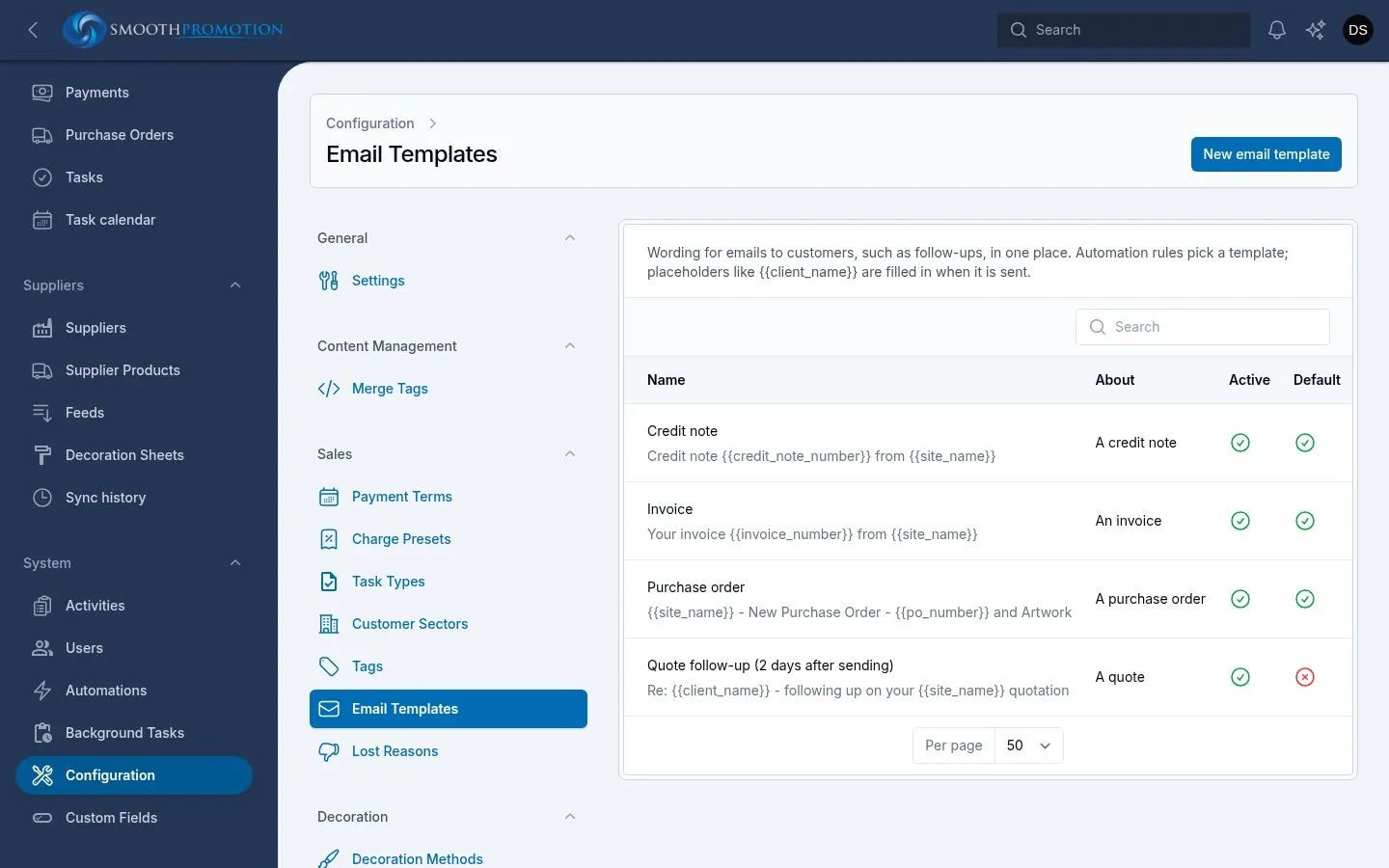
Section titled “Email templates”Wording for emails, in one place. About sets what the email concerns, which decides its placeholders and where you can use it:
| About | Used by |
|---|---|
| A quote | Email the customer in a rule |
| A customer | Email the customer in a rule |
| A sales order | Email the customer in a rule |
| An invoice | Send invoice, and Email the customer in a rule |
| A purchase order | Send purchase order |
| A credit note | Send credit note |
The form lists the placeholders for its kind under Subject, such as {{client_name}}. They work
in the subject and the message, and are filled in when the email goes.
Default for its kind is the template that a Send invoice, Send purchase order or Send credit note form starts from. There is one default per kind. With none, the form starts from standard wording.
Templates apply to every site. Where a kind offers a site placeholder such as {{site_name}}, use
it rather than writing a site’s name into the template.
Switch off a template rather than delete it if a rule uses it. A rule with a missing or switched-off template sends nothing, and says so in its run log.
Lost reasons
Section titled “Lost reasons”The reasons a rep picks from when marking a quote Lost. A reason is required.
A site’s sales settings
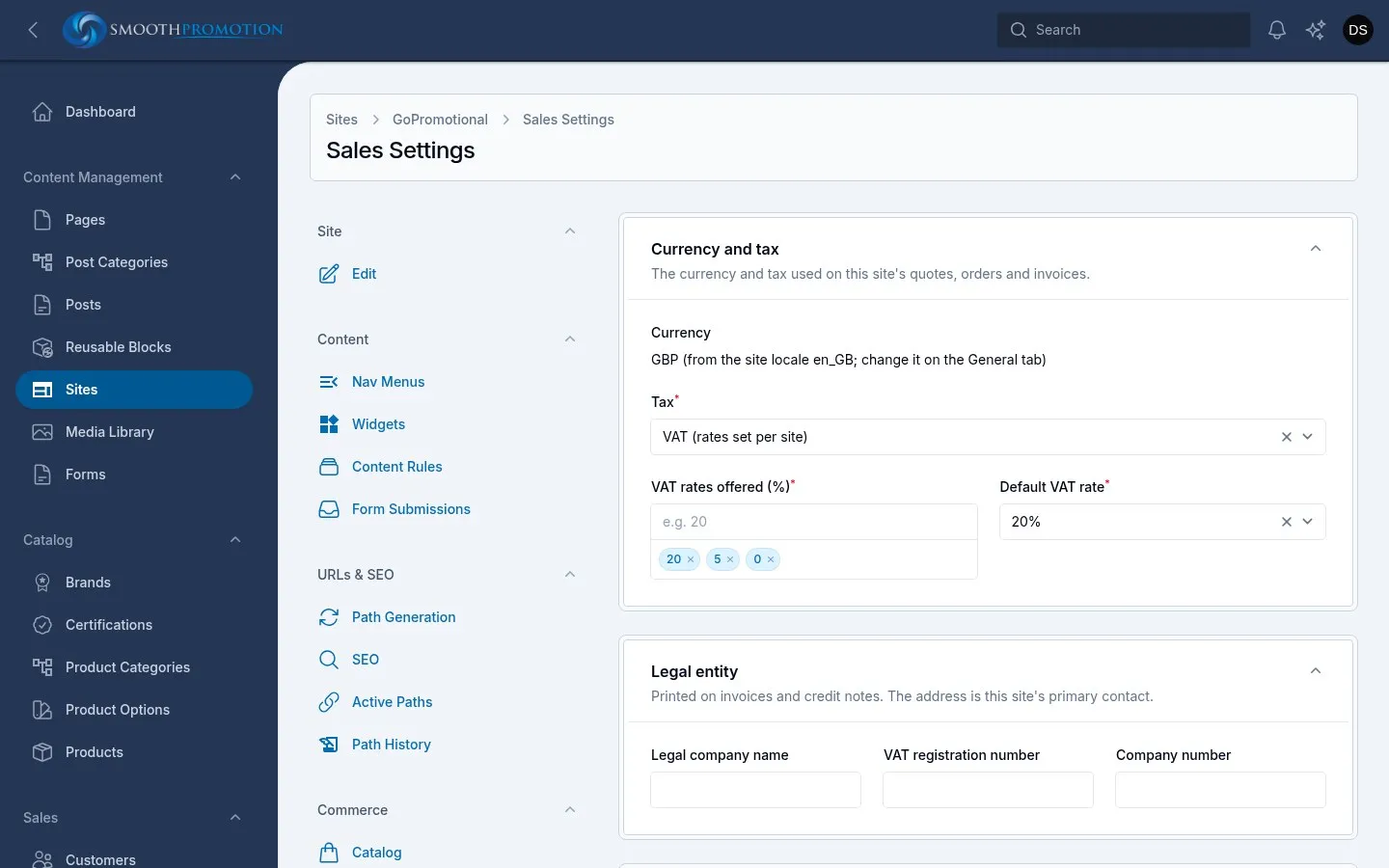
Section titled “A site’s sales settings”Open the site under Content Management > Sites, then Sales under Commerce in its side menu. It needs the site editing permission, which managers have. Until saved, a site uses VAT at 20%, with 5% and 0% also offered. A site with a US locale starts on sales tax.
Currency and tax
Section titled “Currency and tax”Currency is shown, not edited here: it comes from the site’s locale on the General tab.
| Field | What it does |
|---|---|
| Tax | VAT (rates set per site) or US sales tax (rate depends on the delivery address). Sales tax isn’t supported: documents on such a site can’t be taxed |
| VAT rates offered (%) | The rates staff can pick on a line |
| Default VAT rate | The rate for new lines. See VAT |
Legal entity
Section titled “Legal entity”Legal company name, VAT registration number and Company number print on invoices and credit notes. The address printed with them is the site’s primary contact.
Exchange rate
Section titled “Exchange rate”Shown only for a site that doesn’t sell in pounds. It shows the Live rate, fetched once a day. Use a manual rate replaces it for new documents on this site.
Quote emails and documents
Section titled “Quote emails and documents”| Field | What it does |
|---|---|
| Email subject, Email message | The wording a quote’s Send starts from. Leave the message empty for the standard one |
| Proofs email subject, Proofs email message | For artwork proofs sent on their own, from a quote or an order. Proofs sent with the quote use the quote email |
| Staff copies (Bcc) | Addresses copied on every document email, one per line |
The section lists the placeholders you can use.
Orders
Section titled “Orders”Production email is where new orders go to be placed, by a Notify staff rule set to
“Production”. Review link is where customers leave a review of this site. Order emails show it
as {{review_link}}.
Invoices
Section titled “Invoices”Payment details prints on every invoice under “How to pay”, and shows in the customer’s account while money is owed: bank name, account name, sort code and account number, IBAN, card payments.
Quote cover and closing pages
Section titled “Quote cover and closing pages”Optional pages before and after a quote. The site’s theme designs them, and your content goes where the theme puts it. The same placeholders work here.
For each page, Add a cover page to new quotes or Add the closing page to new quotes sets the default, and each quote can switch it on or off. Edit as switches between rich text and HTML, for pasting in a designed page.
- Switching from HTML back to rich text simplifies it, and anything the rich editor can’t show is lost when you save.
- In HTML, images must be embedded (
data:image/...), as quotes print without fetching anything. Scripts, frames, forms and SVG are removed when the quote prints.
Document numbers
Section titled “Document numbers”Each kind of document has its own run of numbers, shared across all sites: quotes, sales orders,
invoices, purchase orders and credit notes. A number is six digits with no prefix, such as 000123.
| Document | Gets its number |
|---|---|
| Quote | When first sent. A revision keeps it |
| Sales order | When confirmed |
| Invoice, credit note | When issued |
| Purchase order | When sent |
There are no gaps, as a number is only taken when the document is really issued. Numbers can’t be edited on screen. Moving a run forward is a job for someone with access to the server, and it can’t be moved back. See commands.