

Menus
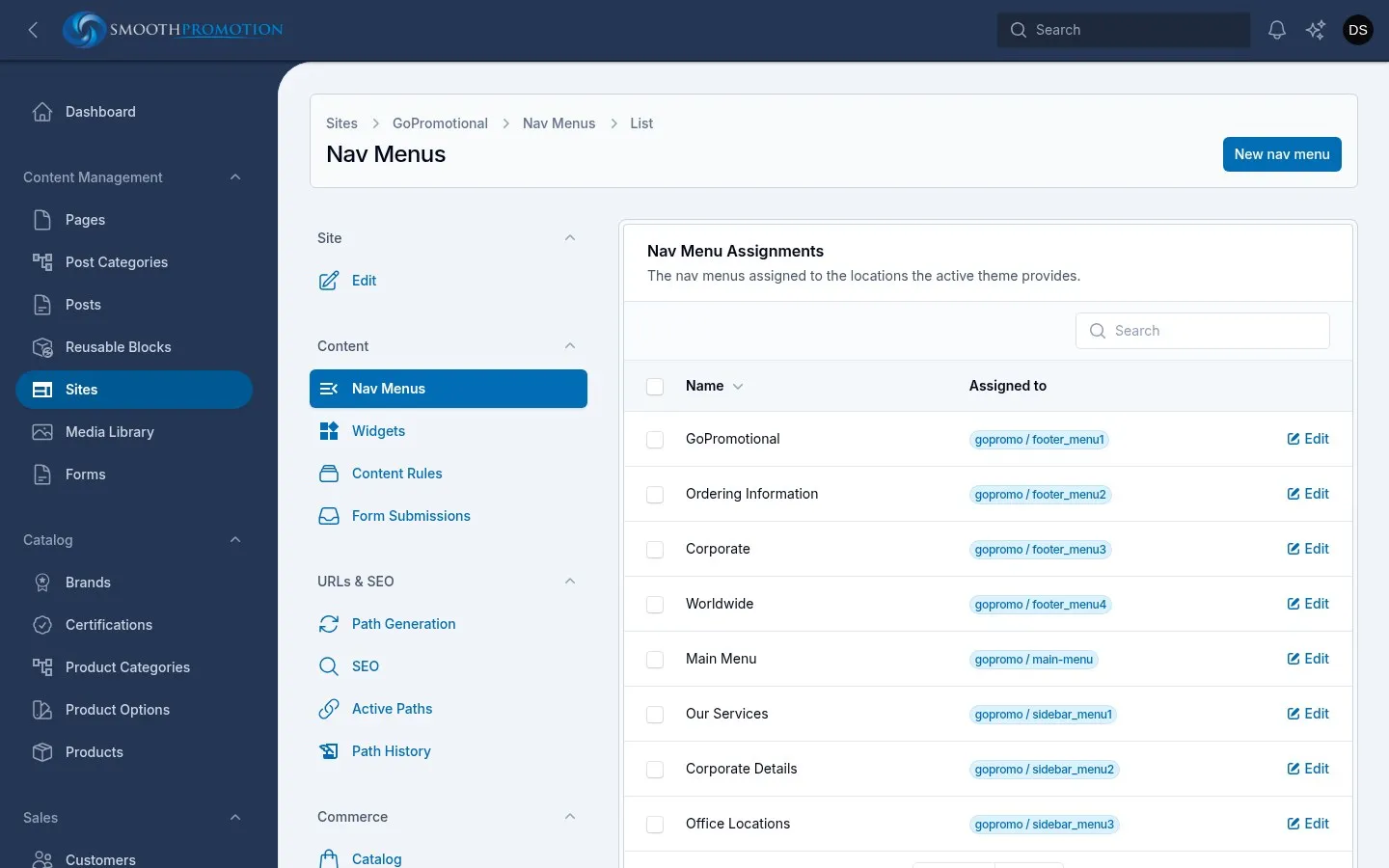
Each site has its own menus. They aren’t shared between sites, although one site’s menu can fill several of its locations. Open the site, then Nav Menus. The list shows each menu and where it is assigned.
Two steps: build a menu, then assign it to a location, a slot the theme provides.
Locations
Section titled “Locations”Both themes offer the same locations:
| Location | Where it shows | Kind |
|---|---|---|
main-menu |
Primary navigation, top of the page | Mega menu: dropdowns, and a drawer on phones |
footer_menu1 to footer_menu4 |
The four footer columns | Basic list |
sidebar_menu1 to sidebar_menu3 |
The sidebar of pages using the Sidebar layout, above any widgets | Basic list |
In the footer and sidebar columns, the menu’s name is the heading above its links, so name them for visitors (“Our Services”). A location with no menu assigned shows no menu.
Building a menu
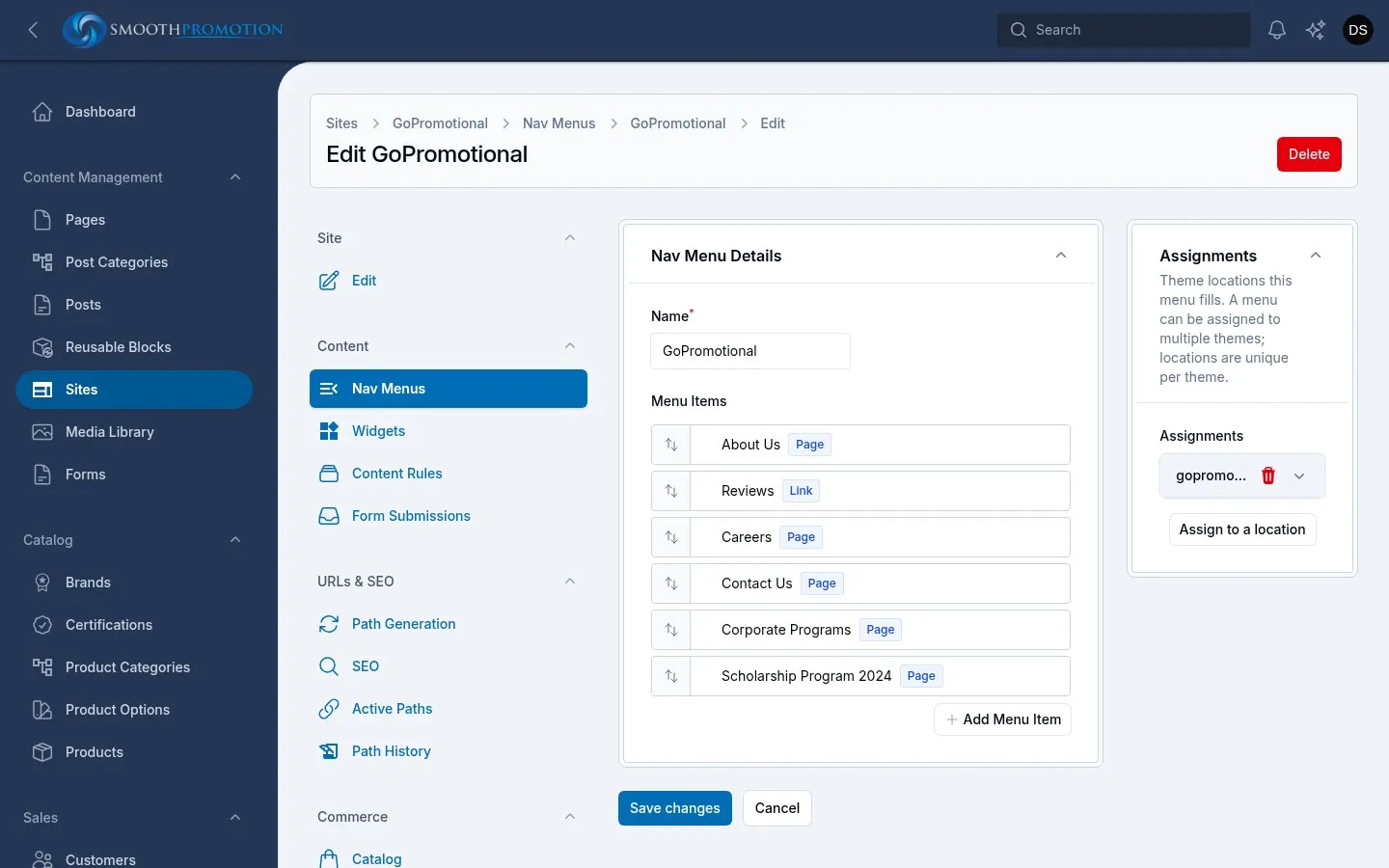
Section titled “Building a menu”New nav menu, give it a Name, then Add Menu Item. Use the item’s own add button to put items under it, and drag to reorder. Each item has:
| Field | What it does |
|---|---|
| Menu Item Type | What it links to. See below. |
| Label | The text shown. Filled in when you pick an entry, and you can change it. |
| CSS Classes | Extra classes for the item, for special styling. |
| Strategy | How a top-level item opens in the main menu. Ignored elsewhere. |
Save the menu when you are done.
| Menu Item Type | Links to |
|---|---|
| Link | Anything you type in Link: a path on the site or a full address. |
| Page, Post, Product | One entry. |
| Post Category, Post Tag, Product Category | One term’s page. |
| Post Category Hierarchy, Product Category Hierarchy | The category and everything below it, as the site has them, in the order of the category tree. New categories appear in the menu on their own. |
The pickers only offer what the site carries. Links to entries follow them: if the entry’s URL changes the link does too, and if the entry leaves the site, the item and those under it drop out of the menu rather than leaving a dead link.
Strategies
Section titled “Strategies”For top-level items in main-menu. Use menu default leaves it to the menu.
| Strategy | What it does |
|---|---|
| Drill-down | A single column you step down through. |
| Drop-down Panel | A multi-column panel that opens on hover. |
| Drop-down Fly-out Panel | A panel whose second-level items reveal a wider column. |
Assigning a menu
Section titled “Assigning a menu”On the menu’s edit page, under Assignments, use Assign to a location, then choose the Theme and the Location. A location holds one menu, so you get an error if another menu already has it.
Assignments are per theme, which is why Theme is asked for. After switching a site’s theme, the new theme’s locations are empty until you assign them. If a site’s locations look wrong, save the theme change first, as the helper text on the site says.
Menu edits show on the site at once.
To show a menu elsewhere, such as in a sidebar on some pages only, use a Nav Menu widget. Editing menus needs content management rights; among the standard roles that means managers and super admins.