

Products
Catalog > Products lists every product on every site. Open one to edit it, or use New Product to enter one by hand. A product from a supplier arrives through the feeds instead.
Finding products
Section titled “Finding products”Search covers the name, supplier code, primary category and supplier. Searching a supplier code also finds the product by any of its variants’ supplier SKUs.
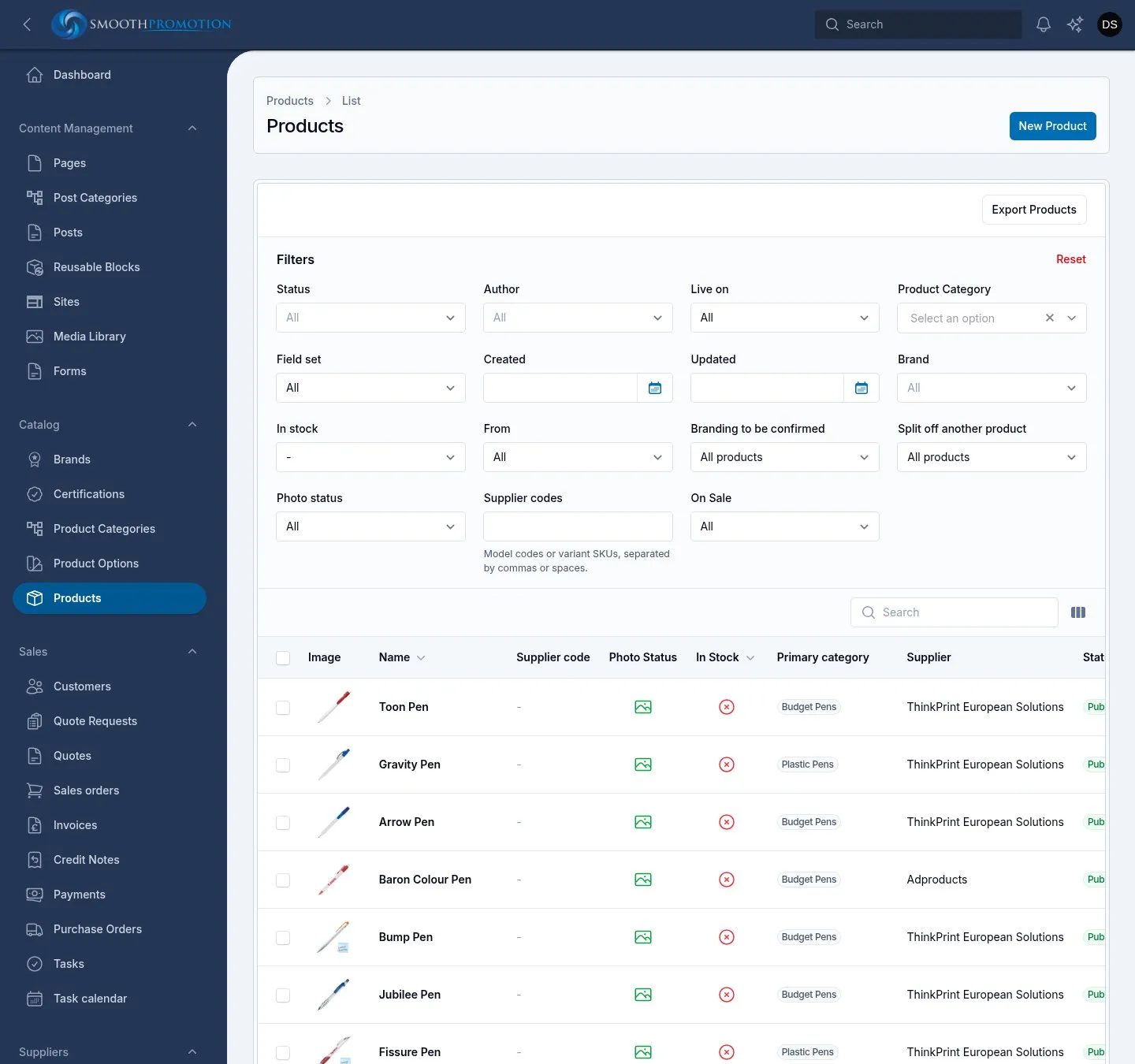
The filters you will use most:
| Filter | Use it to find |
|---|---|
| Status | Draft, Published or Archived products |
| Live on | Products available on one site right now |
| Product Category | Products in a category |
| Brand | Products of a brand |
| In stock | Products with or without a sellable variant |
| From | Products entered here, or from one feed |
| Field set | Products of one kind |
| Branding to be confirmed | Feed products that can be branded but offer no branding yet (usually techniques still to be mapped) |
| Split off another product | Products split from another |
| Photo status | Photos still downloading, failed, none from the supplier, or no photos at all |
| Supplier codes | A list you paste: model codes or variant SKUs, separated by commas or spaces |
Primary category shows the category shaping the product’s address on each site. If it differs by site, each one shows, with its sites in a tooltip.
Photo Status shows a clock while a download waits, a warning triangle if it failed, an amber photo if there are none, and a green photo with the count otherwise.
Changing many products at once
Section titled “Changing many products at once”Tick products and open the bulk actions menu. Each one affects only the ticked products, and the bigger jobs run in the background (see background tasks).
| Action | What it does |
|---|---|
| Adjust grid prices | A percentage change per tier, for products with a price grid. See pricing. |
| Set margin | Replaces the margins of feed products, or returns them to the supplier’s default. |
| Regenerate names from rules | Renames feed products by their text rules, after a preview. Addresses don’t change. |
| Set gallery style | How the product page shows photos. See photos. |
| Set ordering details | Sets or clears Minimum order, Production time and Positions per order. Each can be left as it is. |
| Regenerate photos | Remakes photo sizes by the photo rules. The originals are not changed. |
| Pick the primary photo again | Picks it by the photo download rules, replacing one chosen by hand. |
| Download photos and documents again | Queues the feed download again. Only what is missing is fetched. |
| Delete | Removes the products. The list has no bin to restore them from. |
Managers and accounts staff also get an export, from the top of the list or for ticked products.
The edit page
Section titled “The edit page”A product’s page has these tabs across the top:
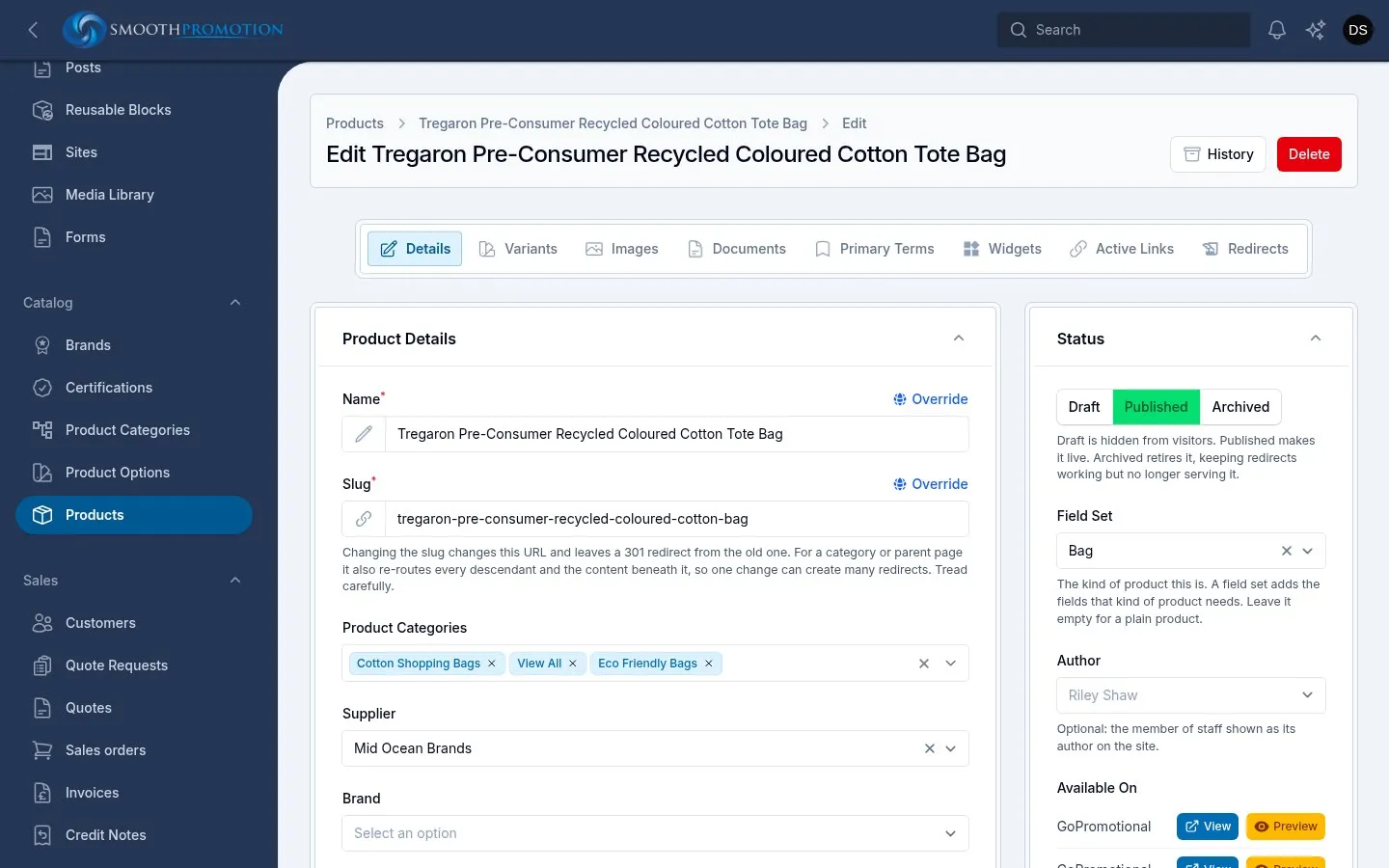
| Tab | What is there | How it saves |
|---|---|---|
| Details | Everything below | With the Save button |
| Variants | Its colours, sizes and stock. See variants and options. | At once |
| Images | Its photos. See photos. | At once |
| Documents | Files customers can download, such as data sheets | At once |
| Primary Terms | Its main category on each site, which shapes its address. Leave it on Automatic unless you have a reason. | At once |
| Widgets | Widgets for this product, per site. See widgets. | Save widgets |
| Active Links | Its live address on each site where it is published | Read only |
| Redirects | Old addresses that lead to it, and retired ones. See URLs and redirects. | At once |
The Details tab
Section titled “The Details tab”The upper part:
- Name and Slug. Changing the slug changes the address and leaves a redirect from the old one.
- Override, the link beside the name, slug and description, opens rows of site and value, so one site can use its own wording. It appears once the product is saved. See per-site wording.
- Product Categories: every category it appears in.
- Supplier and Brand. A product has one brand.
- Site Path Overrides: a fixed address on one site.
- Description: the text customers read as “Product overview”.
The sidebar:
| Section | Field | What it does |
|---|---|---|
| Status | Draft, Published, Archived | See publishing. |
| In Stock | Set only when creating. After that it follows the variants. | |
| Field Set | The kind of product this is. See custom fields. | |
| Author | Optional: the member of staff shown as its author on the site. | |
| Available On | Which sites it is on, linked to its page there. | |
| Site search | Search keywords | Other words customers might search for it by, separated by commas. Never shown on the page, and not the SEO meta tags. |
| Decoration methods | How it can be branded, for the category pages’ filter. You can only pick these on a grid product with no price rows. Otherwise they are worked out, and the field says from what. | |
| Ordering | Minimum order | The least a customer can order. Empty takes it from its categories or supplier, and the help text says what it is now and where it comes from. |
| Production time | In working days. Empty takes its supplier’s. With neither, no delivery date is shown. |
Under that, another set of tabs, and the page address remembers which one you had open:
| Tab | Sections |
|---|---|
| Content | Product details, Customisation choices, Content (content blocks) |
| Pricing | Pricing Structure or Margin, and Decoration pricing from the supplier. See pricing. |
| Branding | Decorated as and Branding on this product. See branding. |
| SEO | Override the site SEO template, and a preview per site. See SEO. |
Product details are groups such as “Specifications” and “Packaging information”, each a list of label and value pairs. They appear as their own sections on the product page, in the order you set here.
Customisation choices are things the customer picks that don’t change the price, such as a canopy or handle colour. Each has a Label, and either a list of Values (each with an optional colour, and one Selected at first) or Customer types the answer for free text. Optional lets the customer leave it blank. A choice that changes the price should be a variant or a branding option instead.
Documents take a Title and a File, and show as “Downloads” on the product page. Drag them into order. A supplier’s document can be retitled, reordered or deleted, and one you delete is not downloaded again.
The top of the page has the product’s history, Delete and, on feed products, Split off variants (see split products).
Publishing
Section titled “Publishing”| Status | What it means |
|---|---|
| Draft | Hidden from visitors. New products start here. |
| Published | Live, on every site whose content rules include it. |
| Archived | Retired. Redirects keep working, but the product is no longer served. |
Status applies to the product everywhere. To keep a product off one site, use that site’s content rules, not its status. A published product that no content rule includes is on no site, and Available On and the Live on filter will show it.
When a product is out of stock
Section titled “When a product is out of stock”Stock lives on the variants. A product is in stock when at least one variant is available and not hidden or dropped by the supplier. The product’s own In Stock flag follows this and cannot be changed directly, except while creating it.
An out-of-stock product never appears in category listings or filter counts on any site. What its own page does is a setting per site, on the site’s Catalog page. See catalog settings.
| Setting | What visitors get |
|---|---|
| Redirect to its category (the default) | They are sent to the product’s main category. If it has no category on that site, they get the notice below. |
| Show the page with an out-of-stock notice | The page stays reachable, for example from search engines, but cannot be quoted. It links to the category. |
Because the redirect is temporary, a product that comes back in stock is available again straight away.
Products entered here
Section titled “Products entered here”A new product starts with one default variant and a draft status. To make it sellable:
- Enter its name and description, pick its categories and save.
- On Variants, use Set up options if it comes in colours or sizes.
- On Images, add its photos and mark the primary one.
- On Pricing, fill in the price grid.
- Set the status to Published, and check that a site’s content rules include it.
Products from a feed
Section titled “Products from a feed”A feed product belongs to the supplier until you change something.
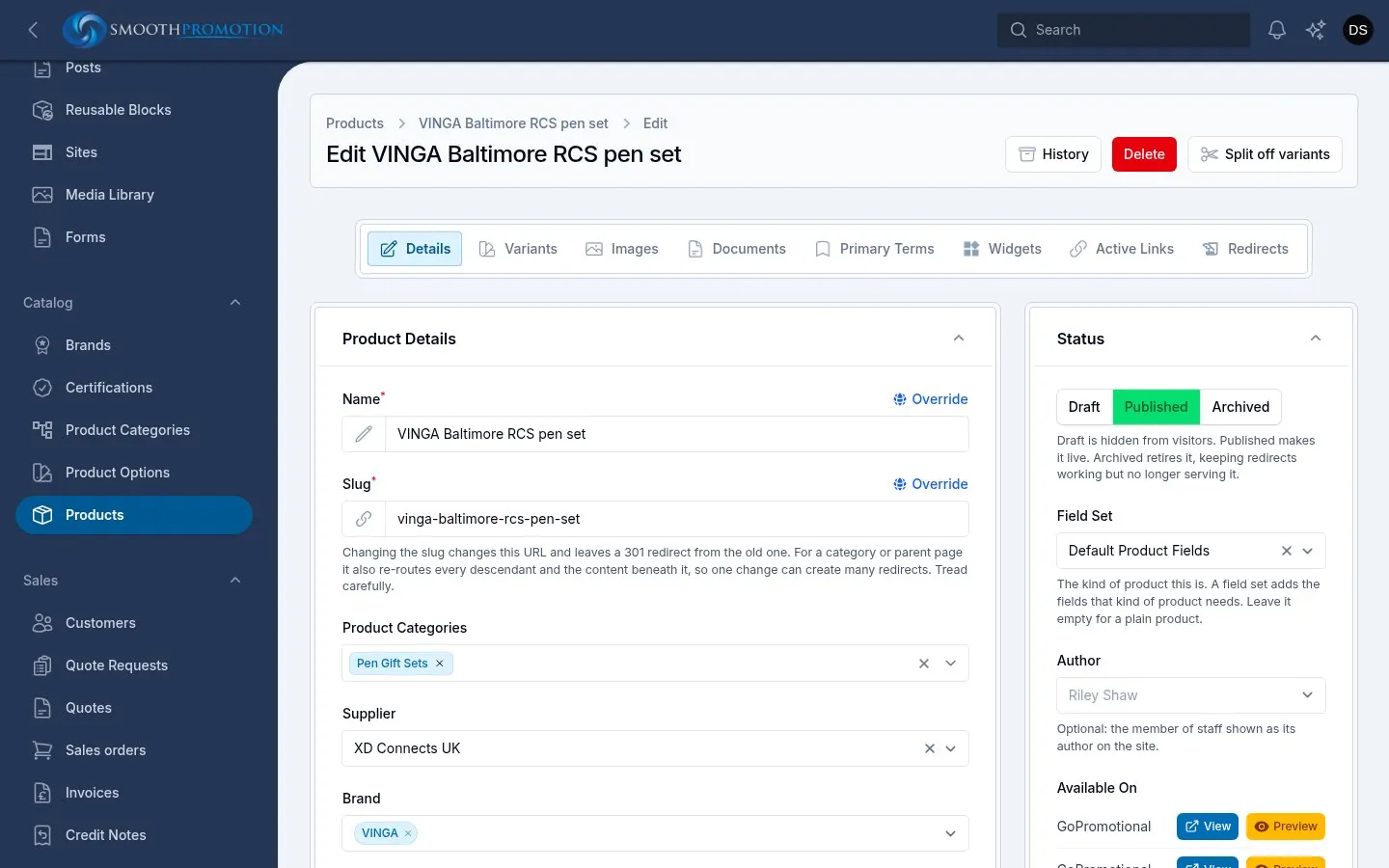
- Description, product details, brand, certifications and customisation choices follow the feed until staff edit them. A value you changed is left alone, and one you left alone keeps updating. A detail you add yourself is never touched, and one you delete is not added back.
- Variants, costs and stock come from the feed. See variants.
- Name is built by the naming rules. Renaming one by hand protects it from Regenerate names from rules, unless overwriting is ticked.
- Field set comes from its supplier category until you choose another.
- Print positions you rename, hide or reorder are never written over by a sync.
See syncing for when this happens.