

The blog
The blog is made of three kinds of page: each post, each category (and tag), and the
blog home at /blog. Posts and categories are under Content Management, and you need the
Manager role.
Writing a post
Section titled “Writing a post”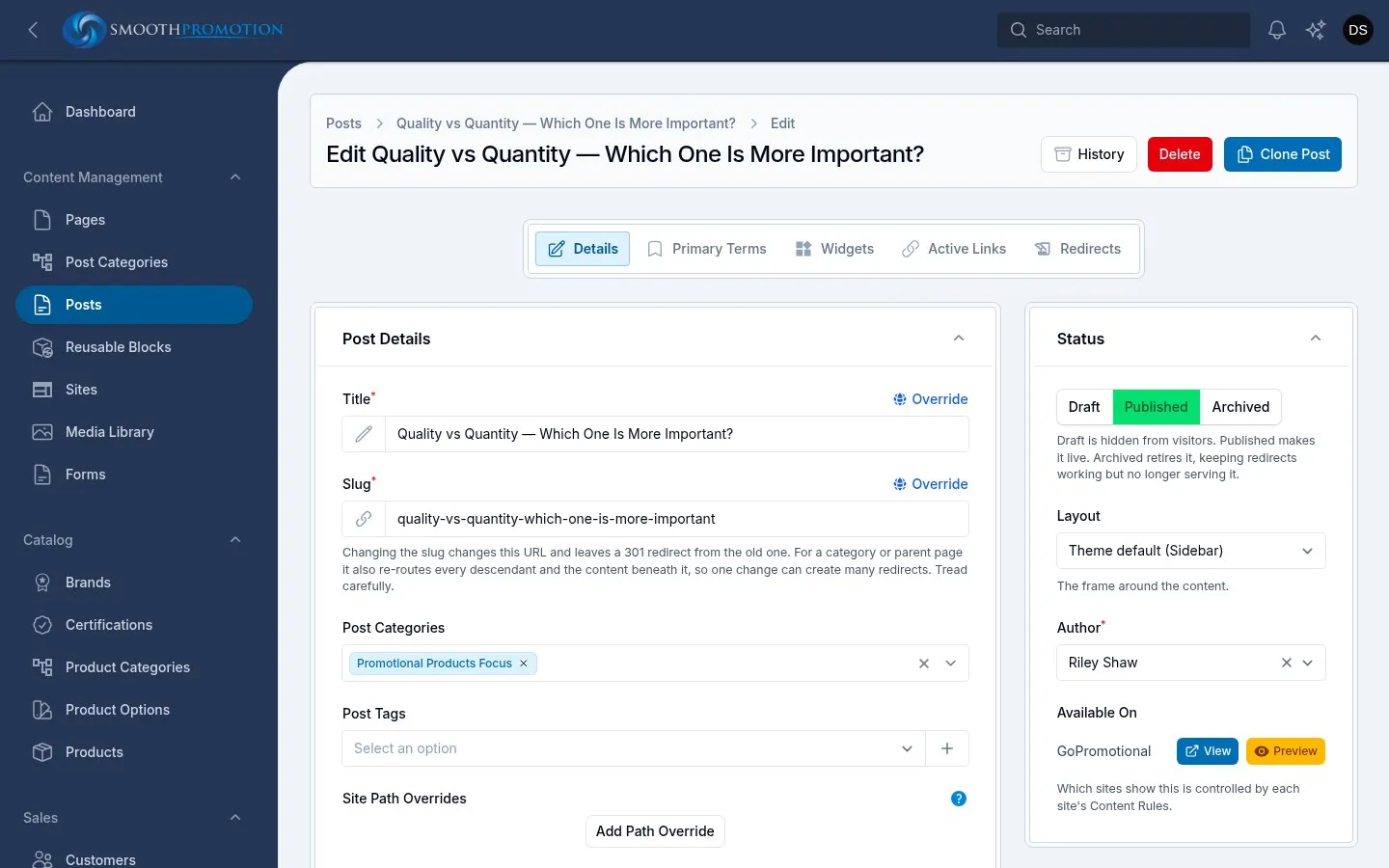
- Content Management › Posts › New Post.
- Enter the Title. The Slug fills in from it.
- Choose its Post Categories and Post Tags.
- Add a Description if you want your own summary (see below).
- Build the article from blocks under Content.
- In the sidebar, set the Author (required; it starts as you) and add an Overview Image.
- Set Status to Published when it is ready, and save.
A post goes on a site when it is Published and that site’s content rules include it. As with pages, Available On shows where it is live, with a Preview link for drafts, and there is the same Override for per-site wording and the same SEO section. To copy one, use Clone Post: see the cautions on cloning.
Description is the post’s summary. Post cards show its first 160 characters as plain text. With no description, they use the start of the article’s first block with text.
The tabs on the edit page are Details, Primary Terms, Widgets, Active Links and Redirects.
Publish dates
Section titled “Publish dates”A post can carry a publish date, and imported posts do. The dates behave like this:
- A post whose date is still in the future isn’t live, even if it is Published. The system checks every five minutes and puts it live once the date has passed.
- The date shows on the post and on its card, and lists are ordered by it, newest first.
- A post written here has no date, so it shows none, and it sorts after every dated post in those lists, including Latest posts and the newest post used by Featured post.
If a new post must appear at the top of a list, choose it directly in a Featured post block.
How a post looks
Section titled “How a post looks”A post shows its categories, title, date and picture above its content. The picture is the post’s overview image; if the post’s text already starts with the same picture, it is not shown twice. Below the post come three related articles from the same categories, its main category’s first.
Pick how a post is laid out with Layout in the post’s edit form (Status section):
| Layout | Shows |
|---|---|
| Sidebar (the default) | the post beside the blog’s categories and any sidebar widgets |
| Full width | the post across the page, no sidebar |
The breadcrumbs above a post run Home › the blog home › the post’s main category › the post. The main category is the one set as the post’s primary category for the site. To choose it, use Set primary term in the post’s Primary Terms tab (Site, Taxonomy, Primary term). With none set, it is the first of its categories the site carries, by name.
Pictures in the text. The Text block’s editor has no button for adding a picture, so use a Text (+ image) or Image block for a new one. A picture already in a paragraph of its own can sit beside the text: select it and use the editor’s alignment buttons. Aligned right (or left), it floats at the side, at most about half the column wide, and the text wraps around it; centred, it sits in the middle. On a phone it always sits centred between the paragraphs. Imported posts were placed this way already: by the author’s alignment on the old blog, and small pictures to the right.
Sidebar widgets. Banners and other widgets for the post sidebar go in the post’s Widgets tab (area “Sidebar”). Widgets placed as the site’s default for all posts show on every post that has none of its own.
Categories
Section titled “Categories”Content Management › Post Categories has the tree of categories above the list. Drag a category in the tree to reorder it or move it under another. Moving one changes its address and those of everything beneath it, leaving redirects from the old ones.
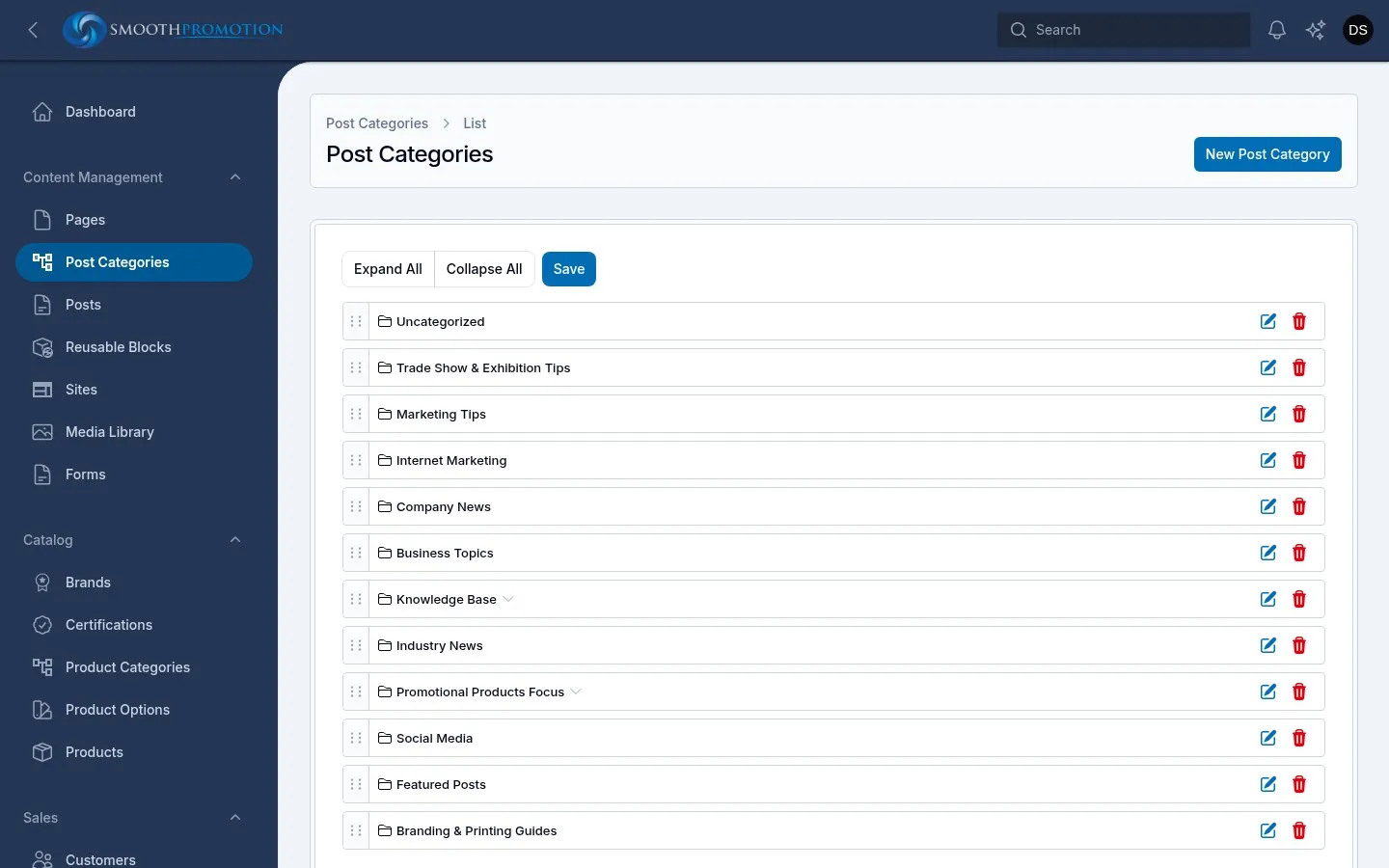
Each category has a Name, Slug, Description, Parent and Overview Image, plus an SEO section. A category has no status: it is live wherever a site’s content rules include it, and can use a different name on one site through Override.
The Posts tab lists its posts and lets you add or remove them with Add Post to Post Category and Remove. Dragging here does not change the order on the site: category pages are always newest first.
Deleting a category doesn’t delete its posts, but its address on each site is gone for good. Its old addresses aren’t redirected.
What a category page shows
Section titled “What a category page shows”A category page shows how many posts it has on the site, its name and description, tiles for its subcategories, then its posts, newest first, twelve to a page. Each post’s picture is cut to the same shape (16:10) so the cards line up; a post with no picture shows a tile with its category’s name instead. Pictures close to that shape (wider than tall, about 1.3 to 2 times as wide) crop best. Give a category a picture (its overview image) to show it on its tile, and a description to show it under its name.
Tags have no screen of their own. Add one on a post, in Post Tags: pick an existing tag or use the create button to make a new one, entering only its name. To rename or delete a tag, ask a technical person.
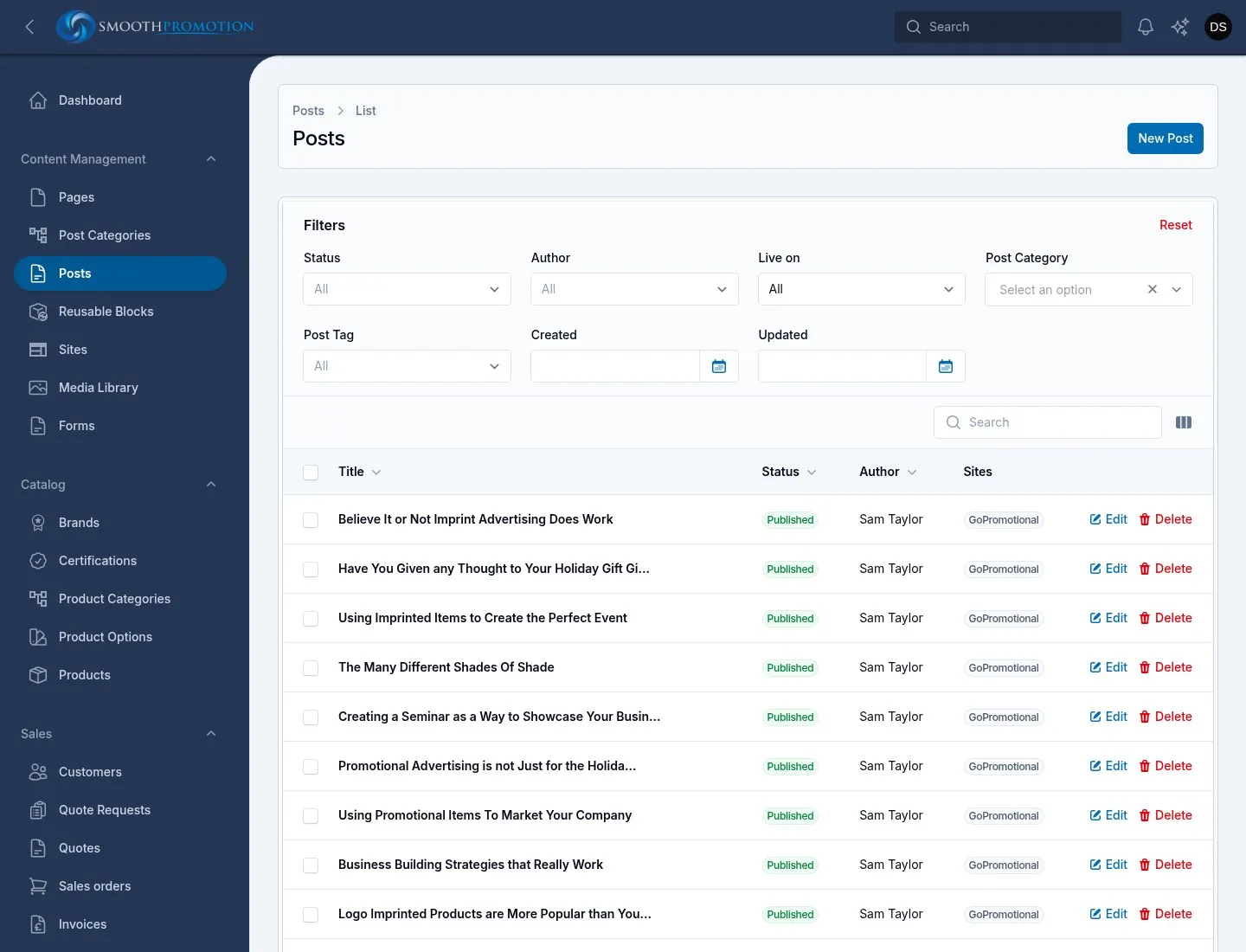
Each tag has its own page listing its posts on that site, newest first, if the site’s content rules include it.
The blog home
Section titled “The blog home”/blog is an ordinary page (Content Management › Pages, “GoPromotional Branded Merchandise Blog”), built
from blocks, so it can be rearranged without a developer. Three blocks are made for it:
- Featured post: one post given pride of place, with a short list of the newest posts beside it. Leave the post empty to feature the newest.
- Post categories: categories as tiles (picture, name, number of posts, four to a row), a row (the tiles in one row across the page), cards (picture, name, description) or a bar of links. Choose the categories and their order, each with an optional label to show instead of its name (the topic bar’s “Product guides”), or leave the list empty for the top-level categories with the most posts first.
- Latest posts: the newest posts as cards, from every category or just one; with one category, a “More in” link to it.
Each block shows only posts and categories the site carries, so the same page works on any site.