

Tasks and the calendar
A task is a to-do for staff: a follow-up, a call, chasing artwork. It can be about a customer, a quote, an order, an invoice or a purchase order, or nothing in particular. Tasks apply to the whole business, not to one site.
Adding a task
Section titled “Adding a task”- Add task on a customer’s page, or on the Tasks tab of a customer or document. It goes to the record’s rep by default, due in a week.
- New task on Sales > Tasks, where you can pick the customer. It goes to you, due today.
- Clicking a day on the calendar.
- Automation rules can add them too.
| Field | What it does |
|---|---|
| Title | What to do. Required |
| Customer | Only on the task list and calendar. A task on a document takes the document’s customer |
| Assigned to | Anyone who works with customers, or Unassigned |
| Type | From your task types. It sets the colour on the calendar |
| Priority | Low, Normal or High. Separate from the type |
| All day, Due | A date, or a date and time with All day off |
| Description | Any detail |
Assigning a task doesn’t notify anyone by itself. A rule can do that, with Notify staff.
The task list
Section titled “The task list”Sales > Tasks opens on your own open tasks, soonest first. Overdue ones show their date in red, and the menu item shows how many of yours are overdue.
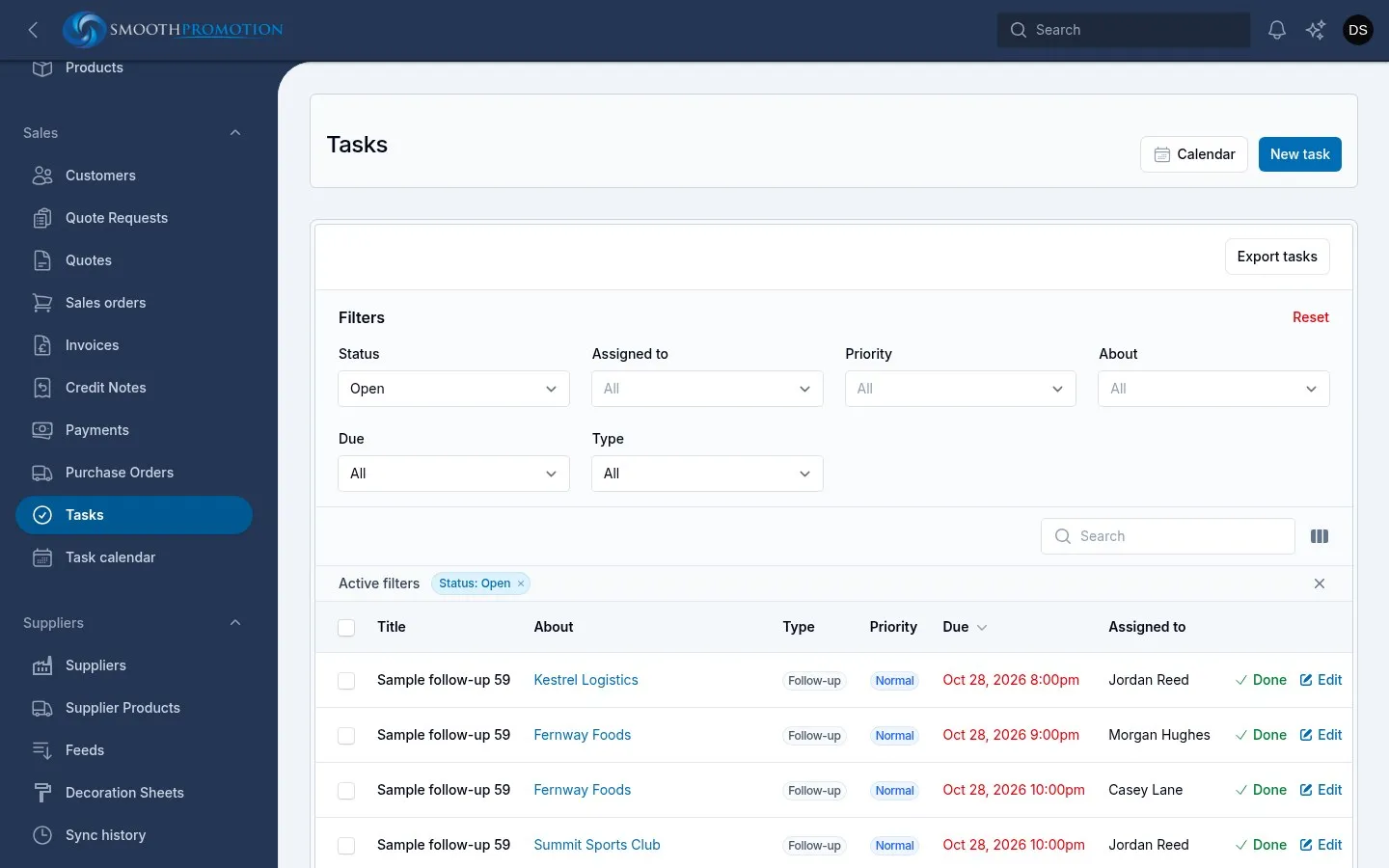
Change the filters to see more:
| Filter | Options |
|---|---|
| Status | Open or Done |
| Assigned to | Me or Unassigned, or clear it for every task you can see. Managers can also pick a person |
| Priority | Any of Low, Normal, High |
| About | A customer, a quote, an order, an invoice or a purchase order |
| Due | Overdue, Due today or Due this week |
| Type | Any task type |
The About column links to the record, so you can go straight from the task to the work.
Done finishes a task, and Reopen puts it back. Mark done does several at once. Editing a task also lets you Add a note, such as progress or what was agreed. It is saved on the task with the date and your name.
Anyone who can see a task can edit it. Only the person who created it, or a manager, can delete it.
Whose tasks you can see
Section titled “Whose tasks you can see”You can see tasks assigned to you, tasks you created, and tasks on customers you can see. Managers see everyone’s, and only they get the person filter and the calendar’s team view.
The task calendar
Section titled “The task calendar”Sales > Task calendar (or Calendar on the task list) shows tasks by due date, coloured by type. Finished tasks are grey.
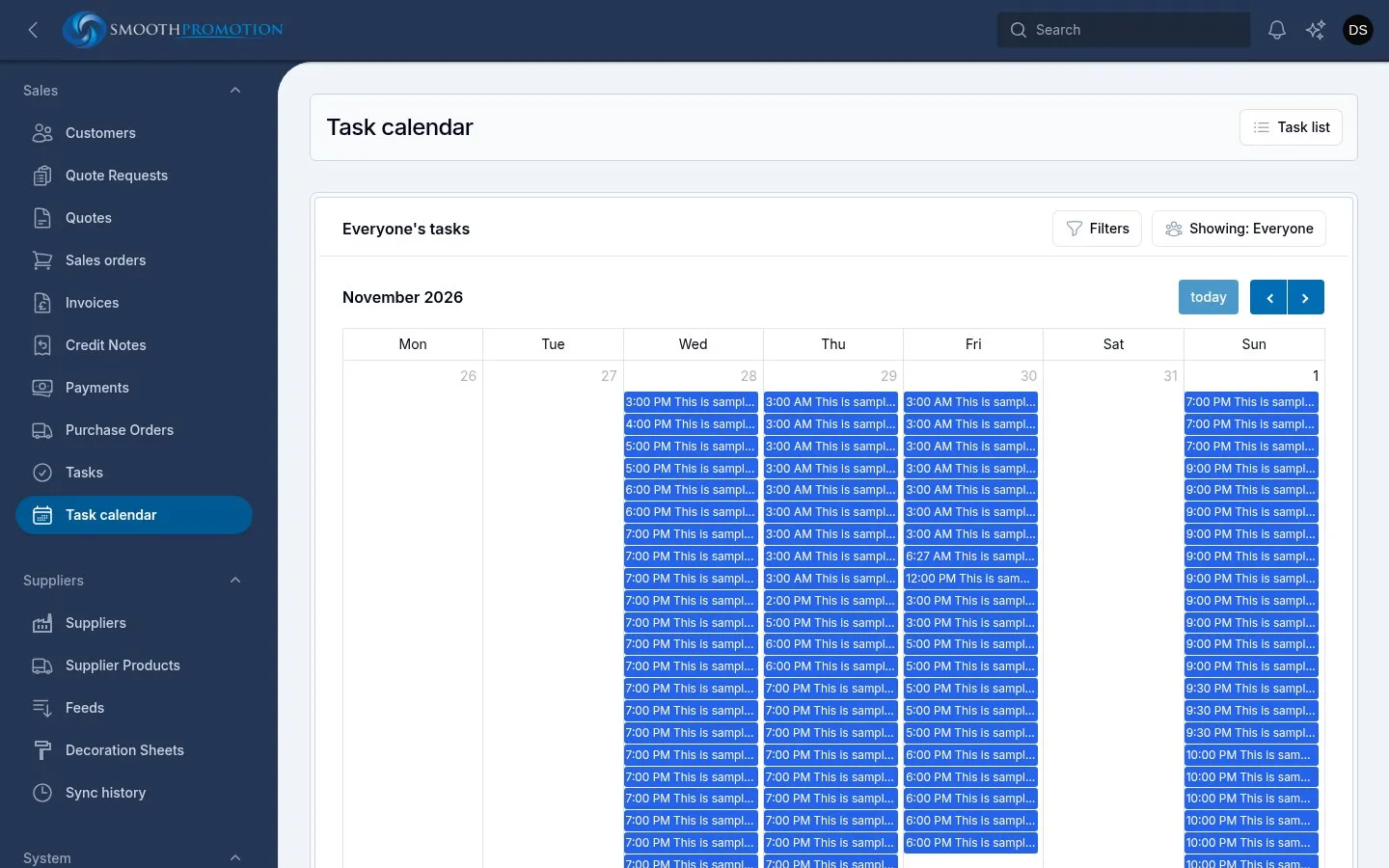
- Click a task to edit it.
- Drag a task to another day to reschedule it.
- Click a day to add a task.
Filters narrows the calendar by type, priority, and open or done. Your choice stays for the rest of your session.
Managers get two more things:
- Showing on the month view switches between Mine, Everyone, Unassigned or one person.
- Team below it shows the week with one row per rep, plus an Unassigned row, and anyone else still holding open tasks. Every task fills its day here. Dragging a task to another day keeps its time, and it doesn’t change who the task is assigned to.