

Branding setup
Every supplier names its print methods differently, with its own codes. This setup turns all of them into one consistent set of choices for customers. It all applies to the whole catalog, on every site. For the options on one product, see branding on a product.
| Screen | Menu | What it is for |
|---|---|---|
| Decoration methods | Configuration > Decoration | Your own method names, and house setup prices |
| Supplier methods | Suppliers > Feeds > a feed > Methods | Each supplier’s codes, mapped to your methods |
| Supplier positions | Suppliers > Feeds > a feed > Positions | Each supplier’s print positions, named your way |
| Branding rules | Configuration > Decoration | Hide, rename or limit methods where conditions hold |
| Decoration sheets | Suppliers > Decoration sheets | Price lists kept here, not read from a feed |
Decoration methods
Section titled “Decoration methods”These are your own methods (screen print, embroidery and so on), and their names are what customers see.
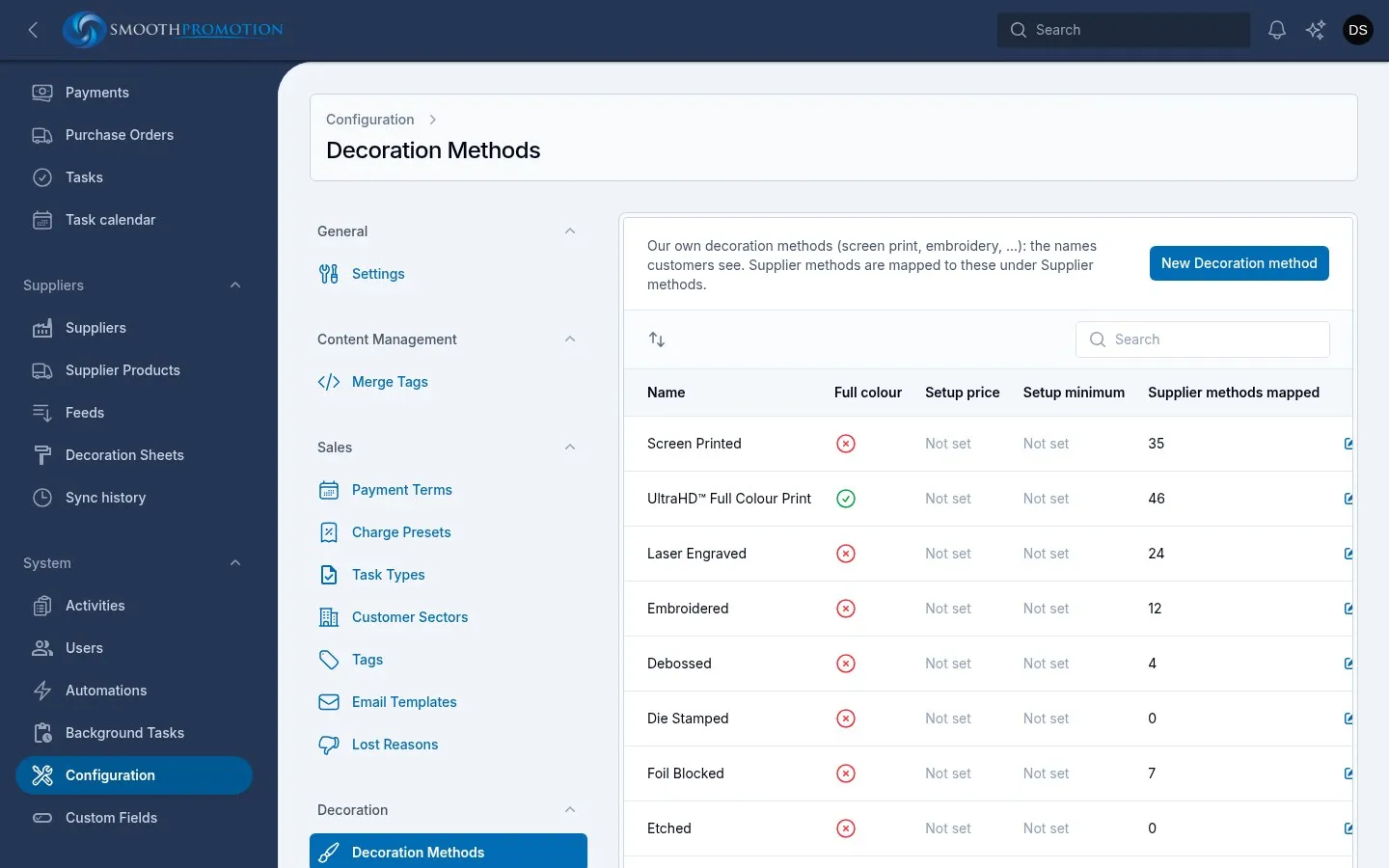
| Field | What it does |
|---|---|
| Name | What customers see for every supplier method mapped to it |
| Prints full colour | Supplier products offering a method mapped to it show under the Full Colour Print filter |
| Setup price, Setup minimum | Used by feeds whose Setup pricing is Our house setup price per method or at least our house minimum. Empty means none |
| Charged | Once per position or Per colour |
Drag rows to set their order. Deleting a method leaves the supplier methods mapped to it unmapped, so they are hidden until mapped again.
Supplier methods
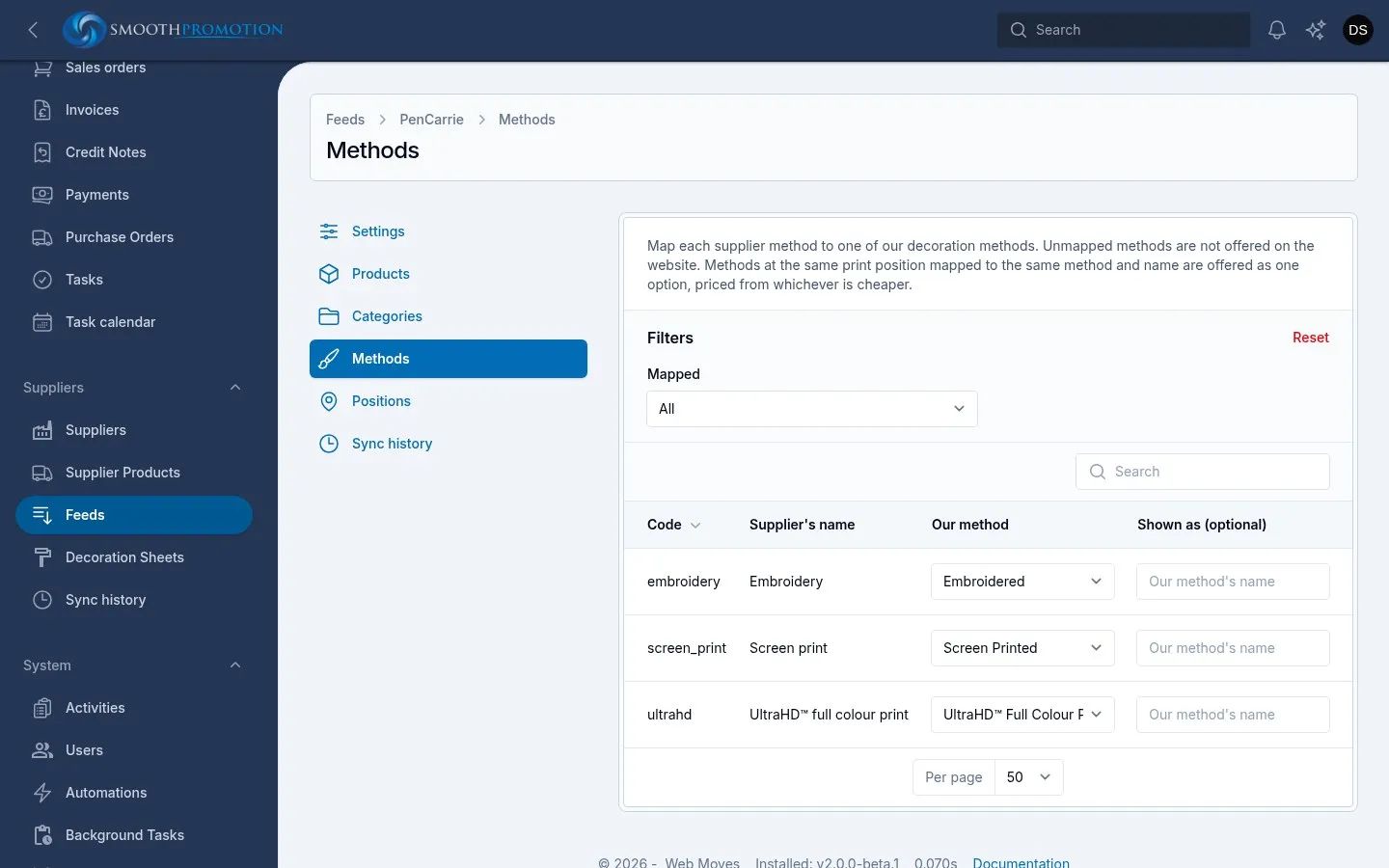
Section titled “Supplier methods”Open a feed under Suppliers > Feeds and choose Methods. Codes are recorded when products are added or synced, so you can’t add or delete them. Each row has the Code and Supplier’s name, and two things you can edit right in the list:
| Column | What it does |
|---|---|
| Our method | The decoration method it maps to. Not mapped: hidden means it isn’t offered on the website |
| Shown as (optional) | A different name for customers. Blank uses your method’s name |
Methods at the same print position mapped to the same method and name are offered as one option, priced from whichever is cheaper.
Supplier positions
Section titled “Supplier positions”Open a feed and choose Positions. These are the places a supplier’s products can be branded, recorded the same way. Type in Shown as (optional) to use your own name on every product, or leave it blank to show the supplier’s. The Our name filter finds what is left.
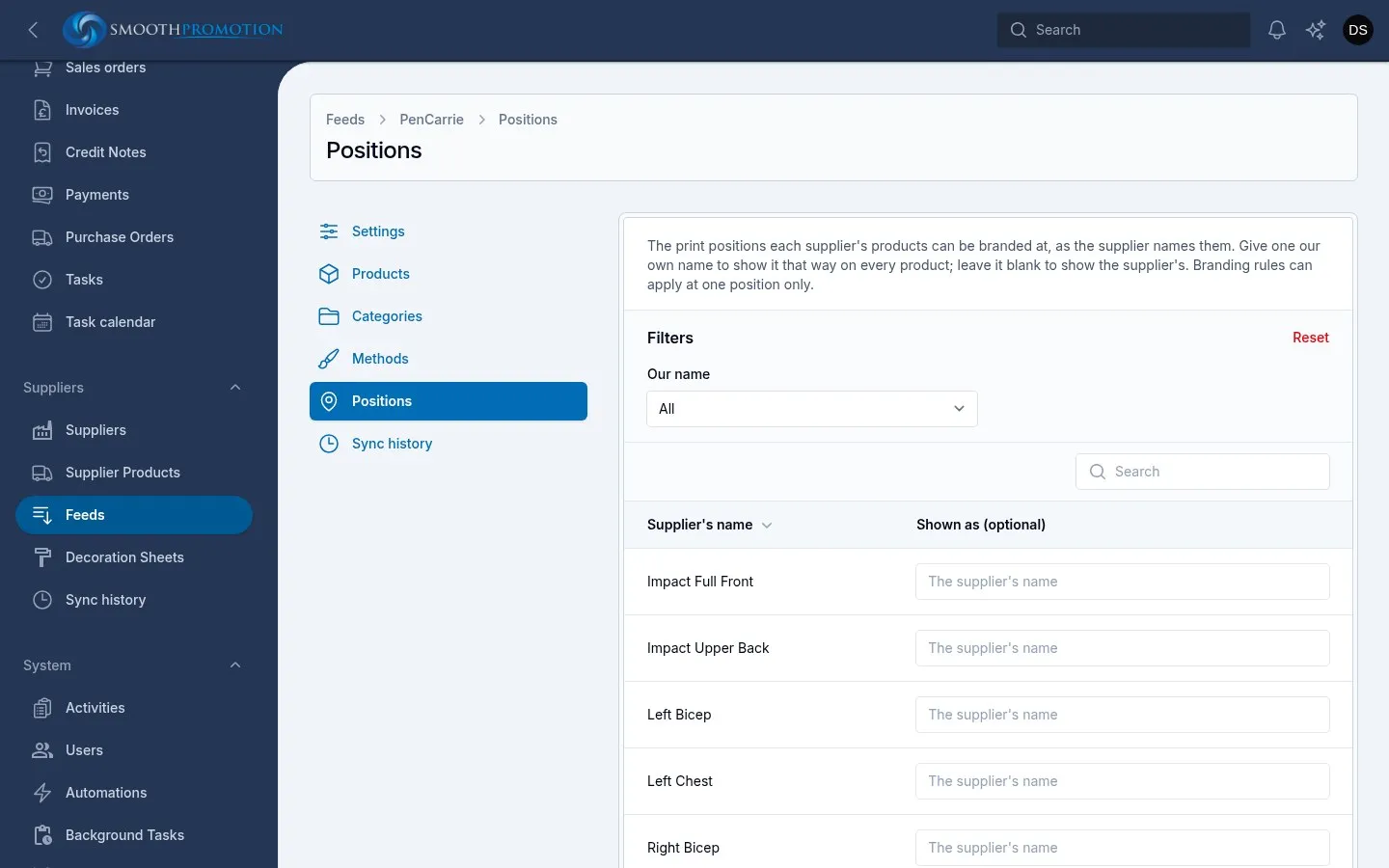
How many positions a customer can brand on one order is set on the feed, the supplier category or the product.
Branding rules
Section titled “Branding rules”Configuration > Decoration > Branding rules handles what mapping can’t, such as “no sublimation on umbrellas”. Rules are applied when a product page is built, so a change reaches every product at once.
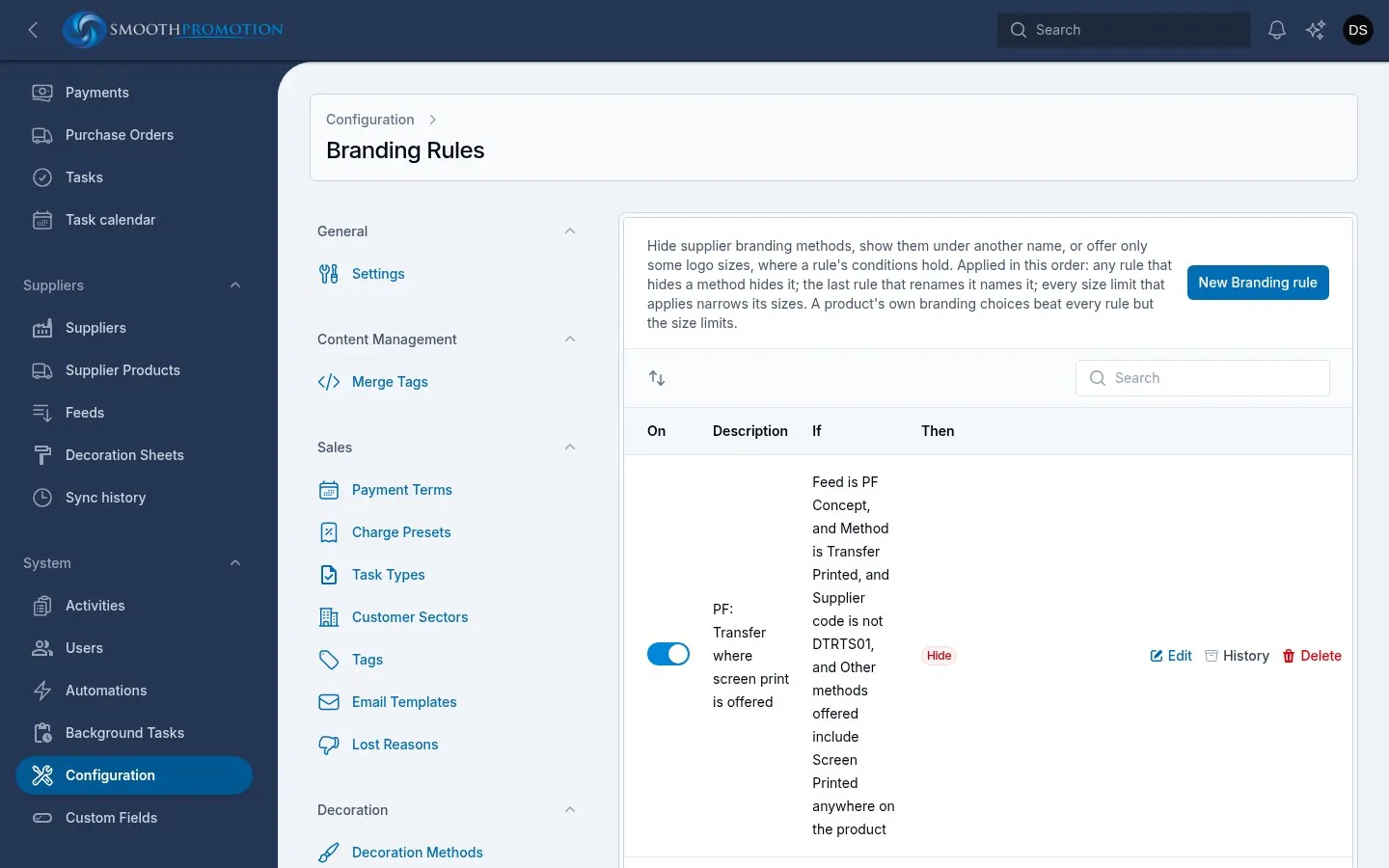
If is All of these are true or Any of these is true, over these conditions:
| Condition | Matches |
|---|---|
| Method | Your decoration methods |
| Supplier code | A method’s code, as on a feed’s Methods page, ignoring case |
| Feed | A feed |
| Category | Your categories, with their subcategories |
| Supplier category | The feed’s own categories, with those below them (Bags covers Bags > Cotton Bags) |
| Position | The supplier’s name for it, ignoring case. contains matches part of a name (Strap) |
| Product code | The supplier’s product code: for a rule’s exceptions, or one product’s choice before it is in the catalog |
| Other methods offered | Your methods that the product’s other codes are mapped to at the same position, such as hiding Transfer where Screen print is offered. Tick Anywhere on the product, not only at the same position to widen it. This looks at codes before any rule or product choice |
Then is one of:
| Action | Effect |
|---|---|
| Hide | The method isn’t offered |
| Show as | The method shows under the name you give |
| Limit logo sizes | Only sizes between From (cm²) and To (cm²) are offered. Nothing larger is offered, not even on request |
When several rules apply, any rule that hides a method hides it, the last rule that renames it names it, and every size limit that applies narrows its sizes. Drag to set the order. On switches a rule off. A product’s own branding choices beat every rule except the size limits.
Decoration sheets
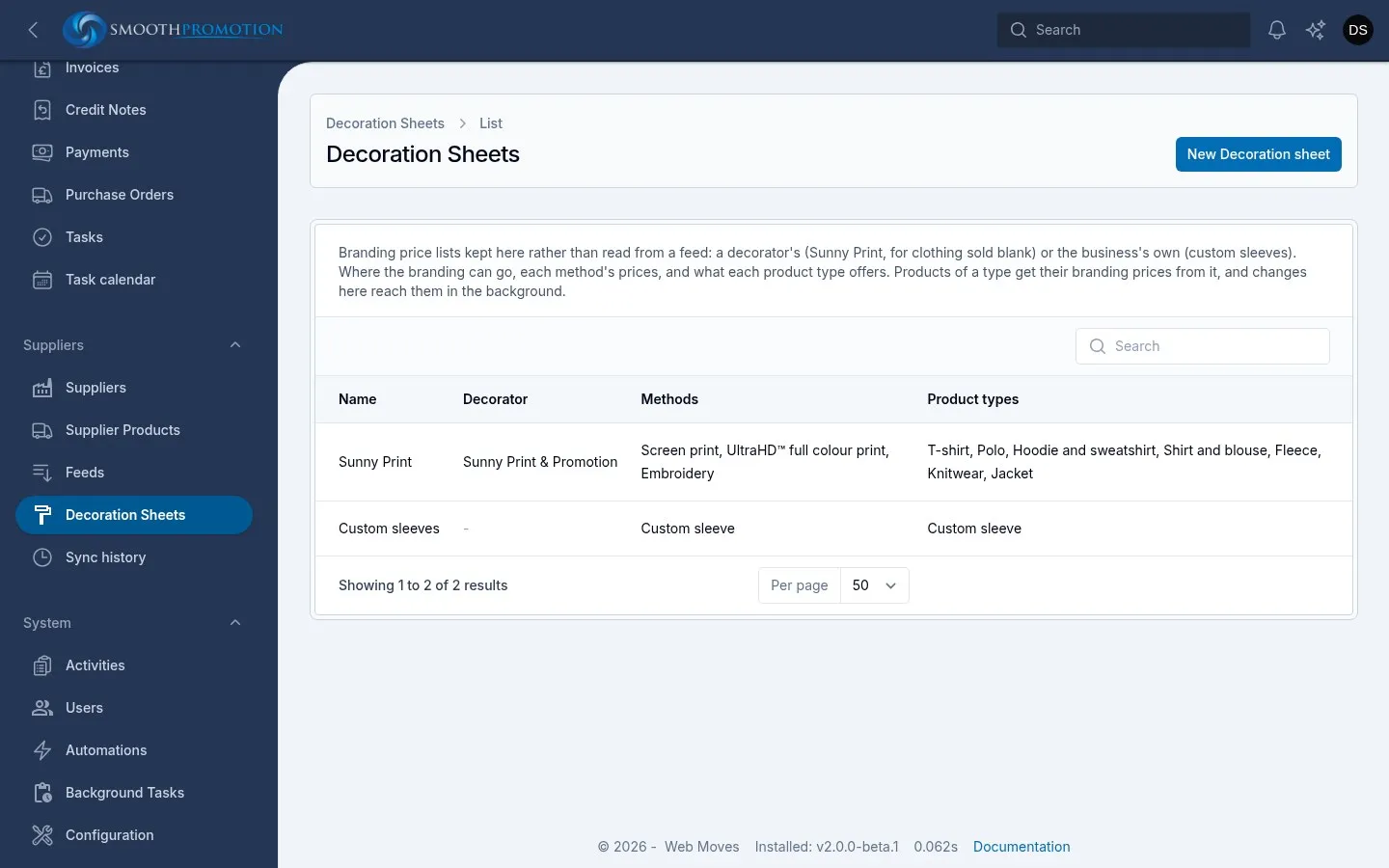
Section titled “Decoration sheets”Suppliers > Decoration sheets holds branding price lists kept here rather than read from a feed: a decorator’s, for clothing sold blank, or the business’s own. A sheet has:
| Section | What it holds |
|---|---|
| Decorator | A name, and the supplier you pay for the printing: who its purchase orders go to. Also its currency and notes |
| Places | Where on a product the branding can go |
| Methods | Each way of decorating, with its Setup. Priced per colour charges its price and setup once for each colour, up to Most colours. Prices per place gives each place’s size and its Price each from each quantity |
| Product types | What is offered on each type of product, ticked under Offers |
Saving a sheet updates the branding prices of the products it prices, in the background.
Which products use a sheet
Section titled “Which products use a sheet”A product’s branding prices come from the first of these it has:
- The garment type chosen on the product itself, under Decorated as, priced from that sheet.
- Its supplier’s print data, from the feed.
- The type its supplier category is Decorated as, priced from that sheet.
Setting a category’s Decorated as is the usual way. The product’s own choice is for exceptions.