

Syncing
A sync reads a feed and brings Smooth in line with it. It is how costs, stock and new products keep up with the supplier without anyone retyping them. Feeds and their settings apply to the whole catalog, on every site.
What a sync does
Section titled “What a sync does”A Products and stock run works in this order:
- The feed’s list. Supplier products are added, updated or marked No longer supplied. New categories are recorded for you to map.
- Catalog products from this feed. Each is brought in line with its supplier product. Print methods and positions they use are recorded for you to map and name.
- Stock, where the feed manages stock.
A Stock only run does just the last step, so it can run more often.
What it changes
Section titled “What it changes”| What | How |
|---|---|
| Variants | A new SKU becomes a new variant, last in the order. A SKU gone from the feed stops being offered, and comes back if the SKU returns |
| Costs | Replaced from the price list, and the “From” price follows |
| Print prices and positions | Replaced whole, from the feed or the decoration sheet |
| Stock | Follows the feed, on feeds that manage stock. A variant the stock list doesn’t mention is left as it was: unknown is not out of stock |
| Description, details, customisation choices | Follow the feed, while they still hold what the feed last wrote |
| Brand, certifications, field set, custom field values | The same: they follow the feed until staff change them |
| Missing photos and documents | Downloaded in the background, such as for a new colour |
| Supplier company | Set on products that have none, from the feed’s Supplier |
What it never changes
Section titled “What it never changes”| What | Notes |
|---|---|
| Names | Only regenerating names changes them |
| Addresses | A product’s URL does not change |
| Status | A draft stays a draft and a published product stays published, even when its supplier drops it |
| Categories | Your placement stands |
| Anything staff edited | An edited description is left alone. Details you added are never touched, and a detail you deleted is not added back |
| A variant’s options and labels, and whether it is hidden | A SKU is matched once |
| Photos already there | Never removed because the feed dropped them. A colour that has photos is left alone |
| A product’s own branding choices | Hidden or renamed methods on the product stay |
| A supplier company chosen on the product | |
| Splits | A sync never splits or merges: see split products |
| Ignored | Ignored supplier products stay ignored |
When a supplier drops a product
Section titled “When a supplier drops a product”The supplier product becomes No longer supplied. Its catalog product is kept and stays as it was, but all its variants stop being offered. Deciding what to do with the product is up to you, so set up an alert for it (see alerts). If the code returns to the feed, its variants come back.
Starting a sync
Section titled “Starting a sync”Open a feed under Suppliers > Feeds. On its Settings page:
- Sync now runs products and stock;
- Sync stock now runs stock alone (on feeds that manage stock).
Both run in the background and appear in Sync history when they start. If that feed’s sync is already queued or running, a second one is not started, although the notification still says Sync started.
Schedules
Section titled “Schedules”Under Schedule on a feed’s settings:
| Field | Choices |
|---|---|
| Products | Manual only, Every night, Every week, Every quarter (1 Jan, Apr, Jul, Oct), Twice a year (1 Jan, 1 Jul), Once a year (1 Jan) |
| On | The day of the week, for Every week |
| At | The time. The section says which time zone |
| Manage stock | On feeds that have stock. See below |
| Stock | Every hour up to Every 12 hours, when stock is managed |
Things worth knowing:
- Feeds sync one at a time. A feed that falls due while another is running waits its turn, in the order on Suppliers > Feeds. So At is the earliest it starts, not an exact time.
- A sync by hand counts. If a feed has already run since its slot, the schedule does not run it again.
- A products run reads stock too, so it resets the stock schedule.
- Manage stock off means every variant is always available and stock is never read. On, variants follow the feed’s figures and those at none are not offered. Turning it off puts the feed’s variants back to always available, in the background.
Reading the results
Section titled “Reading the results”Suppliers > Sync history shows every feed’s runs, and each feed has its own under Sync history. These records are written by the sync and can’t be edited.
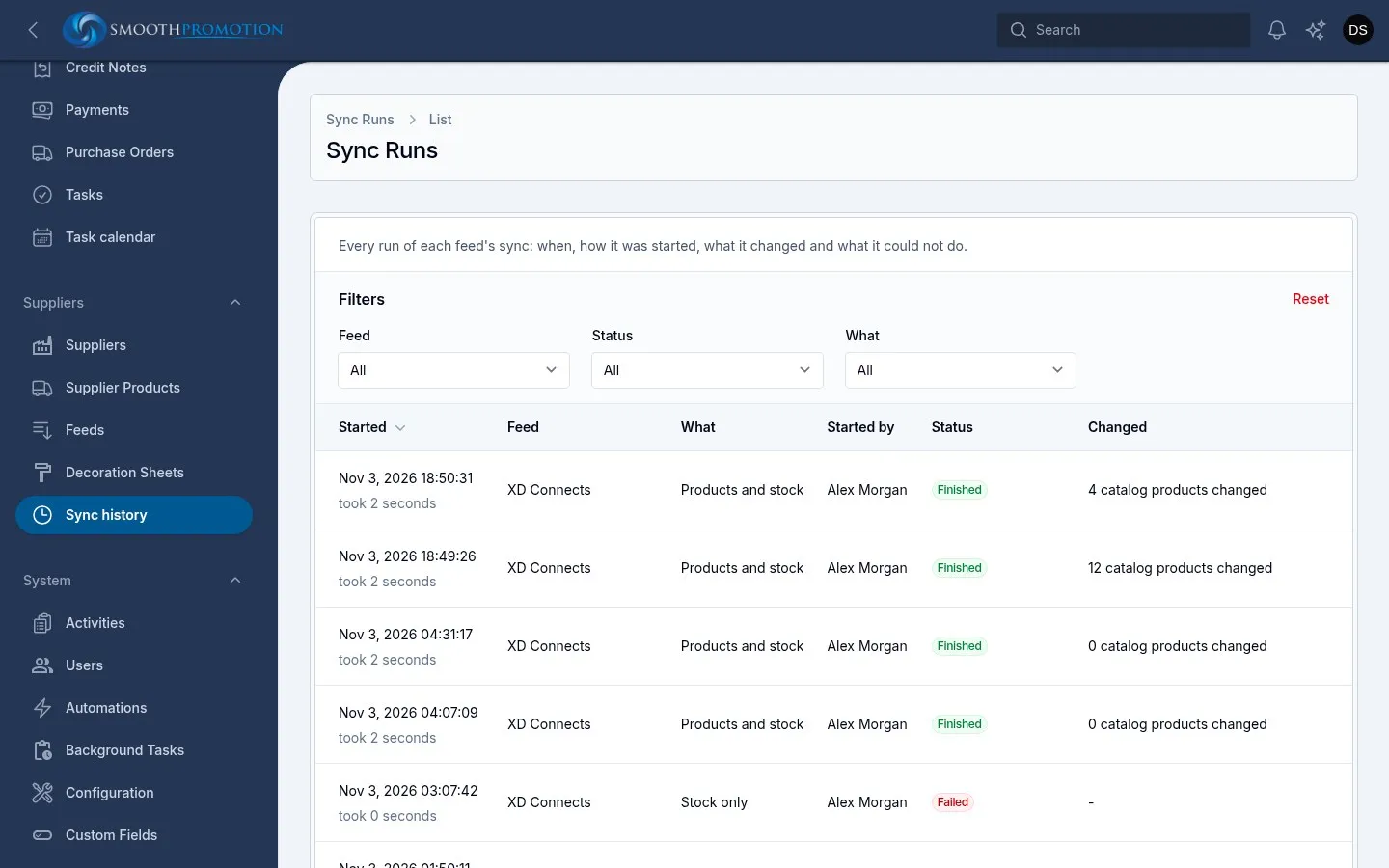
| Status | Meaning |
|---|---|
| Running | Still going |
| Finished | All done |
| Finished with problems | Some products, costs, print prices or stock weren’t updated; the rest was done |
| Failed | The feed couldn’t be read or the run stopped part way. A feed that can’t be read, lists a code twice or returns nothing changes nothing |
What says what kind of run it was: Products and stock, Stock only or Added to catalog. Started by names the person, or says Schedule, Command or Re-sync from a run.
View opens the run:
| Section | What it tells you |
|---|---|
| Not done | What went wrong, in red. Look here first |
| Products it changed | Links to the first 50. Each product’s timeline shows what changed |
| Photos and documents | The downloads it queued, as they stand now, with what failed and why. Open it again to see them move on |
| Saved inputs | What the run read from the supplier, or when that was deleted |
| Supplier products (the feed’s list) | New, changed, unchanged, no longer supplied |
| Catalog products from this feed | Checked, changed, variants added, dropped and back, content updated, costs updated, variants without a cost, and more |
| Stock | Variants changed, products gone out of stock and back |
| Added to the catalog, Not added | For an Add to catalog run: what was added, and what was skipped or left out and why. Those are expected, not problems |
Variants without a cost are worth watching: they have a supplier SKU the price list doesn’t cover.
The Photos column and the Download photos and documents again bulk action on the product list deal with failed downloads. Only what a product lacks is fetched.
Re-sync from this run
Section titled “Re-sync from this run”For Super admins only. Re-sync from this run puts a feed’s products back to what an earlier run read from the supplier: costs, print pricing, variants and content, wherever staff have not changed them. Use it when a supplier sent bad data. It uses today’s feed settings and rules, not those of the run, and the confirmation names any feed settings changed since. It leaves stock to the next stock sync.
It needs that run’s saved inputs. They are deleted after the time set under Settings > Housekeeping (see settings), though each feed’s latest products run keeps them whatever its age.
Alerts
Section titled “Alerts”Alerts are automation rules built on two moments:
Feed synced fires when a run ends. Rules can look at the feed, status, what kind of run it was, who started it, and these numbers: New products in the feed, Products no longer supplied, Catalog products changed, Catalog products not updated, Variants without a cost.
Product changed by its feed fires for a product when a sync changes it in a way people may need to know:
| Field | Meaning |
|---|---|
| Print positions removed, Print methods removed | Branding it offered that the feed no longer gives |
| Variants added, Variants dropped | |
| Largest cost change, either way (%) | For “tell me about anything over 10%” |
| Largest cost change (%, below 0 when cheaper) | For rises only, or falls only |
| Minimum order lowered by | |
| No longer supplied | The supplier dropped it |
| A split rule now applies, No longer cheaper than its main product | See split products |
Per-feed settings
Section titled “Per-feed settings”Open a feed under Suppliers > Feeds. Everything on its Settings page applies to all that feed’s products, on every site.
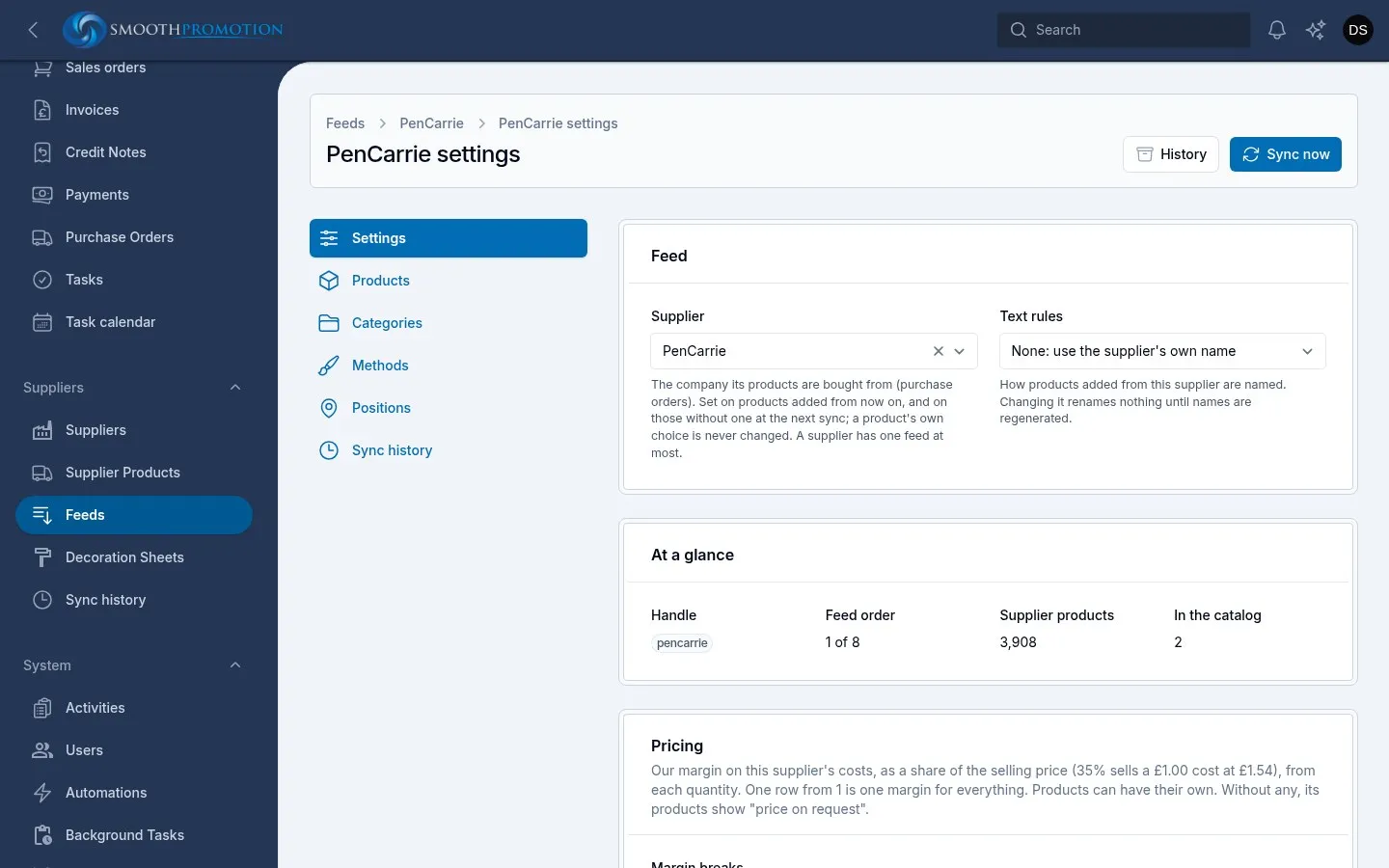
| Field | What it does |
|---|---|
| Supplier | The company its products are bought from, for purchase orders. Set on products added from now on, and on those without one at the next sync. A product’s own choice is never changed |
| Text rules | How products added from this supplier are named. Changing it renames nothing until names are regenerated |
At a glance shows the feed’s place in the order, its number of supplier products and how many are in the catalog.
Pricing
Section titled “Pricing”The margin is a share of the selling price, from each quantity: 35% sells a £1.00 cost at £1.54. One row from 1 is one margin for everything. Products can have their own. With no margin at all, a product shows “price on request”. See pricing.
Setup pricing decides how the supplier’s setup costs become prices:
| Option | What it does |
|---|---|
| Same margin as the goods | Setup is marked up like the goods, at the product’s margin for the quantity |
| Its own setup margin | The supplier’s setup cost with Setup margin, whatever the quantity |
| Our house setup price per method | The decoration method’s own setup price, whatever the supplier charges |
| Its own setup margin, at least our house minimum | The setup margin, but never less than the method’s minimum |
Saving a change to these reworks the feed’s “From” prices in the background.
Ordering and delivery
Section titled “Ordering and delivery”| Field | What it does |
|---|---|
| Minimum order | The smallest order its products are priced at, unless their category or they set one. Never below what the supplier prices from |
| Minimum order value | At cost: the blank, the cheapest branding and its setup. A product without its own minimum starts at the first of the Possible minimums where its cheapest order reaches this. Empty means no such rule |
| Possible minimums | The quantities a product’s minimum can be, smallest first |
| Production time | Working days its products take, unless they set their own. Empty means no delivery date is shown |
| Positions per order | How many print positions a customer can brand on one order, unless their supplier category or they set one. Empty or 1 means one |
Price freshness
Section titled “Price freshness”Supplier prices go stale, so the clock counts from the last sync that read both the price list and the print prices. It keeps running if either couldn’t be read.
| Field | What happens after it |
|---|---|
| Warn after | Staff who can see feeds are told on the dashboard |
| Stop after | The feed’s products show “price on request” until a sync succeeds. Their “From” prices then come back by themselves |
A feed that has never synced shows “price on request” too. Prices last updated shows where the feed stands, as does the Prices updated column on the feeds list.