

Invoices and payments
This page is for whoever looks after the money. The journey of a sale shows where each step fits.
Anyone who can see an invoice can work on it, whatever their role: record a payment, issue a credit note or send it. Reps see the invoices of their own customers and of the pool, and managers and accounts staff see all of them. Only managers and accounts staff can export the lists. See Roles.
Invoices
Section titled “Invoices”There is no New invoice button. Confirm and invoice on a sales order issues its invoice, with the same lines, addresses, tax and payment term. From then on its lines can’t change, and it can never be deleted. If it is wrong, credit it.
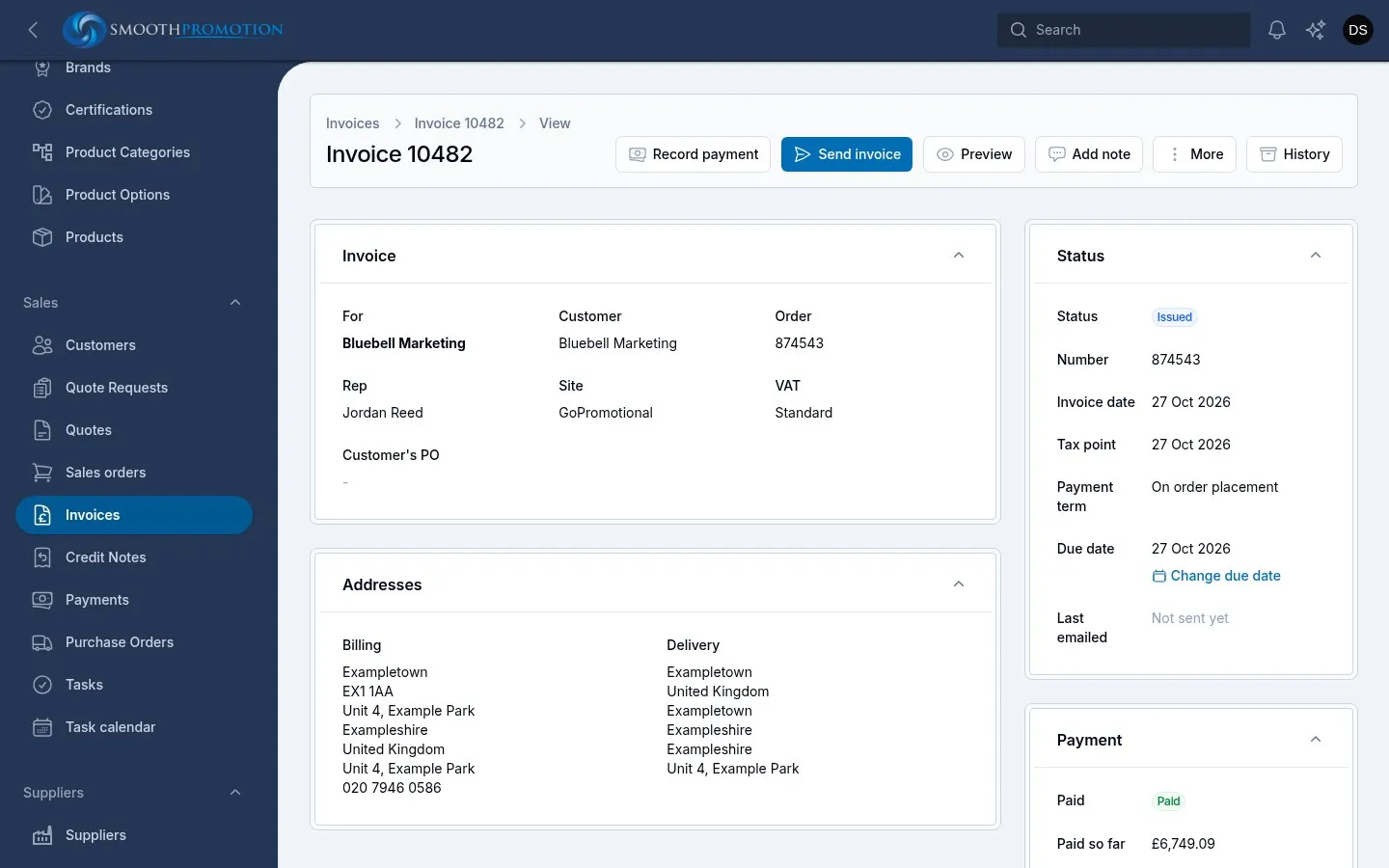
The list is under Sales > Invoices. Useful filters:
| Filter | Shows |
|---|---|
| Paid | Unpaid, Partially paid, Paid, Overpaid or Credited |
| Overdue | Invoices marked overdue |
| Not sent yet | Issued invoices never emailed to the customer |
| Balance due | Issued invoices with money left to pay |
| Status | Issued or Void |
| Rep, Site, Tier, Repeat customer, Updated | Narrow down the list |
On the invoice’s page:
- Send invoice emails it with its PDF, starting from the default email template for invoices. You can pick another template, change the wording, and attach the order’s artwork proofs.
- Record payment and Refund are below.
- Preview shows what the customer sees. Download PDF is under More.
- Change due date (or Set due date) sits under the due date.
- The Lines, Payments, Credit notes, Activity and Tasks tabs show the rest.
An invoice is voided only by cancelling its order, and only if nothing has been paid or credited. A void invoice keeps its number and is no longer due.
Recording a payment
Section titled “Recording a payment”Record payment takes:
| Field | Notes |
|---|---|
| Amount | Starts at the balance due. You can enter more, which makes the invoice Overpaid |
| Paid on | Starts at today |
| Method | BACS, Card, Cheque or Other |
| Reference | The bank reference or card transaction number, if any |
| Notes | Anything else |
The rest follows by itself:
| Paid status | When |
|---|---|
| Unpaid | Nothing paid |
| Partially paid | Some paid, some still owed |
| Paid | What was paid matches what is owed |
| Overpaid | More paid than is owed |
| Credited | Credited in full, with no money left on it |
Once an order has shipped and its invoice has nothing left to pay, the order becomes Completed.
To undo a payment entered by mistake, use Remove on the invoice’s Payments tab. The balance steps back, and the order moves back if it needs to. A payment can’t be removed if that would leave more refunded than paid, so remove the refund first.
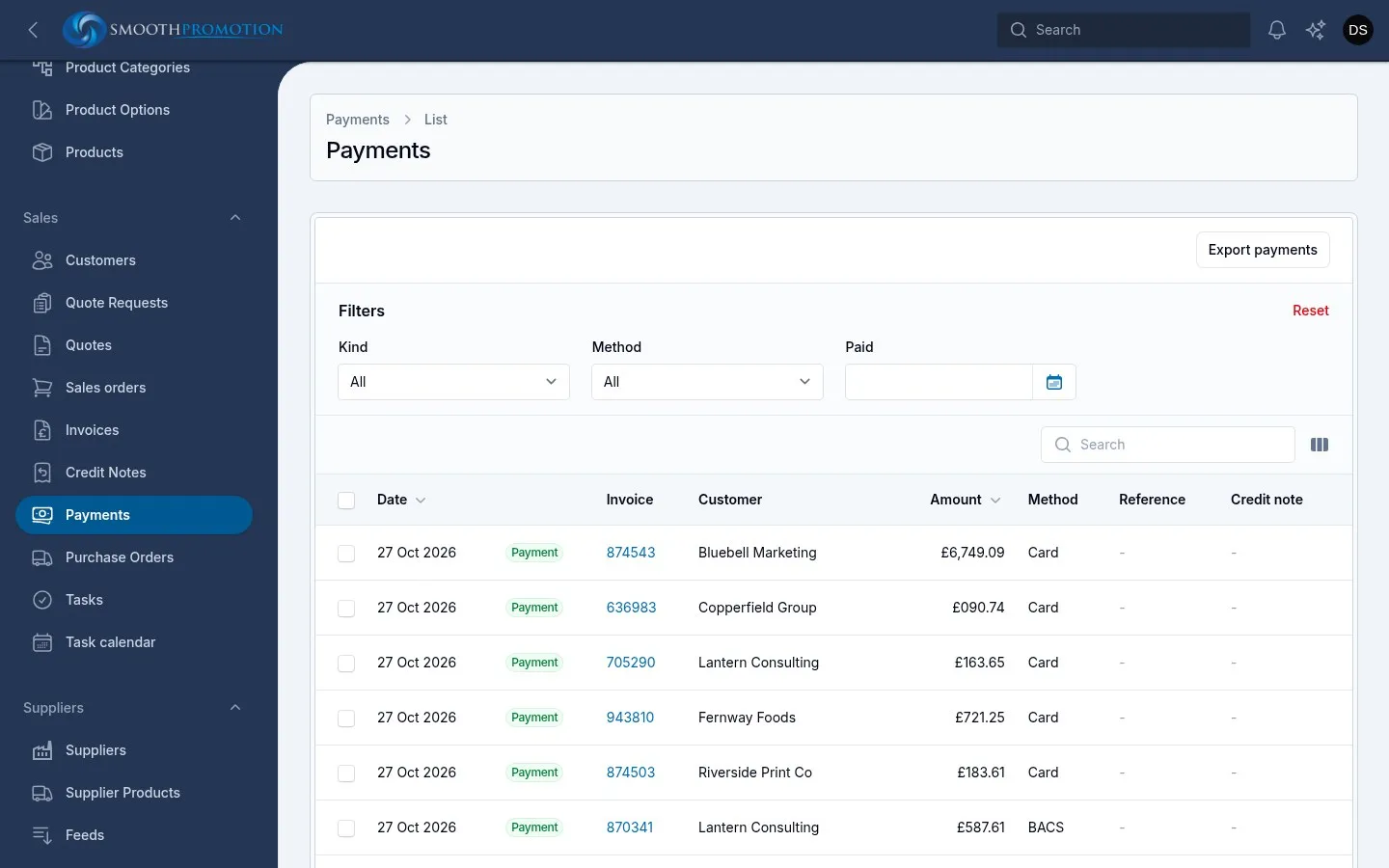
Sales > Payments lists every payment and refund on one screen, for reconciling with your accounts, with filters for payments or refunds, method and date. It is read only, so go to the invoice to change anything.
The site’s bank details print on every invoice under “How to pay”. They come from the site’s sales settings. Customers can’t pay online.
Credit notes
Section titled “Credit notes”A credit note corrects an invoice that was wrong: an order cancelled after payment, a price cut, a short delivery or faulty goods. A customer who simply paid too much doesn’t need one, as the invoice was right. Just refund them.
Credit note is under More on the invoice. Choose what to credit:
| Option | What it does |
|---|---|
| Everything not yet credited | The whole of what is left |
| Chosen lines | A quantity of each line, up to what is left to credit |
| An amount | An amount before VAT, at one of the invoice’s VAT rates |
Enter a Reason, which is printed on the credit note. VAT is reversed at the invoice’s rates.
Credit notes are listed under Sales > Credit notes, and on the invoice and order they belong to. On a credit note’s page you can use Send credit note, Preview and Record refund, with Download PDF and Void under More.
Void is for one issued by mistake. It keeps its number, marked void, and the amount is owed on the invoice again. You can’t void a credit note once money has gone back on it, unless you remove the refund first.
Refunds
Section titled “Refunds”You can refund what was paid beyond what the invoice is owed, and no more. There are three ways:
- Refund the customer now in the credit note form, shown once something has been paid. It refunds the credit note’s total, or what was paid beyond what is now owed if that is less.
- Record refund on the credit note, for one you are paying out later.
- Refund on the invoice, shown when it holds too much. If the invoice has open credit notes, For credit note starts on the latest. Choose None: paid too much for an overpayment.
This records that the money went back. It doesn’t move any money itself.
Overdue invoices
Section titled “Overdue invoices”Each morning the system marks issued invoices as overdue when their due date has passed with money still owed. They then show an Overdue badge and their due date in red.
- Paying the balance clears it.
- Changing the due date clears it too. If the new date has also passed, the next morning’s check marks it again.
- An invoice with no due date is never overdue, so watch for To be set in the Due column.
Being overdue doesn’t email anyone by itself. It starts the Invoice overdue trigger, so reminders are an automation rule that the business switches on.
Pause payment reminders under More is for a dispute or an agreed payment plan, with an optional reason. Rules that check Reminders paused leave the invoice alone until you use Resume payment reminders. A rule that doesn’t check it will carry on, so check any reminder rule you write.
Payment terms
Section titled “Payment terms”A term only decides when the invoice falls due. An order takes its customer’s term, else the default term. You can change it while the order is a draft, and the invoice keeps it as issued.
| Term’s due date | What happens |
|---|---|
| On the invoice date | Due the day it is issued |
| Days after the invoice date | Due that many days later |
| Days after delivery | To be set until the whole order has been marked delivered, then set by itself. A date you set by hand is replaced at that point |
| Entered by hand | To be set until you use Set due date |
Tax is set per site, in its sales settings: the rates it offers and its default.
Each new quote or order chooses a default rate for its lines. The invoice takes them from the order.
| Treatment | When | Rate |
|---|---|---|
| Tax exempt customer | The customer is marked Tax exempt | 0% |
| Zero-rated export | Delivery is outside the site’s tax area | 0% |
| Standard | Everything else, including an unknown delivery country | The site’s default |
A UK site’s tax area is Great Britain, Northern Ireland and the Isle of Man. An Irish or other EU site’s is the EU plus Northern Ireland.
- You can change any line’s rate to another of the site’s rates while the document is a draft.
- Changing a draft’s delivery address to one with different tax offers a tick box to set all its taxable lines to the new rate. Leave it off and the lines stay as they are.
- EU reverse charge isn’t handled: an Irish site delivering to another EU country charges its standard rate, and a customer’s VAT number doesn’t change this.
- A site set to US sales tax can’t tax its documents, as there is no source for its rates.
Currency
Section titled “Currency”A site’s currency comes from its locale, set on the site’s General tab, such as GBP for en_GB and EUR for en_IE. Prices start in pounds and are converted at a rate fetched once a day, or at a manual rate set per site.
A quote or order keeps the rate it started with, and its invoice follows it, so later rate changes don’t touch them. Payments are recorded in the invoice’s currency. The Sales figure on the customer list is always in pounds.
Purchase orders for accounts
Section titled “Purchase orders for accounts”The journey of a sale covers making and sending purchase orders. For accounts, the job is matching what suppliers bill.
Enter supplier invoice on a purchase order takes the supplier’s invoice number and date, and the amount before tax in the purchase order’s currency. It starts at the purchase order’s net cost, so a matching invoice only needs its number. The Supplier invoice panel then shows how much more or less than the purchase order it is. The order’s Margin then uses this amount as the cost.
You can enter one once the purchase order is with the supplier. Edit supplier invoice corrects it, and Remove supplier invoice under More takes back one entered by mistake.
On Sales > Purchase orders:
| Filter or column | Use |
|---|---|
| Billed filter | Not billed shows purchase orders with a supplier whose invoice you haven’t entered. Billed shows those you have |
| Billed column | The supplier’s amount and invoice number |
| Cost column | What the purchase order says |
| Supplier, Ships by, Deliver by, Made | Narrow down the list |
A purchase order can be in a currency other than pounds, chosen with its Edit while a draft. Its costs are kept as entered, not converted.
A supplier’s own screen in the catalog also has Purchase orders in its side menu, opening on those not cancelled.
Paying suppliers isn’t recorded here: the system holds what they billed, not whether you have paid it.