

Branding on a product
Branding is how a customer’s logo goes on the product: where (the position, such as Front), how (the method, such as screen print) and any further choices (how many colours, how big). The two kinds of product hold this differently.
This page covers what you see on one product. Setting up methods, mappings and branding rules for all products is under branding setup.
On a feed product
Section titled “On a feed product”The supplier’s data lists each product’s positions and techniques with their costs. What customers are offered is decided in this order:
- A technique shows only if its supplier code is mapped to one of our decoration methods. Unmapped ones stay hidden.
- Branding rules can hide it, rename it or limit its logo sizes.
- The product’s own choices beat the rules, but can’t bring back an unmapped method.
Customers see our method name, not the supplier’s code. Codes at one position mapped to the same method and name show as one option, priced from whichever is cheapest for the order.
Checking what it offers
Section titled “Checking what it offers”On the Pricing tab, open Decoration pricing from the supplier. Each position lists its maximum print size and its techniques, each with its supplier code, whether it is shown as a method or hidden and why, its minimum quantity, and its price rows (costs, before margin). It is read only, kept up to date by the sync.
A feed product is in one of three states, worked out for you:
| State | Meaning | What the customer sees |
|---|---|---|
| Branding offered | At least one technique is offered | The branding choices |
| Branding to be confirmed | It can be branded, but has no decoration data yet, or none of its techniques is mapped | One choice, Branding to be confirmed, priced with the quote. No From price. |
| Sold plain | Its supplier says it can’t be printed, or staff hid every technique | No branding |
The Branding to be confirmed filter on the product list finds the second group.
Exceptions for one product
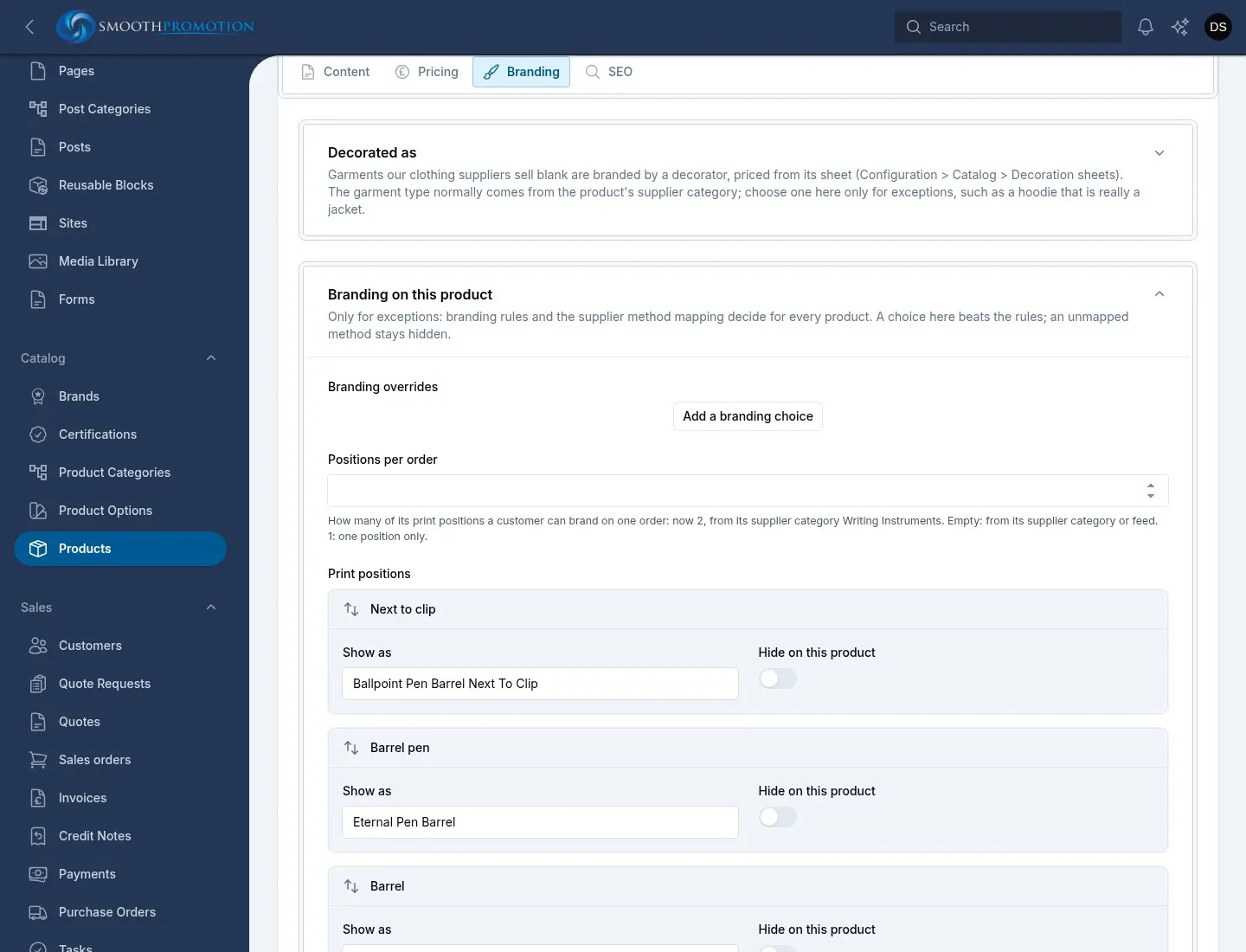
Section titled “Exceptions for one product”The Branding tab of the product has Branding on this product, for exceptions only.
| Field | What it does |
|---|---|
| Add a branding choice | Pick a Supplier method, which says what it does now and why. Then tick Hide on this product or give a Show as (optional) name. |
| Positions per order | How many of its print positions a customer can brand on one order. Empty takes it from its supplier category or feed. The help text says what applies now. |
| Print positions | Rename a position with Show as, tick Hide on this product, or drag them into the order customers see. |
A sync never overwrites these. Positions per order can also be set for many products with Set ordering details on the product list.
Garments branded by a decorator
Section titled “Garments branded by a decorator”Blank garments are priced from a decorator’s sheet (Suppliers > Decoration Sheets, see branding setup), by garment type. The type normally comes from the product’s supplier category. For an exception, such as a hoodie that is really a jacket, pick a Garment type under Decorated as on the Branding tab. This section only appears on feed products.
On a grid product
Section titled “On a grid product”A price grid has no positions. Its branding is described by its price rows:
- each Unit Price is one way of branding it, with its own prices, and the customer picks one when there are several;
- each row’s Decoration method sets the product’s methods;
- each row’s option groups are the further choices, such as imprint colours;
- each row’s Setup charges are its one-off charges.
The Decoration methods field in the sidebar shows the result. You pick methods there only on a grid product with no price rows.
What the customer picks
Section titled “What the customer picks”The product page takes the customer through Choose your branding, How many? and Add your artwork, and shows the result in a Your quote panel. Before those comes the colour or size, where there is more than one.
On a feed product, branding asks:
- Where should your logo go? Each position shows its maximum size.
- How should it be applied? Only when that position has more than one method.
- Further choices the technique has, such as colours and logo size.
- Add a second position? and so on, only if the product’s Positions per order allows more and it has more positions. Each is optional and at a position not yet chosen.
An option that can’t be priced shows as “price on request”. On a grid product, the customer picks the price row and an option from each option group.
The page also lists Branding positions with their sizes and methods in the product’s text, with “Branding is subject to sight of artwork”.
Customisation choices sit apart from this: they don’t change the price.
Filters come from the same data: Imprint Method, Imprint Colours and Full Colour Print. See filters.