

Adding products
Adding turns a supplier’s product into a draft catalog product. You can add one at a time or hundreds at once.
Browsing supplier products
Section titled “Browsing supplier products”Go to Suppliers > Supplier products for all feeds, or open a feed under Suppliers > Feeds and choose Products for just that one.
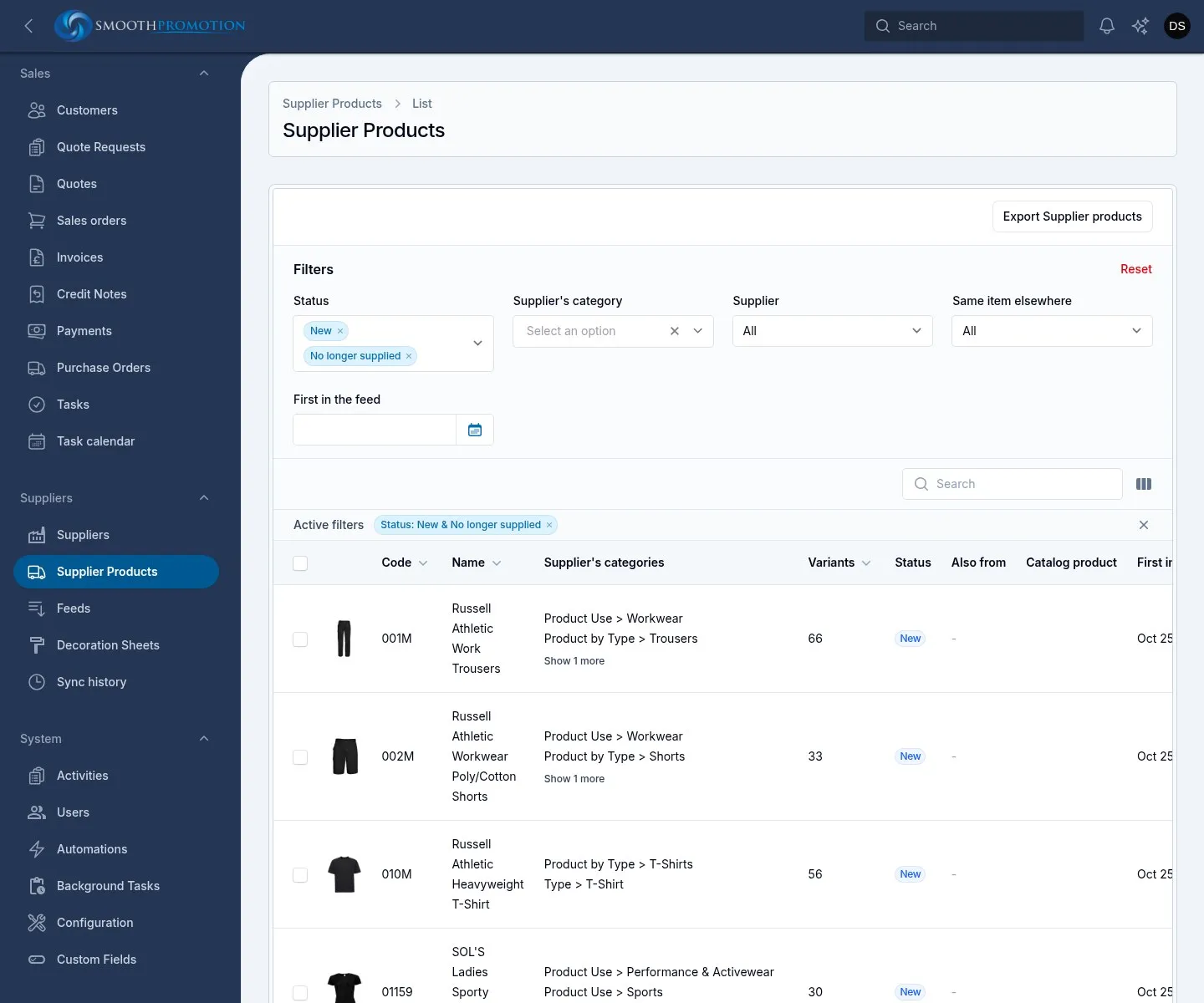
Useful filters:
| Filter | Use it for |
|---|---|
| Status | What is waiting, what is in the catalog, what is ignored |
| Supplier’s category | The feed’s own category tree. Picking a branch includes everything below it |
| Supplier | One feed (not shown on a feed’s own Products page) |
| Same item elsewhere | Also from another supplier, or A preferred supplier has it |
| First in the feed | A date range, to see what is recently new |
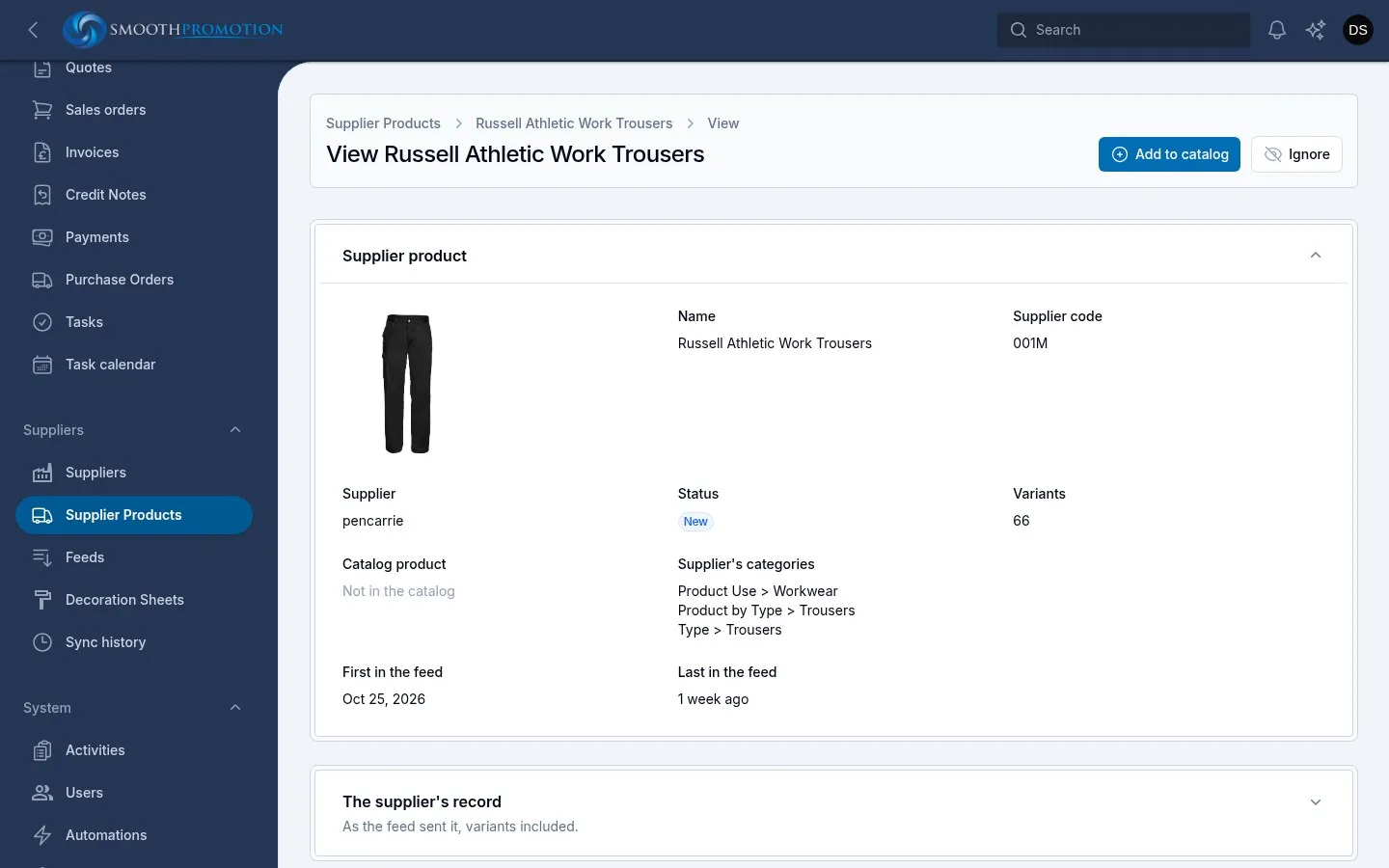
View on a row shows the product with its categories, its catalog product if any, when it was first and last in the feed, and The supplier’s record: the data exactly as the feed sent it.
Ignoring what you will never sell
Section titled “Ignoring what you will never sell”Ignore (on a row, or for a selection) hides a product from the default list and stops it being added. Syncs leave it ignored. Un-ignore puts it back to the status its data calls for. Some XD Connects models the business does not sell start out ignored.
Add to catalog
Section titled “Add to catalog”Use Add to catalog on a row or on the product’s page. To add many, tick them and use the bulk Add to catalog. Under Place in, choose one:
| Choice | Fields | What happens |
|---|---|---|
| These categories | Primary category (required) and Also appears in | Every selected product goes in the same categories |
| Our categories mapped to their supplier categories | Products with no mapping go to | Each product goes where its supplier categories are mapped. With no fallback category, unmapped products are left out and listed |
The primary category gives the product its URL and breadcrumb on every site.
The work runs in the background. Follow it in the notification opens its background task, and the bell tells you when it is done. One product failing does not stop the others. The run also appears in each feed’s Sync history as Added to catalog, with what was added, what was not, and why.
What a new product gets
Section titled “What a new product gets”Each product is created as a draft, with:
- its name from the feed’s text rules (or the supplier’s own name if the feed has no rule set);
- its variants, one per supplier SKU, with their costs;
- its branding options and print prices;
- its description, details, brand and certifications where the feed gives them;
- the field set its supplier category names, and any custom field values that set can hold;
- the feed’s supplier company and gallery style;
- its “From” price.
Photos and documents download afterwards, in the background, following the photo download rules. The Photos column and the Photo status filter on the product list show how each is going.
Split rules apply as products are added, so some may arrive with a split-off product, also a draft.
What can go wrong
Section titled “What can go wrong”| What you see | Why | What to do |
|---|---|---|
| Skipped: not New | It is already in the catalog, ignored or no longer supplied | Nothing, or un-ignore it |
| Skipped: already in the catalog through another supplier | See below | Nothing: one product per item |
| Skipped: another supplier comes first | See below | Add that supplier’s product, or ignore it first |
| Left out: no category mapping | You placed by mapping, with no fallback | Map the category and add again |
| Failed: no name | The text rules give it no name | Fix the rule set, or give it a name with Exact names by supplier code |
| Failed: its prices or print data could not be read | The supplier’s feed could not be read, so nothing was added from it. XD Connects allows one download per feed per 15 minutes, so this also happens straight after a sync | Add them again later |
Publishing
Section titled “Publishing”A draft is hidden from visitors. To publish, open the product under Catalog > Products, check it, and set Status to Published. It then appears on each site whose content rules include it.
Check at least:
- the name, photos and categories;
- that it has branding options. The Branding to be confirmed filter on the product list finds products that can be branded but offer nothing yet, usually because a supplier method isn’t mapped;
- that it has a price. A feed with no margin set, or prices out of date, shows “price on request”: see per-feed settings.
There is no bulk publish in the admin panel. To publish a whole feed’s drafts in one go for a first import, a technical person can run a command: see commands.
The same item from two suppliers
Section titled “The same item from two suppliers”Several suppliers can sell the same maker’s item, such as the same branded T-shirt from two clothing wholesalers. Smooth spots these where a feed gives the maker’s brand and style code. The Also from column shows the other suppliers, marked (preferred) when another supplier comes before this one.
A product has one supplier, so:
- an item already in the catalog through one supplier cannot be added from another;
- when several suppliers have it as New, only the first in the order on Suppliers > Feeds can be added. The others have no Add to catalog button, and are skipped in a bulk add;
- if the preferred supplier’s product is ignored or no longer supplied, the next supplier’s can be added.
The check only knows items with a maker’s code. Two feeds’ products with no such code are not matched, however alike they look.