

Setting up a site
Content Management > Sites, then New Site, or open a site’s card to edit it. Everything on this page applies to that one site only.
A new site shows nothing until you give it content. The usual order is:
- Fill in the General tab and save.
- Add its contacts, on the Contacts tab of the Edit page.
- Add content rules. A site with no rules carries nothing.
- Decide its URL patterns before it goes public, as changing them later leaves redirects behind.
- Build its menus and widgets, and write its SEO templates.
- Fill in its catalog and sales settings.
General
Section titled “General”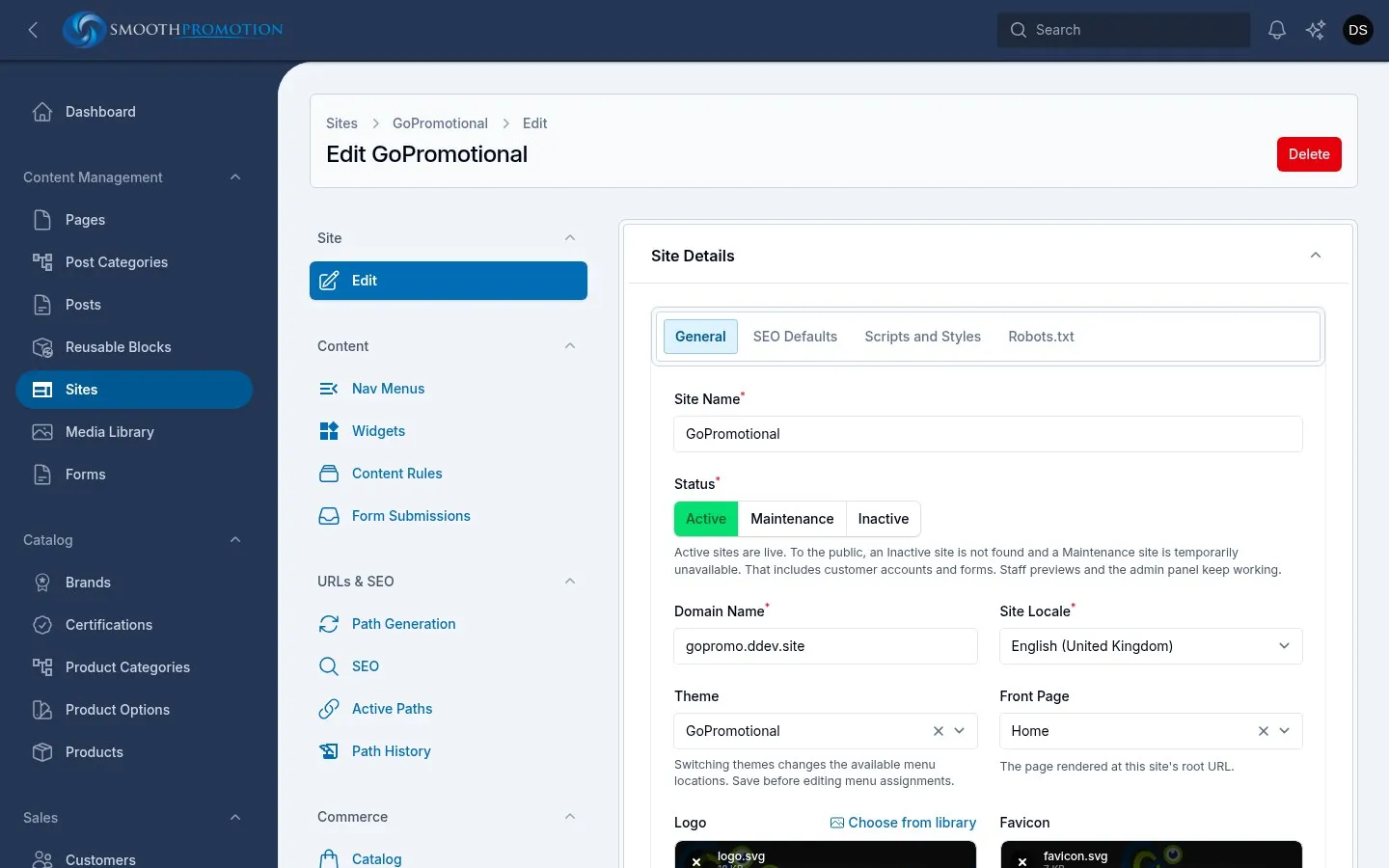
| Field | What it does |
|---|---|
| Site Name | The name staff see. It is also the page title of last resort and {{site.name}} in SEO templates. |
| Status | Active, Maintenance or Inactive. See the table below. |
| Domain Name | The host name the site answers on. |
| Site Locale | The site’s country and language. See below. |
| Theme | The site’s look, and which menu locations and widget areas it has. Empty means Default. |
| Front Page | The page shown at the site’s root address. |
| Logo | Shown in headers, footers and sharing images. |
| Favicon | The browser tab icon: ICO, PNG or SVG. |
| Description | A longer description of the site. |
| Status | What the public gets |
|---|---|
| Active | The live site |
| Maintenance | A plain “temporarily unavailable” page on every address. Search engines keep its pages and come back later. Use it for a short outage |
| Inactive | A plain “not found” page on every address, with none of the site’s branding. Use it for a site that isn’t launched yet or has been retired |
That covers everything public on the site, including customer accounts at /account and form
submissions: customers of an offline site can’t reach their quotes or invoices until it is back. Staff
previews and the admin panel keep working, so you can prepare a site before it goes live. Search engines
drop an Inactive site’s pages over time, so use Maintenance if the site is coming back soon.
Domain
Section titled “Domain”A site has one domain. It must match the host in the address exactly, so example.com and
www.example.com count as different. A request for a host no site claims gets a not-found page. Two
sites can’t share a domain.
Locale
Section titled “Locale”The locale’s country does more than you might expect. It sets the site’s currency and tax country by default, the public holidays used for working days, and it puts that country first in address pickers. Check sales settings after changing it.
The themes are Default and GoPromotional, which builds on Default with its own header, footer and colours. Switching theme:
- rebuilds the logo’s sizes in the background;
- changes which menu locations and widget areas are offered, so save the site before you edit them;
- leaves menu and widget placements made under the old theme where they are, but they stop showing. Those made under the new theme, if any, show instead. Switching back brings the old ones back.
Front page
Section titled “Front page”Front Page offers every page, not only those the site’s content rules include: choosing a page is enough to put it on the site, with no rule needed. It shows at the root address only while it is Published. With no published front page, the root address is a not-found page.
A change applies as soon as you save. The previous front page goes back to its normal URL, if the site’s rules include it, and otherwise leaves the site.
Logo and favicon
Section titled “Logo and favicon”Each site has one of each, and uploading replaces the old one. An SVG logo is served as it is, at any size. Other formats get the sizes the theme asks for, generated automatically. SVG files are cleaned of scripts when they are uploaded.
SEO Defaults
Section titled “SEO Defaults”These are the fallbacks for the whole site. See SEO for how they fit with templates.
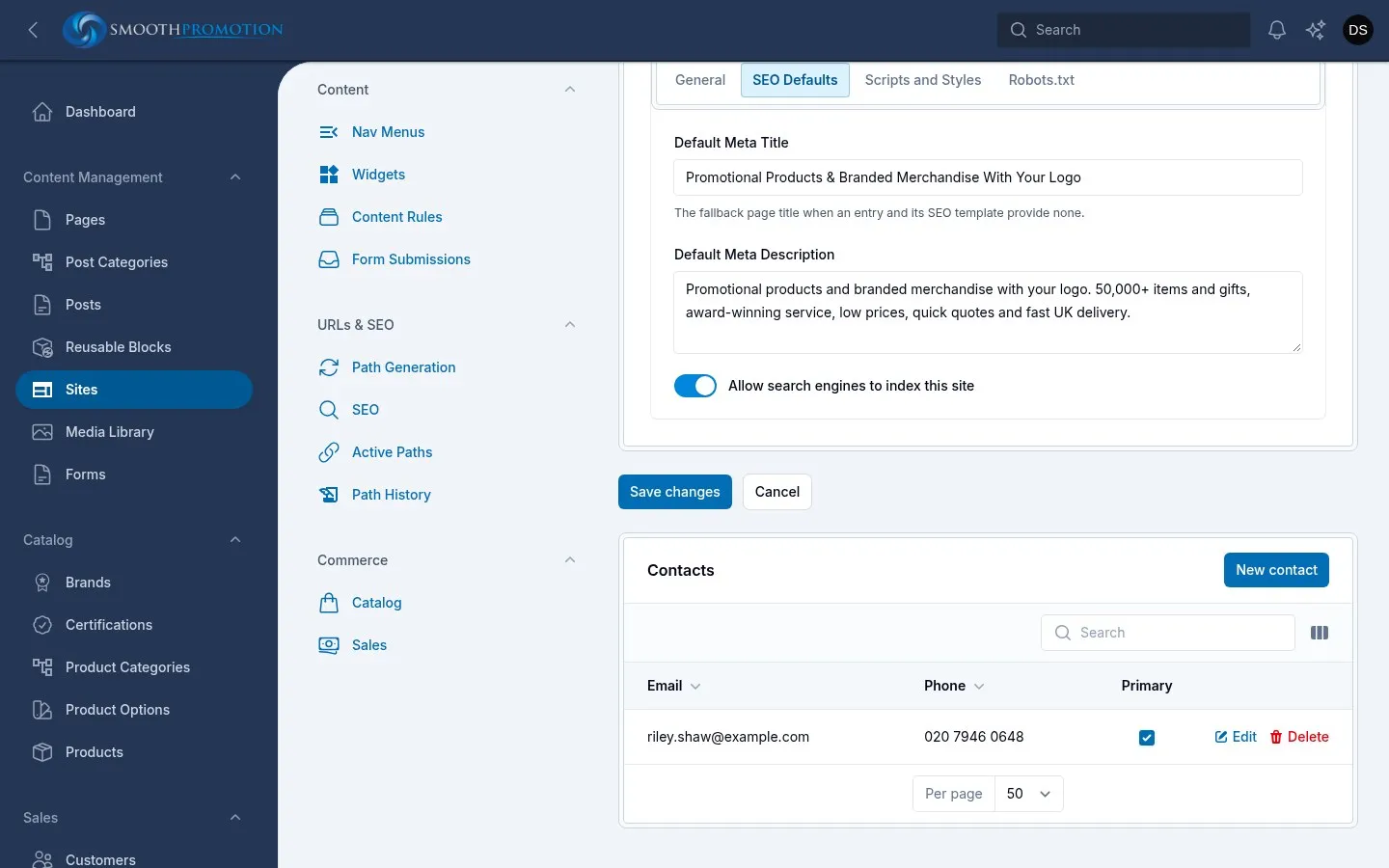
| Field | What it does |
|---|---|
| Default Meta Title | The page title when nothing else provides one, which is rare as entries have titles. |
| Default Meta Description | The description when an entry and its template provide none. |
| Allow search engines to index this site | Off asks search engines to leave out the site’s pages. For staging or private sites. |
Scripts and Styles, Robots.txt
Section titled “Scripts and Styles, Robots.txt”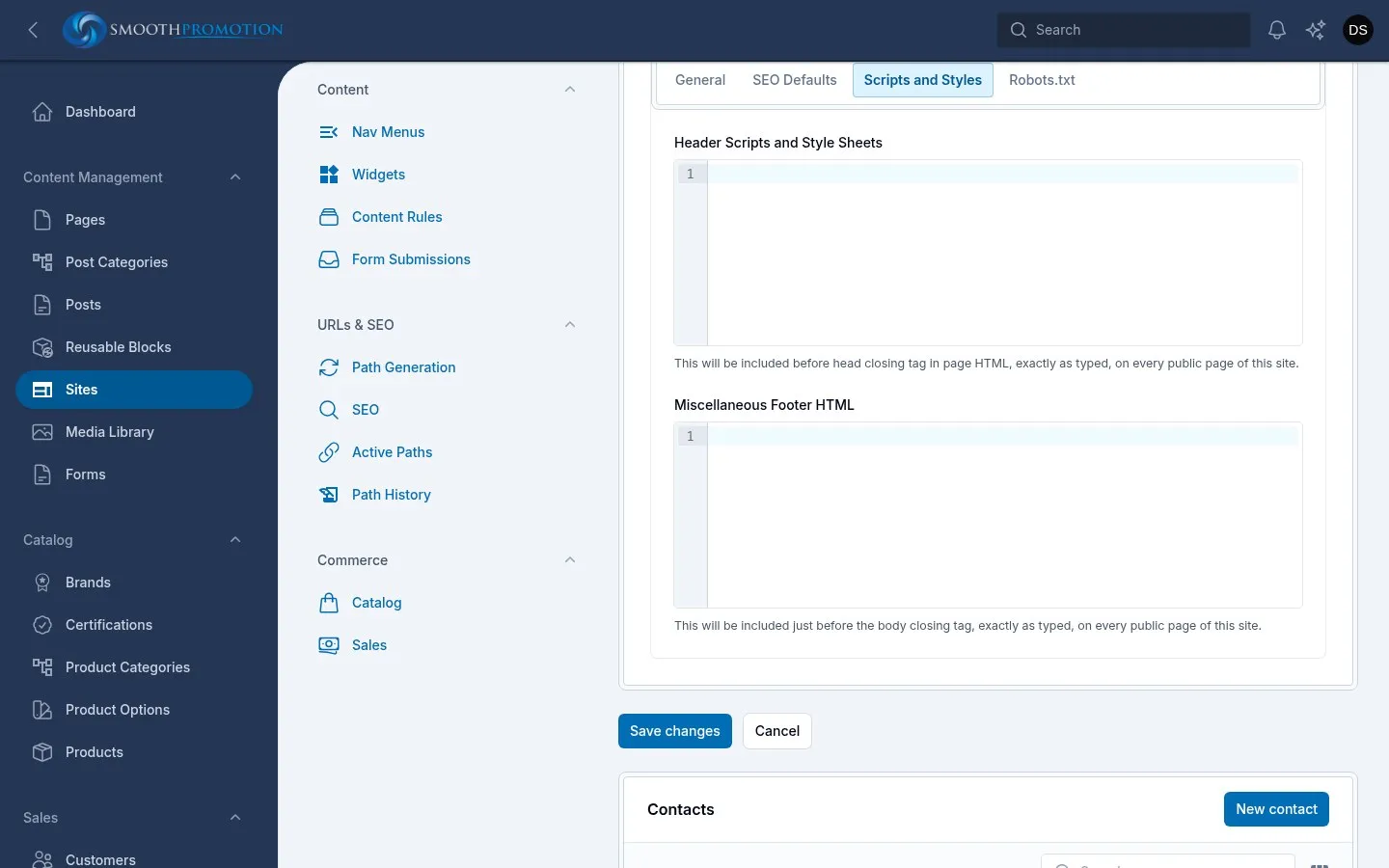
- Header Scripts and Style Sheets goes at the end of the page’s head, and Miscellaneous Footer HTML just before the end of the page. Analytics tags and the like go here. They appear on every public page of this site, but not in staff previews, so previews don’t count as visits.
- robots.txt is what the site answers at
/robots.txt. Left empty, it allows all crawlers.
Contacts
Section titled “Contacts”The Contacts tab appears on the Edit page once the site exists. A site’s contacts are business locations rather than people, so each has an address, phone and email.
Tick Primary on the main one. It matters, because several things read it:
- the phone and email in the GoPromotional header and footer, and on help cards;
- where the site’s form submissions are emailed;
- the business details on the site’s sales documents.
Deleting a site
Section titled “Deleting a site”Delete on the site’s card or Edit page removes the site and its per-site setup, including its widgets and their images. It can’t be undone. Shared content (products, pages, posts) stays.
A site that has quotes, orders, invoices, purchase orders or credit notes can’t be deleted: the delete fails, as those records need their site.