

From quote request to paid invoice
Every sale follows the same path. This page walks through it in order, and says what moves on its own and what is up to you. Everything here is under Sales in the admin panel.
The rest of this section covers what sits around the journey: customers and the pool, tasks and the calendar, invoices, payments and VAT, automation rules, what customers see in their account and sales setup.
| Step | Document | What you do | What happens next |
|---|---|---|---|
| 1 | Quote request | Take it and create a quote | A draft quote opens |
| 2 | Quote | Add prices and send it | The customer gets a PDF by email |
| 3 | Artwork proofs | Send proofs and record the answers | Approved artwork unlocks production |
| 4 | Sales order | Confirm it | Its invoice is issued at the same moment |
| 5 | Purchase orders | Send them to suppliers | The order moves to In production |
| 6 | Shipments | Record them as suppliers ship | The order moves to Shipped |
| 7 | Invoice | Send it and record payments | Fully paid and shipped, the order is Completed |
You don’t have to start at step 1. New quote and New sales order on their lists, or on a customer’s page, start from that step for a customer who phoned or emailed.
Your dashboard shows the same journey as work queues: new requests, quotes to send, quotes awaiting contact, orders to place, shipping this week and unpaid invoices. It is a good place to start the day.
1. Quote requests
Section titled “1. Quote requests”When a customer submits their quote cart on a site, it arrives under Quote requests as Submitted, and the customer is created if they are new.
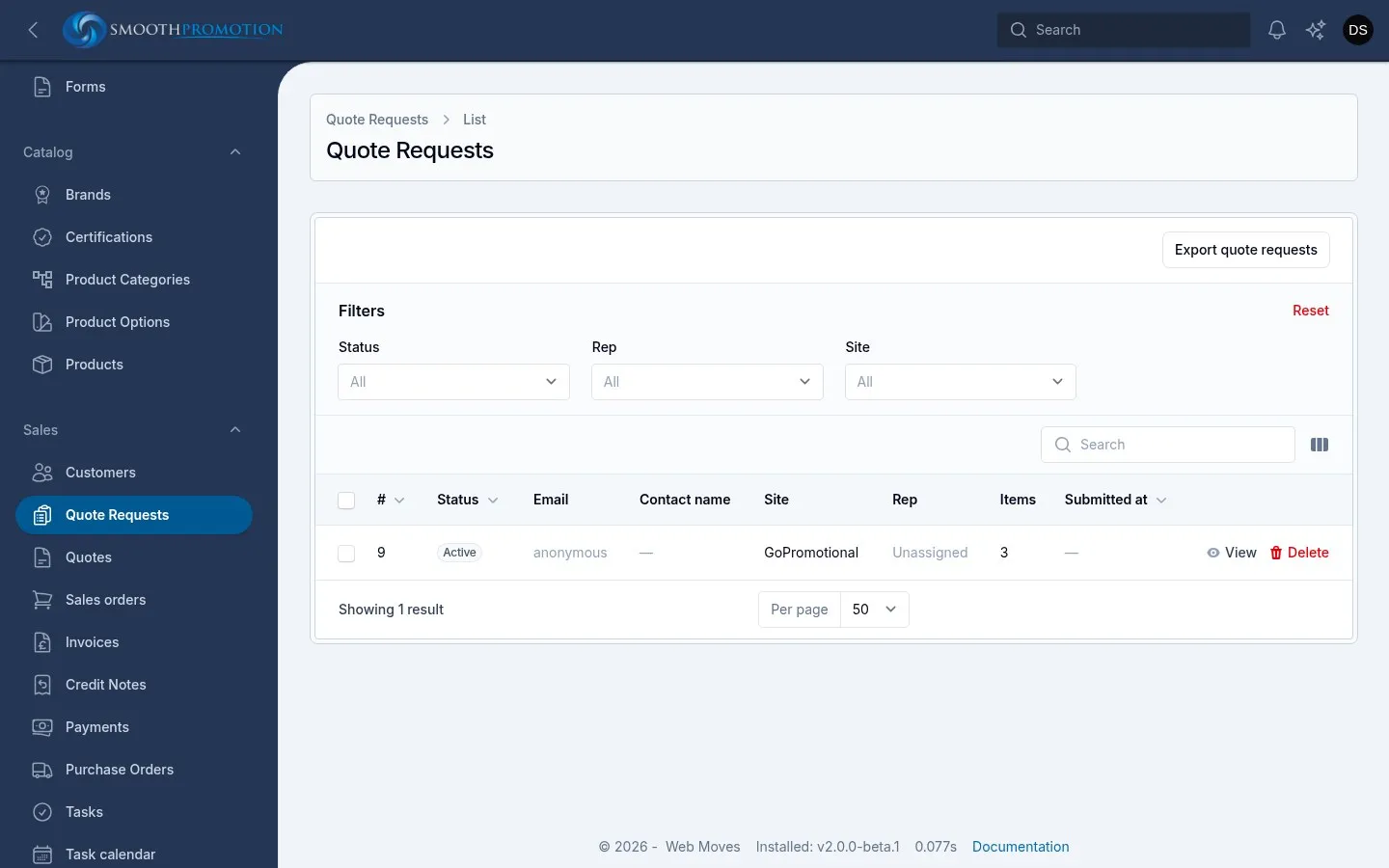
A customer who has no rep yet is in the pool. Use Take on the request or the customer to make them yours, then Create quote. The quote starts with what the customer asked for.
A cart that was never submitted shows as Active or Abandoned. There is nothing to do with these, but they show who was interested.
2. Quotes
Section titled “2. Quotes”A quote is a Draft until you send it, and can only be edited as a draft.
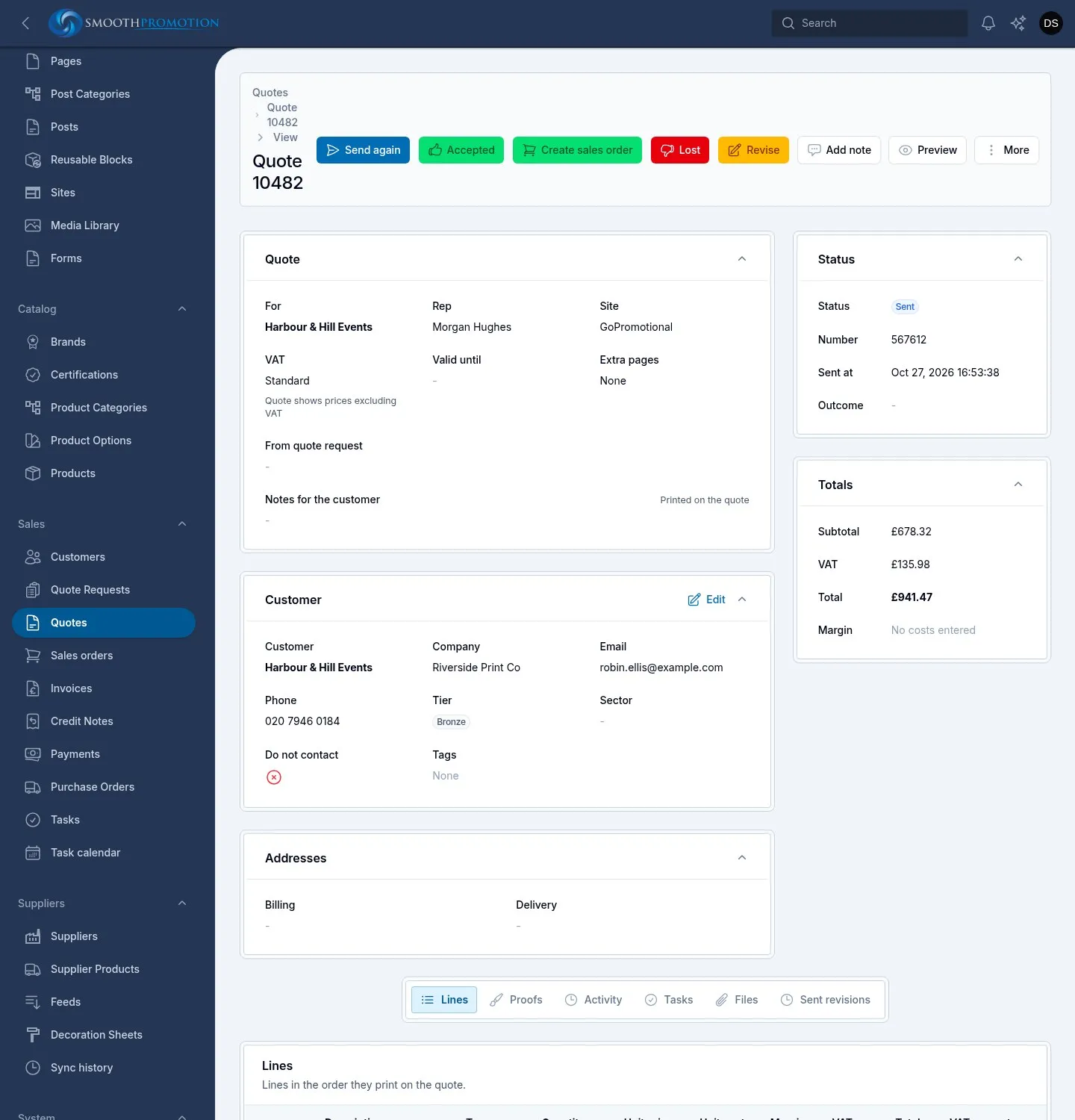
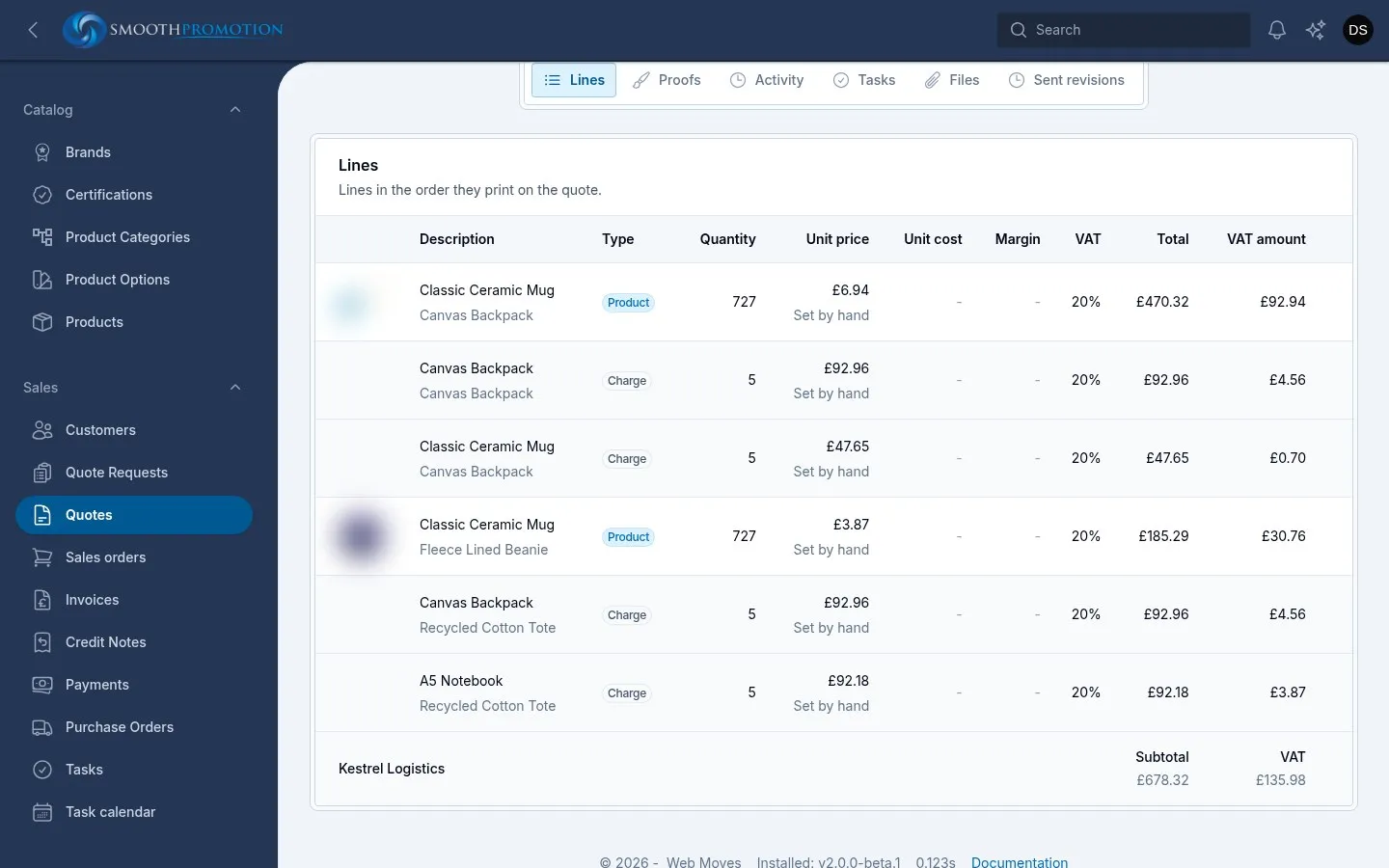
- Add products searches the catalog with its live prices. You can list several at once.
- Add charge adds one from your charge presets, and Add line adds anything priced by hand.
- Edit on a catalog line changes its quantity and options, or sets the price by hand.
- The Totals panel shows your margin, which the customer never sees.
- Preview shows what the customer will get.
Send emails the quote with its PDF, starting from the wording in your site’s sales settings, and gives it its number. A quote can’t be sent while any line is still waiting for a price. If you sent it some other way, use Mark as sent under More.
Then record what the customer decided:
| Button | Status | When to use it |
|---|---|---|
| Accepted | Accepted | They said yes |
| Lost | Lost | They said no. A reason is required, as it feeds the win and loss figures |
| Revise | Back to Draft | They want changes. It keeps the number and starts a new revision |
| Cancel quote (under More) | Cancelled | A duplicate, a test or a mistake. It stays out of the win and loss figures |
Each version you send is kept under Sent revisions. Copy as new quote makes an alternative to offer alongside the first. Reprice from catalog brings a draft up to today’s prices.
3. Artwork proofs
Section titled “3. Artwork proofs”Proofs live on the Proofs tab of the quote or the order, one for each product line. Once a quote has an order, its proofs are worked on the order.
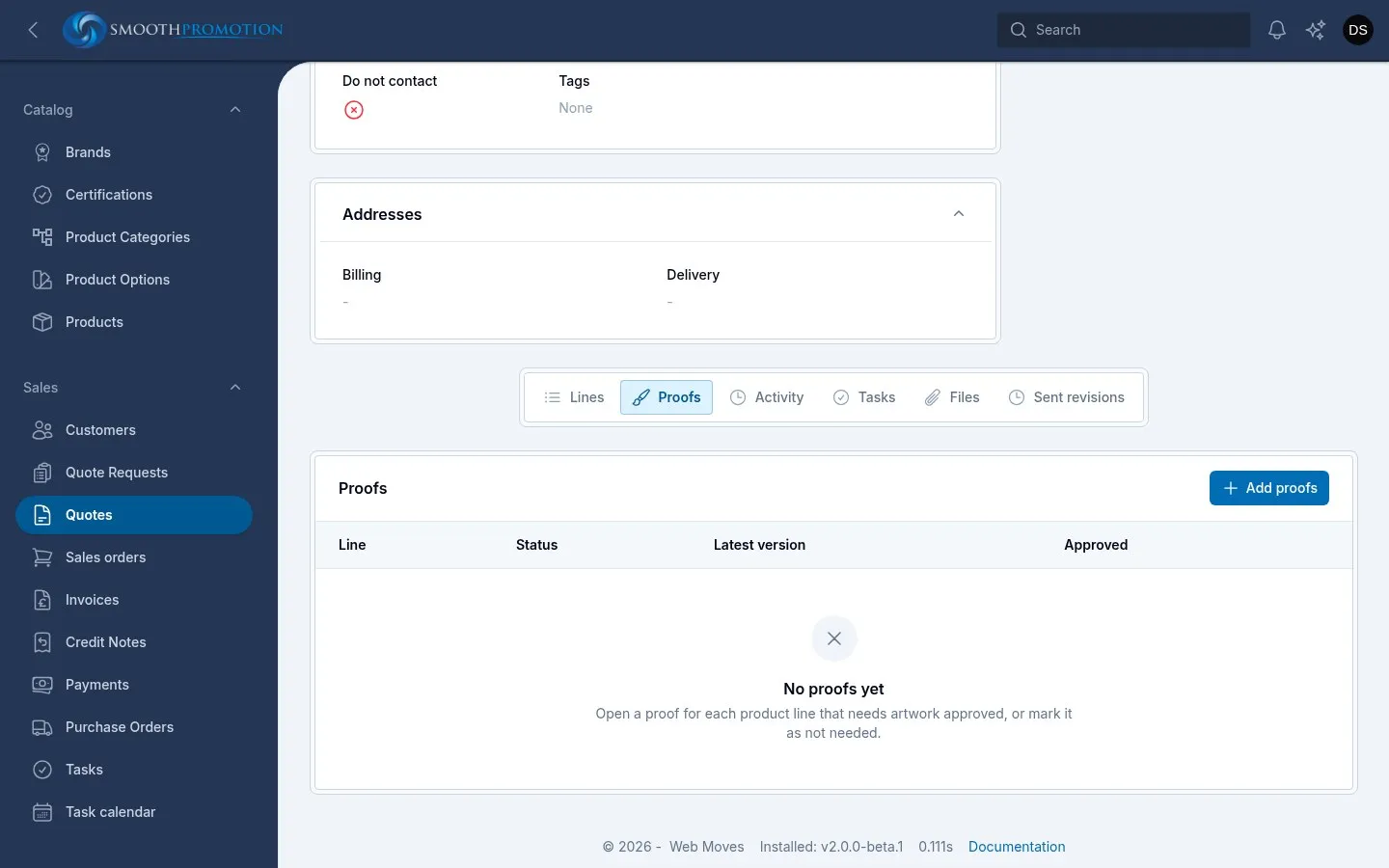
- Add proofs for the lines that need one, or mark a line as not needing one.
- Upload version with the proof file.
- Email proofs to the customer, or Mark as sent if you sent them another way.
- Record the answer with Approved or Changes requested, and upload a new version if needed.
Customers can also approve proofs themselves from their account. Not required is for repeat orders and anything else that doesn’t need a proof.
4. Sales orders
Section titled “4. Sales orders”Create sales order on a sent or accepted quote makes a draft order with the same lines, and the quote becomes Converted. Check the in-hands date, the customer’s PO number, the addresses and the payment term while it is a draft.
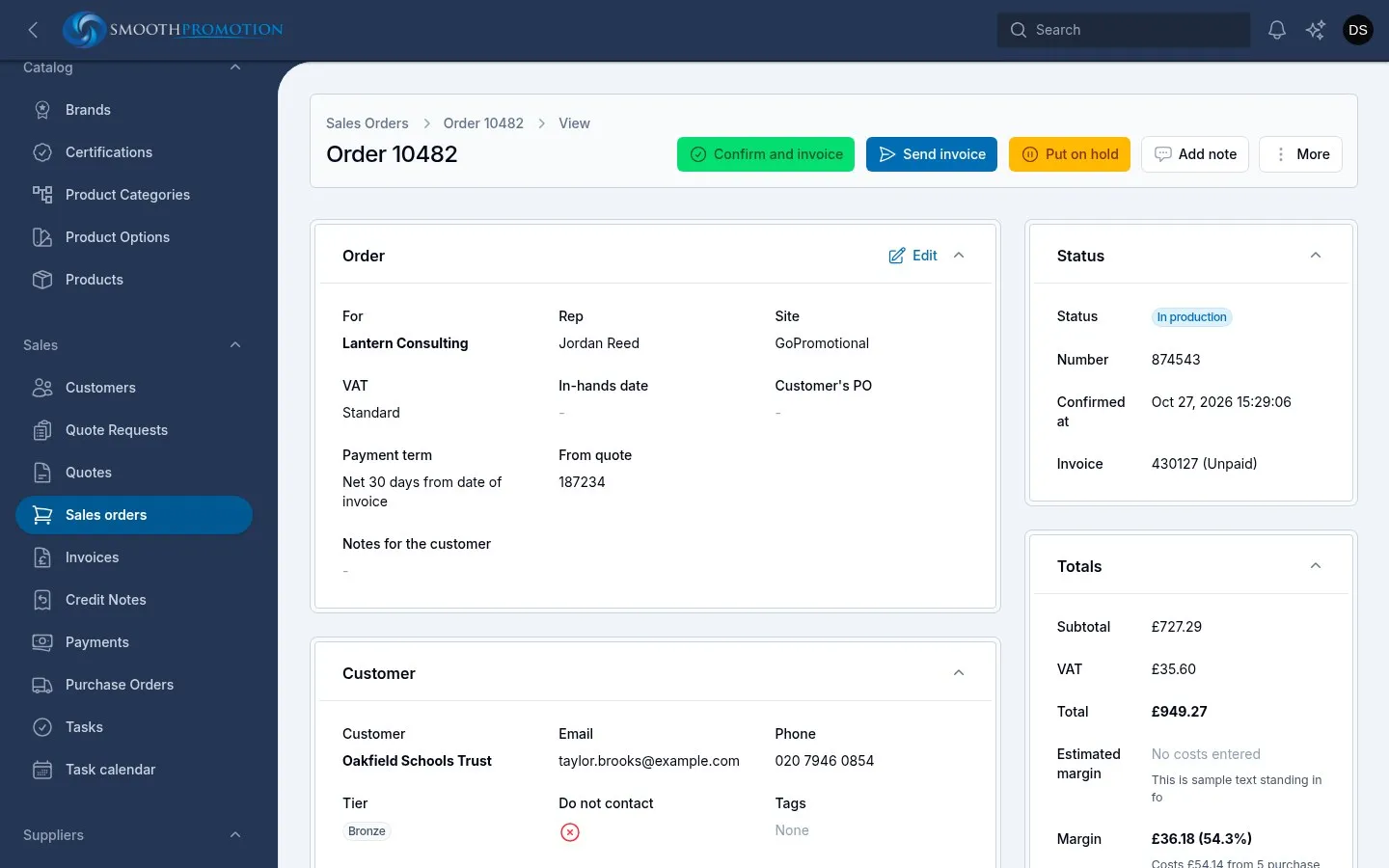
Confirm and invoice confirms the order and issues its invoice in one step. It is the only way to confirm an order, so make sure the lines are right first. The invoice takes its due date from the payment term.
Put on hold pauses a confirmed order, and Take off hold puts it back where its purchase orders say it should be.
Cancel order is under More. It is refused while a purchase order is with a supplier, so cancel those first. An invoice with nothing paid on it is voided for you. If money was paid or credited, the invoice has to be credited in full and refunded first, and the message tells you which steps are left.
5. Purchase orders
Section titled “5. Purchase orders”Once the order is confirmed, Create purchase orders on its Purchase orders tab groups the lines by supplier, suggesting each line’s supplier from its product. Leave a line’s supplier empty to order it later.
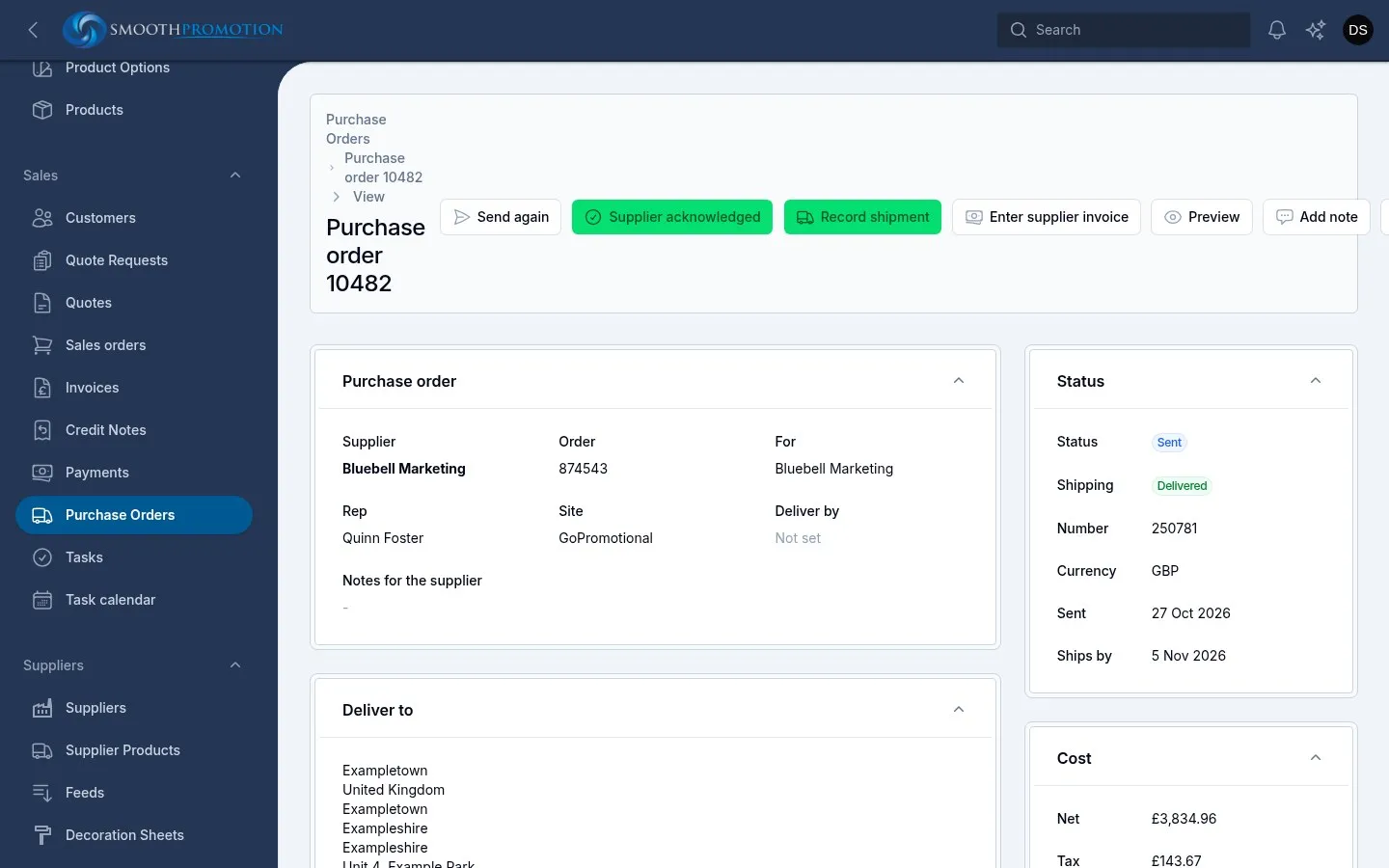
Each purchase order is its own draft. Check the costs and the deliver-by date, then use Send purchase order. When the supplier replies, Supplier acknowledged records their ship date.
The order’s Totals panel shows an Estimated margin from the costs on its lines, and a Margin from these real costs once there are purchase orders, so it becomes more accurate as they are made and billed.
When the supplier’s invoice arrives, Enter supplier invoice on the purchase order records its number, date and amount, and shows how far it is above or below the purchase order. The Billed filter on the list shows what you are still waiting for.
6. Shipments
Section titled “6. Shipments”Record shipment on the purchase order takes the date, carrier and tracking number. Leave Everything still to ship on for a complete shipment, or turn it off to enter a quantity for each line. Mark delivered records when it arrived.
How an order’s status moves
Section titled “How an order’s status moves”Once an order is confirmed you don’t set most of its status by hand. It follows the purchase orders and the payments:
| Status | When |
|---|---|
| Confirmed | The order is confirmed and nothing is with a supplier yet |
| In production | A purchase order is with a supplier |
| Partially shipped | Something has shipped |
| Shipped | Every product line is on a purchase order, and all of them have shipped |
| Completed | It has shipped and is paid |
It moves back too, if a purchase order is cancelled, a shipment removed or a payment taken back.
7. Invoices and payments
Section titled “7. Invoices and payments”Send invoice emails the invoice, from the invoice or from the order’s page. The list’s Not sent yet filter shows any you have missed.
Record payment takes the amount, starting at the balance due, with the date, method and reference. Payment status follows by itself: Unpaid, Partially paid, Paid, Overpaid or Credited. Payments in the menu lists every payment and refund, though they are recorded and removed on the invoice.
Reminders for overdue invoices can be paused with Pause payment reminders under More, with an optional reason. See Invoices and payments for the details.
Credit notes and refunds
Section titled “Credit notes and refunds”Credit note on an issued invoice credits everything not yet credited, chosen lines, or an amount before VAT, with a reason. It is issued straight away, so check it first. If money has been paid, Refund the customer now records the refund at the same time. Refund on the invoice, or Record refund on the credit note, does it later.
An invoice has no void button of its own: it is voided by cancelling its order, as above. Void under More on a credit note cancels one issued by mistake, with a reason, until it has been refunded.
Notes and tasks
Section titled “Notes and tasks”Quotes, orders, invoices and purchase orders have Add note, and Activity and Tasks tabs. Notes and tasks also show on the customer’s timeline, so anyone picking up the customer can see the history. Tasks in the menu opens on your own open tasks, and the Task calendar shows them by date. See Tasks and the calendar.
What the customer sees
Section titled “What the customer sees”Customers sign in to their account on the site at /account, with
a one-time code by email. On the
site they ordered from, they can see their quotes, orders, invoices and credit notes, approve
proofs, and update their details and addresses. A setting controls how far back the history goes.