

Pages
Pages are the fixed content of a site: About, Contact, landing pages, and the front page. You’ll find them under Content Management › Pages. You need the Manager role.
The list shows each page’s status, parent and the Sites it is live on. Use the Live on filter to see one site’s pages, and Parent to see the pages under another.
Creating a page
Section titled “Creating a page”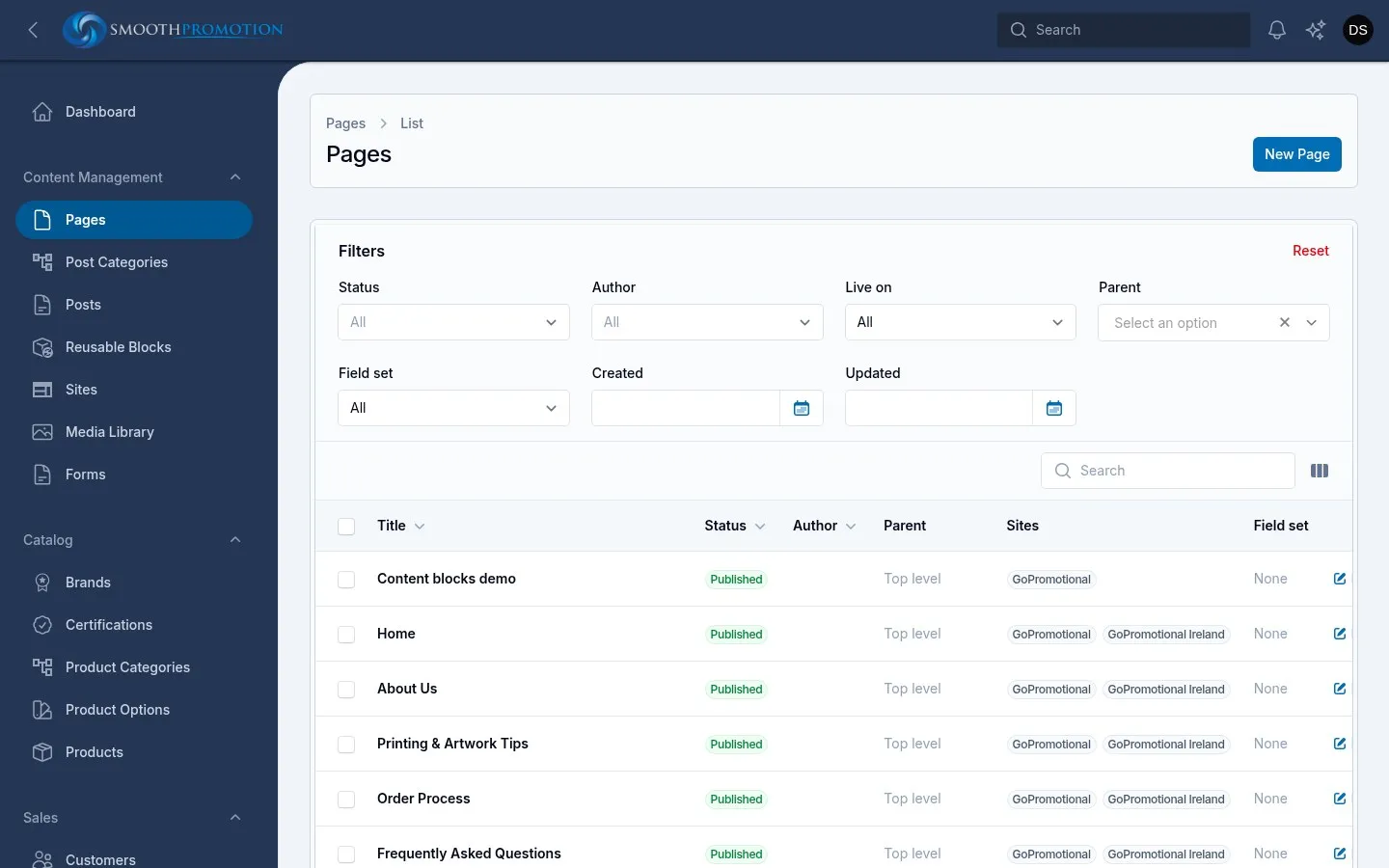
- New Page on the list.
- Give it a Title. The Slug, the last part of its address, fills in from the title.
- Pick a Parent if it sits under another page. Its address then builds on the parent’s.
- Add blocks under Content with Add block.
- Leave Status on Draft, and create it.
A new page won’t appear on a site until its status is Published and the site’s content rules include it.
The edit page
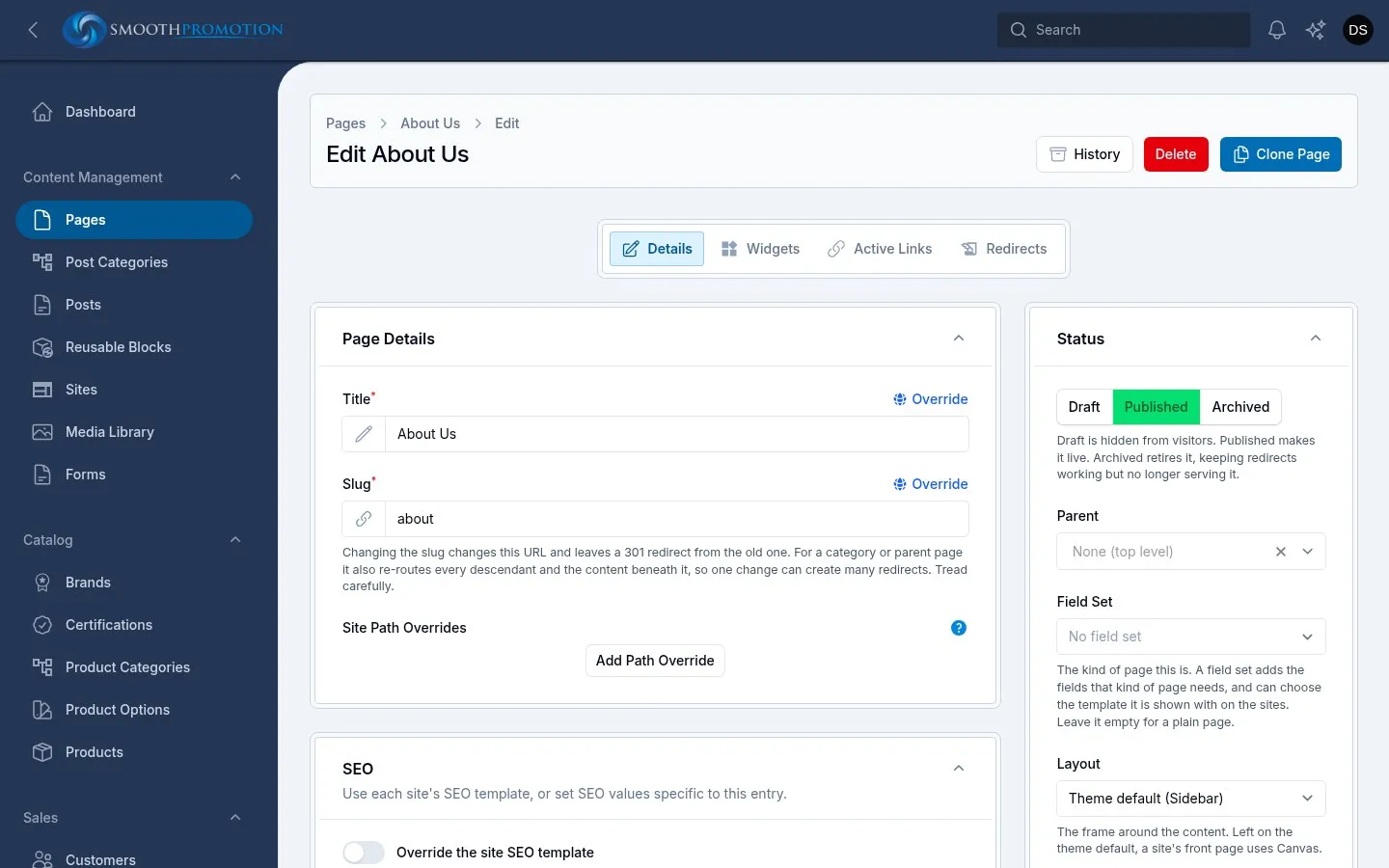
Section titled “The edit page”The tabs along the top are:
| Tab | What it is for |
|---|---|
| Details | The form described below |
| Widgets | Banners and other widgets for this page: see Widgets |
| Active Links | The address it has on each site |
| Redirects | Its old addresses: see URLs and redirects |
In Details:
- Page Details: the title, slug and any Site Path Overrides. Once the page exists, Override beside the title or slug sets a different one for chosen sites: see per-site wording.
- SEO: uses each site’s template unless you turn on Override the site SEO template. See SEO.
- Content: the blocks. They start collapsed; click one to open it.
- Status: the status, parent and the choices below.
- Overview Image: the picture used when the page is listed or linked from a card.
The Status section also holds:
| Field | What it does |
|---|---|
| Field Set | The kind of page this is. It adds that kind’s fields and can choose its template. Shown once field sets exist for pages: see custom fields |
| Layout | The frame around the blocks. In the default theme: Sidebar, Full width or Canvas (the blocks only, with no title, breadcrumbs or sidebar). Left empty, the theme’s default applies. A site whose theme lacks the chosen layout uses its default, and the form names those sites |
| Author | Optional: the member of staff shown as its author |
| Available On | Read only: see below |
Status and publishing
Section titled “Status and publishing”Status applies on every site, and takes effect as soon as you save.
| Status | What it means |
|---|---|
| Draft | Hidden from visitors |
| Published | Live, on the sites whose content rules include it |
| Archived | Retired: no longer served, and out of menus and listings |
A page that isn’t published is left out of the site completely: no address, not in menus or listings. A draft parent also drops out of its children’s addresses on that site, so their addresses change while it is unpublished.
Pages have no publish date: they go live when you publish them.
Checking where a page shows
Section titled “Checking where a page shows”Available On, in the Status section, lists the sites the page is on or will be, each with:
- View: opens the live page, when it is live there. Otherwise it says Not live.
- Preview: opens the page as it is now, on that site’s own address, published or not. It works for signed-in staff, through a link that expires after a short while, and search engines are told not to index it. Use it to check a draft.
If it says Not available on any site, no site’s content rules include the page yet. Fix that in the site’s content rules, not here.
The front page
Section titled “The front page”A site’s front page is chosen on the site, not on the page: edit the site and set Front Page. See setting up a site.
- The page then shows at that site’s root address (
/). - It is live on that site as long as it is Published, even if the content rules don’t include it. If it is a draft, the site’s root address shows a not-found page.
- With no layout of its own it uses the theme’s front page layout (Canvas in the default theme), so a hero heading should use H1: see Hero.
- The same page can be the front page of several sites. To vary it, use per-site blocks and wording.
Cloning a page
Section titled “Cloning a page”Clone Page, at the top of the edit page, makes a copy titled “Copy of …” with a new slug, and opens it.
Only the page’s own fields, including its blocks’ text, are copied. Its images (the overview image and those in its blocks), custom field values and per-site overrides are not, so add those again.
Deleting a page
Section titled “Deleting a page”Delete takes the page off every site at once. Its last address on each site, and any old addresses that redirected to it, now tell visitors and search engines the page has gone for good (410). There is no restore button in the admin panel, so if you may want it back, use Archived instead.
If a site uses the page as its front page, choose another first: otherwise that site’s root address shows a not-found page.
Changes to a page are recorded in its history, from the button at the top of the edit page: see activity log.