

Split products
A product added from a supplier’s feed normally carries all of that model’s variants. Sometimes some of them sell better on a page of their own. White T-shirts are the usual case: white costs less, so on one product the category card’s “From” price is the white price, and a buyer who picks navy pays more than the card said. Split off, “Beefy T” shows the coloured price and “Beefy T - White” the white one, each with its own page, card, minimum and search entry.
Both products stay fed by the same supplier model. Every sync keeps the costs, stock and new or dropped variants of each up to date: a new White size goes to the white product, a new colour to the main one.
Splitting a product by hand
Section titled “Splitting a product by hand”On a feed product’s edit page, use Split off variants:
- Tick the values to split off under each option (Colour, Size, …). Ticks under more than one option must all match: Colour White and Size 3XL splits off only the white 3XL.
- Give the text Added to the name, such as
- White. The new product is named “Beefy T - White” and its address follows its name.
The new product opens straight away, as a draft. It has:
- the variants you ticked (the same variants, so quotes and orders that use them are unchanged) and their photos;
- a copy of everything else from the main product: description, custom fields, categories, brand, certifications, the photos and documents that are not of one colour;
- only the print options for its own variants (a white T-shirt keeps the white print prices).
After that the two are separate products: editing one never changes the other. Check the new product, then publish it.
A product can be split more than once (White, and Black), as long as no variant would belong to two. A product that was split off cannot be split itself; split the main product instead.
Regenerate names keeps the added text: the white product’s name is the rules’ name plus “ - White”.
Merging back
Section titled “Merging back”On a split-off product, Merge back returns its variants and their photos to the main product and deletes it. Its addresses redirect to the main product, so links and search results still land somewhere. Anything edited only on the split-off is lost.
Split rules
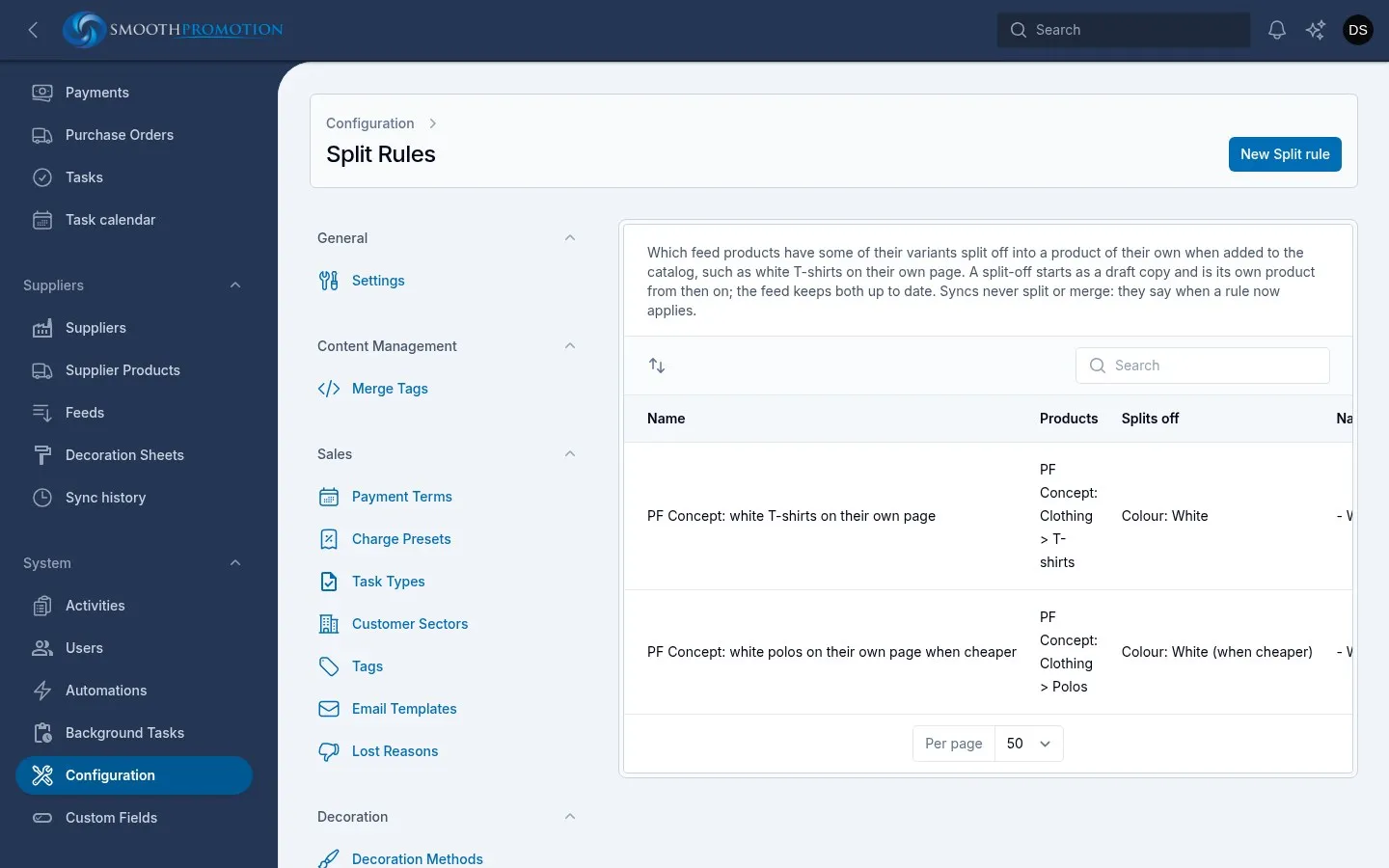
Section titled “Split rules”Configuration > Catalog > Split rules splits products as they are added to the catalog, so nobody has to remember. A rule has:
| Setting | What it does |
|---|---|
| Feed | The feed whose products it covers (any feed when empty). |
| The feed’s categories | The feed’s own category names, such as Clothing > T-shirts; each covers those below it. Any category when empty. |
| Conditions | Which variants split off: an option and its values, such as Colour is one of White. |
| Added to the name | Such as - White. |
| Only when they cost less | Split only when every one of those variants costs less, at its first price break, than every other variant. |
Two rules come set up for PF Concept: white T-shirts always on their own page, and white polos only when they cost less than the other colours. Only a colour named exactly “White” counts: Off White and Vintage White stay with the colours.
A rule works on products being added. For products already in the catalog, use the rule’s Apply: it lists the products it would split, then splits them, each split-off as a draft.
What syncs do
Section titled “What syncs do”A sync never splits or merges anything. When a product gains a variant a rule would split off (PF adds White to a T-shirt), the new variant goes on the main product, and the sync says so: its history counts “Products a split rule now applies to”, and automation rules can act on A split rule now applies (in “Product changed by its feed”), for example to tell the catalog team. Likewise when a split-off’s white is no longer cheaper than its main product’s colours: No longer cheaper than its main product. Split or merge back by hand when you agree.
To find split products, use the Split off another product filter on the product list.