

Category mapping
Every supplier files products under its own categories. Mapping says where each of those belongs in your catalog, so you can add hundreds of products at once and have each land in the right place. A supplier category can also say what kind of product it holds and how those products are branded.
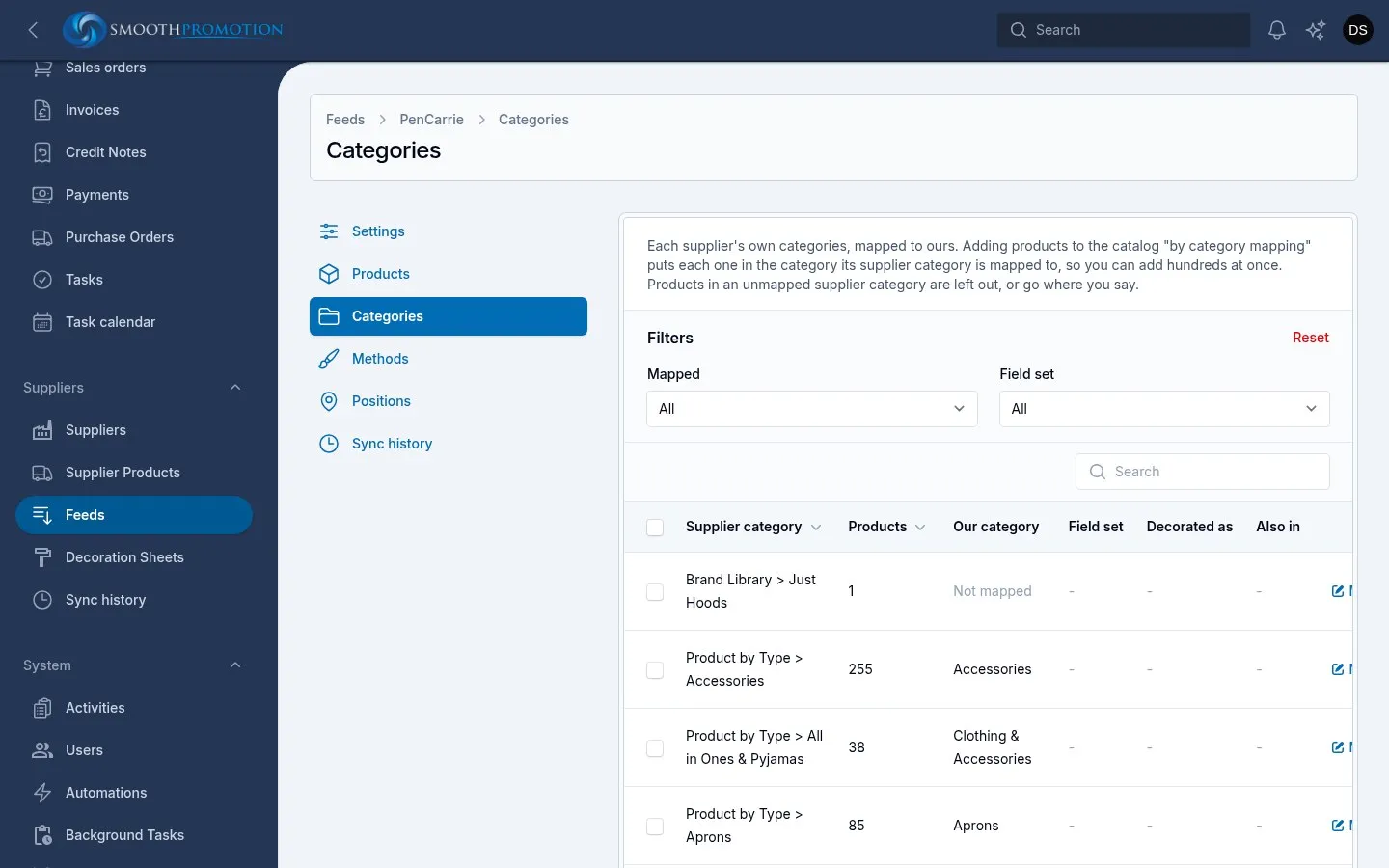
Go to Suppliers > Feeds, open a feed, and choose Categories. The sync records the categories for you, with how many of the feed’s products are in each. You cannot add or delete them. A category the feed stops using keeps its mapping and shows no products.
Mappings affect the whole catalog, not one site.
Mapping a category
Section titled “Mapping a category”Use Map on a row:
| Field | What it does |
|---|---|
| Our category | Where products added by mapping live: their URL and breadcrumb. Empty means not mapped |
| Also appears in | Other categories that list them |
| Field set | The kind of product it holds. See below |
| Decorated as | For garments the supplier sells blank: branding priced from a decoration sheet |
| Positions per order | How many print positions a customer can brand on one order. It also covers the categories below this one, unless they set their own |
To map many at once, tick them and use Map to our category. Field set, Decorated as and Clear mapping also work on a selection. The Mapped and Field set filters help you find what is left.
How a product is placed
Section titled “How a product is placed”A product can be in several supplier categories. When you add by mapping:
- its primary category is the one its first mapped supplier category points to;
- it also appears in that one’s Also appears in categories, and in every other mapped supplier category’s;
- if none of its supplier categories is mapped, it goes to the fallback you chose, or is left out and listed in the run.
Field sets
Section titled “Field sets”A field set decides which custom fields a product has, so T-shirts and mugs can ask for different facts. A product in several supplier categories takes the field set of the first that names one. A category naming none leaves the product’s field set alone.
Unlike the category mapping, this one keeps working after adding. Each sync moves a product to the set its supplier category names, for as long as it is still in the set last given. Once you choose a different field set on the product, syncs leave it alone.
A value from the feed can only be kept if the product’s field set has that field. Sync history lists any that could not be kept, under Not done and as Products with feed values their field set cannot hold. If you see one, the supplier category probably needs a different field set.
Decorated as and positions
Section titled “Decorated as and positions”Decorated as also applies to products already in the catalog: changing it updates their branding prices in the background. A product can have its own choice under Decorated as on its edit page, for exceptions such as a hoodie that is really a jacket.
For Positions per order, a limit on a top category covers those below it, and one set lower down wins there. A product in several categories gets the most any of them allows. With no limit on any category, the feed’s setting applies, and a product can set its own.